99
Scene
13
DELETING SCENES (EDIT – DELETE)
You may want to delete unwanted scenes.
Scenes on DVD-R disc cannot be deleted, and menu item “Delete” will not appear with DVD-R disc.
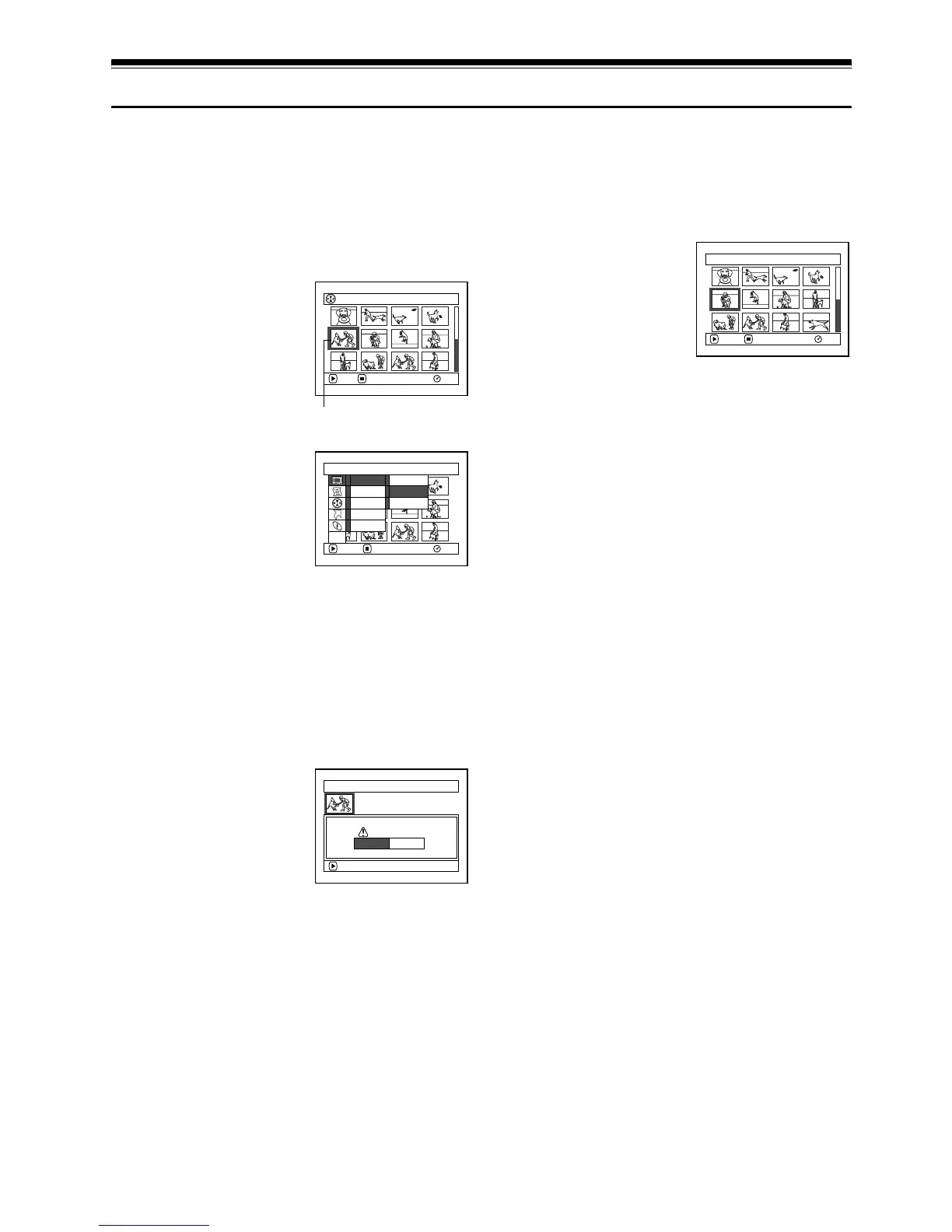
1 Press the DISC NAVIGATION button.
2 Select the scene to be
deleted.
3 Press the MENU
button.
4 Choose “Scene”,
“Edit”, “Delete”, and
then press the A
button.
When using card,
choose “Scene”,
“Delete”, and then
press the A button.
5 The “Delete Scene” screen will appear: If you
are sure you want to delete the selected scene,
press the A button.
If you want to change the scene to be deleted,
you can change it on this screen.
6 The screen for verifying
deletion will appear:
Choose “YES”, and then
press the A button.
Choose “NO” to cancel
deletion.
After Yes or No setting, the “Delete Scene”
screen will be restored.
Repeat steps 5 and 6 to delete other scenes.
7 Press the C button to
quit.
Note:
• To delete an unwanted part of a scene on DVD-RAM
disc, divide the scene first, and then delete the
unnecessary part (see page 101).
• If you delete all data on disc or card, initialising the
disc or card will be recommended (see page 121).
• If the time of deleted scenes (stills) is quite short, the
remaining free space of disc may not increase in the
disc or card remaining indicator.
• The locked scenes on card cannot be deleted (see
page 107).
All Programs
005/014
RAM
PLAY DESELECT ALL
Scene to be deleted
Scene
RAM
ENTER RETURN
Ed i t
Ef f ec t
Dev i de
De l e t e
Comb i ne
Copy
Sel ect
De t a i l
ETC
Delete Scene
Delete scene?
Scene No. 005
ENTER
YES NO
30 / 9 /2006 8 : 00: 00
Delete Scene 005/013
RAM
ENTER EX I T









 To Next Page