107
3
LOCKING SCENES ON CARD (LOCK)
You can lock each photo recorded on card so that it will not be deleted or edited by mistake.
1 Set the power switch to “P”.
2 Press the DISC NAVIGATION button.
3 Select the scene to be locked.
4 Press the MENU button.
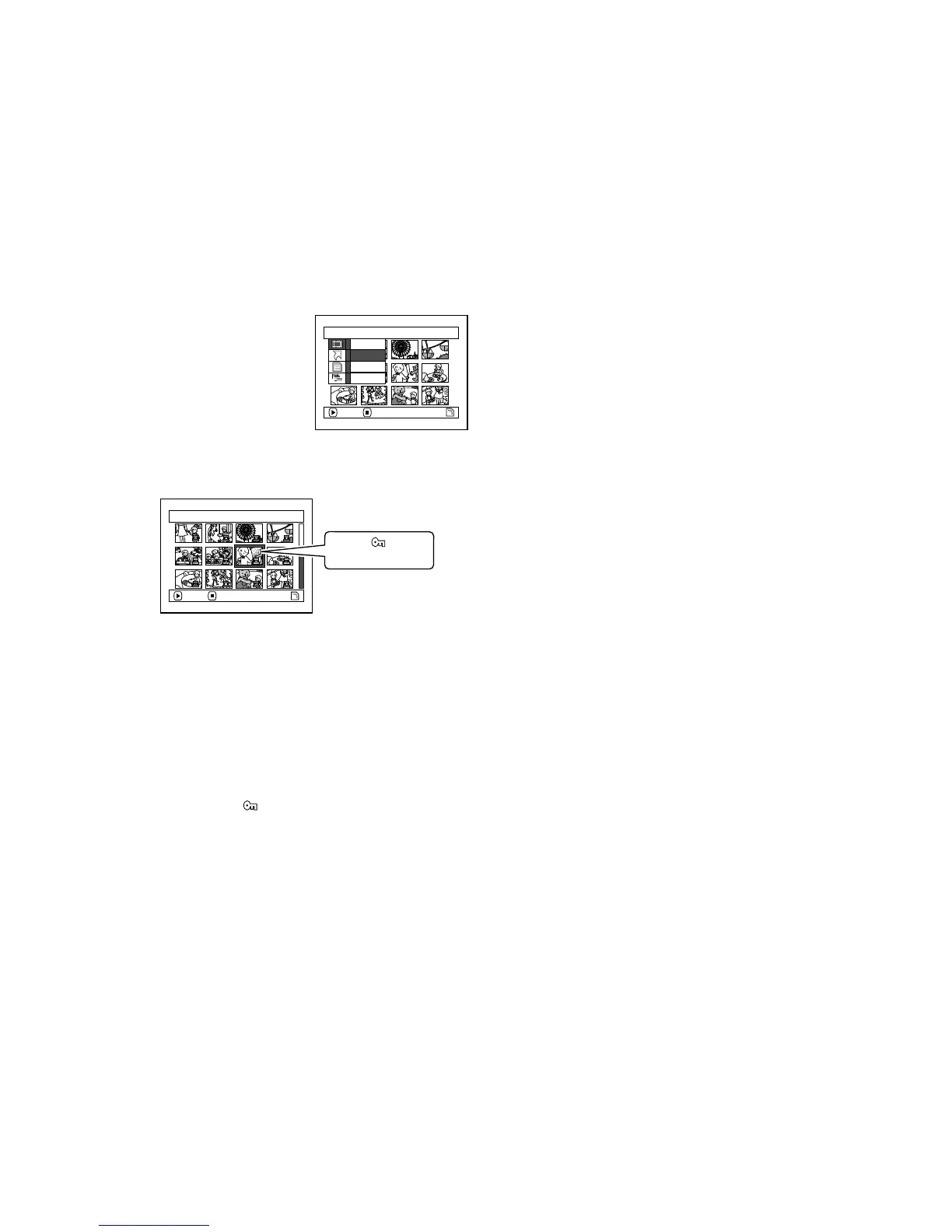
5 Choose “Lock” on the
“Scene” menu screen,
and then press the A
button.
6 The “Lock Set” screen
will appear: If you are
sure you want to lock the selected scene,
press the A button.
If you want to change the scene to be locked,
you can change it on this screen.
After setting, the “Lock Set” screen will be
restored.
Repeat step 6 to lock another scene.
7 Press the C button to quit.
The lock icon “ ” will appear on any scene
for which lock has been set.
●To unlock the scene:
Select the locked scene, and then use the same
procedure as above to unlock the scene: The lock
icon will disappear and locking will be released.
Note:
• If you press the MENU button before pressing the
A button in step 6, the submenu screen will appear
(p. 100).
• You can also select multiple scenes (p. 95).
• When initialising the card, the locked scenes will also
be deleted.
Scene
ENTER RETURN
De t a i l
Lock
Delete
Sel ect
7/19Lock Set
ENTER EX I T
Lock icon











 To Next Page