105
1
CHANGING IMAGES FOR THUMBNAILS (EFFECT – THUMBNAIL)
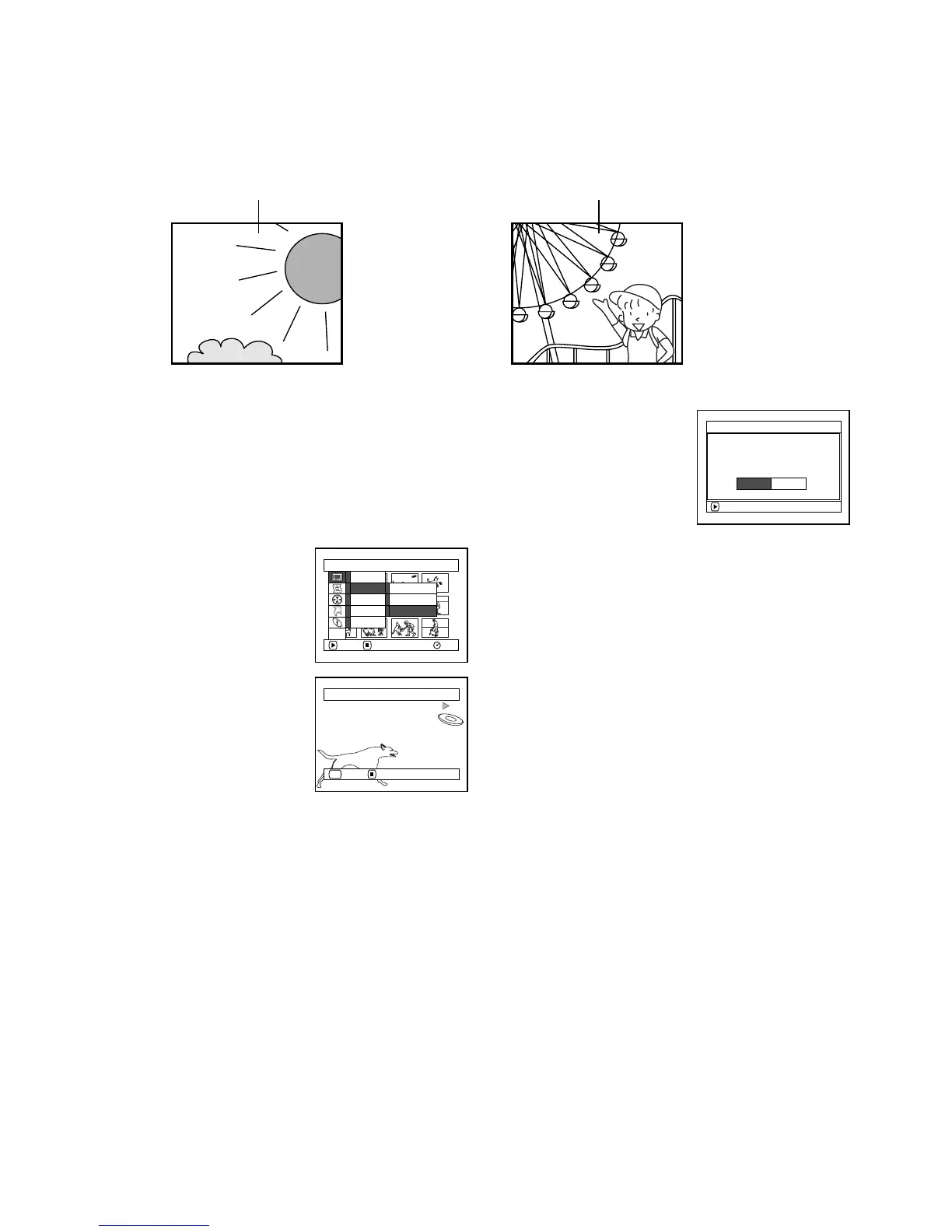
Normally, the first image of the recorded scene is displayed as a thumbnail: You can choose another
image of the scene for thumbnail. If you set a vivid image to thumbnail, you can know what you
recorded from a glance at the Disc Navigation screen.
1 Press the DISC NAVIGATION button.
2 Select the thumbnail of the scene to be
changed.
3 Press the MENU button.
4 Choose “Scene”,
“Effect”, “Thumbnail”,
and then press the A
button.
5 The “Change
Thumbnail” screen will
appear: If you are sure
you want to change the
thumbnail of the
selected scene, press the
A button: The
selected scene will be played back.
If you want to change the scene whose
thumbnail is to be changed, you can change it
on this screen.
6 When the image you want to use as the
thumbnail of the scene appears, press the
SELECT button.
7 The screen for verifying
switching of thumbnail
will appear: Choose
“YES”, and then press
the A button.
Choose “NO” to cancel
switching of thumbnail.
After Yes or No setting, the “Change
Thumbnail” screen will be restored.
Repeat steps 5 – 7 to change the other scenes.
8 Press the C button to quit.
Note:
• If you press the MENU button before pressing the
A button in step 5, the submenu screen will appear
(see page 100).
• A thumbnail of still cannot be changed.
• Since the scene to which skipping is set cannot be
played back, you will not be able to change its
thumbnail: Release the skip setting of the scene to
change the thumbnail.
● ● ● ● ● ●
Original thumbnail You can use this image as thumbnail.
Scene
RAM
ENTER RETURN
Ed i t
Ef fect
Copy
Sel ect
De t a i l
Sk i p
Thumbnai l
Fade
ETC
Se l ec t Thu
m
bnai l Poi nt
ENTER CANCEL
SEL
ENTER
Change thu
m
bna i l ?
Change Thu
m
bna i l
YES NO













 To Next Page