64
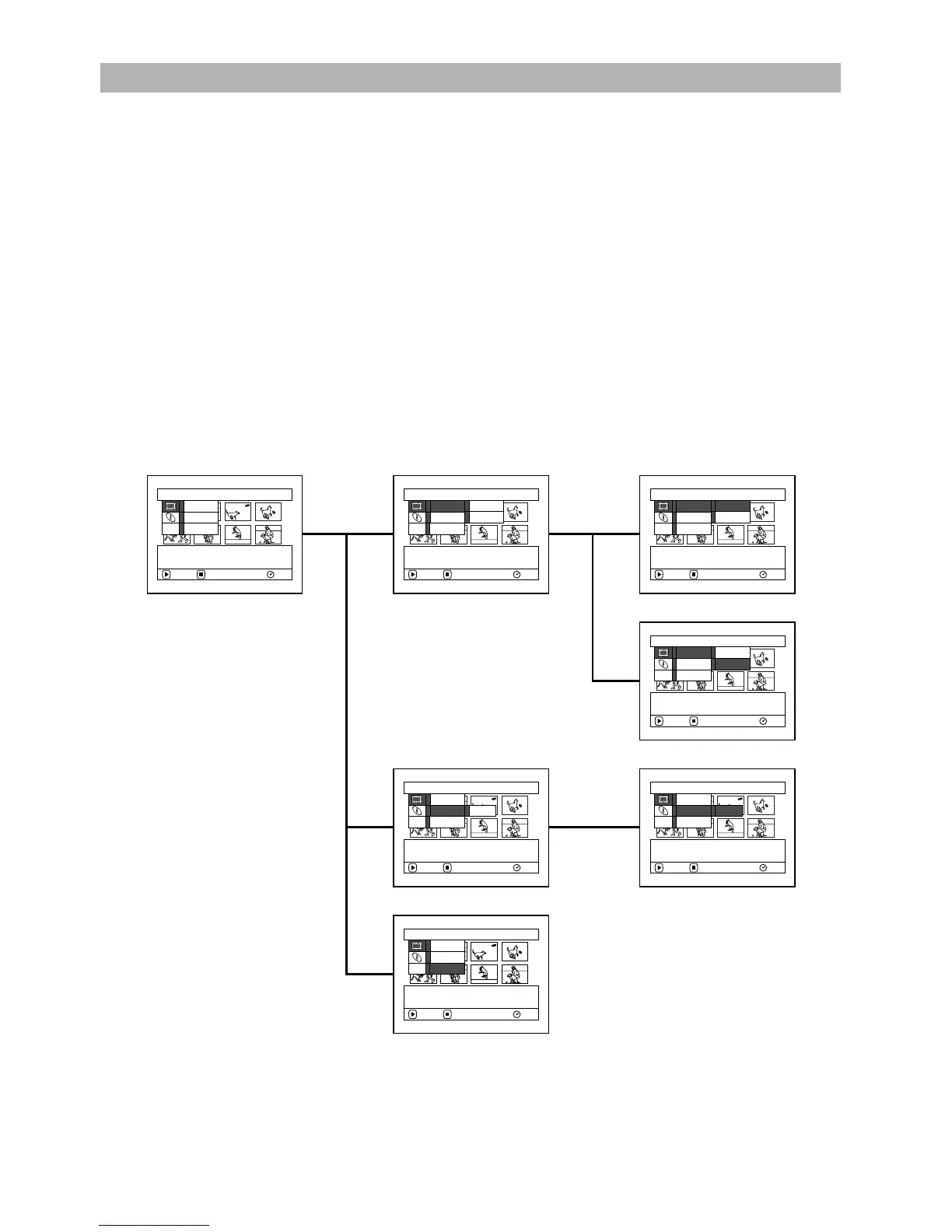
While Disc Navigation screen is being displayed on the LCD monitor, press the QUICK MENU
button: The Quick Menu will appear.
Only the fundamental menu items will appear in the Quick Menu, and the explanation of the
function on which the cursor is positioned will be displayed across the bottom of menu (except
during recording).
1 Press the DISC NAVIGATION button. 2 Select a scene, and then press the QUICK
MENU button.
1
FLOW OF QUICK MENU (WITH DVD-RAM DISC):
The details of each function are described on pages showing the Normal Menu: See each reference
page.
●Scene
Disc Navigation Functions
ETC
Qu i c k
M
enu
Ef fect
Copy
ENTER RETURN RA
M
Ed i t
M
enu f or scene.
ETC
Qu i c k
M
enu
Ef fect Delete
Copy
Ed i t scene.
ENTER RETURN RA
M
Ed i t Divide
ETC
Qu i c k
M
enu
Ef fect Fade
Copy
Scene ef fect is setup.
ENTER RETURN RA
M
Ed i t
ETC
Qu i c k
M
enu
Ef fect Fade
Copy
Add fading to the beginning
and/ or end o f scene.
ENTER RETURN RA
M
Ed i t
ETC
Qu i c k
M
enu
Ef fect
Copy
Copy the selected photo
to card.
ENTER RETURN RA
M
Ed i t
ETC
Qu i c k
M
enu
Ef fect Delete
Copy
Divide scene.
ENTER RETURN RA
M
Ed i t Di v i de
ETC
Qu i c k
M
enu
Ef fect Delete
Copy
Delete selected scene.
ENTER RETURN RA
M
Ed i t Divide
(p. 101)
(p. 106)
(p. 103)
(p. 99)









 To Next Page