74
13
Recording (Dubbing) Images
RECORDING (DUBBING) IMAGES ON OTHER VIDEO DEVICES
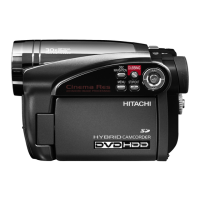
You can record (dub) images played back on this DVD video camera/recorder, on other video
devices.
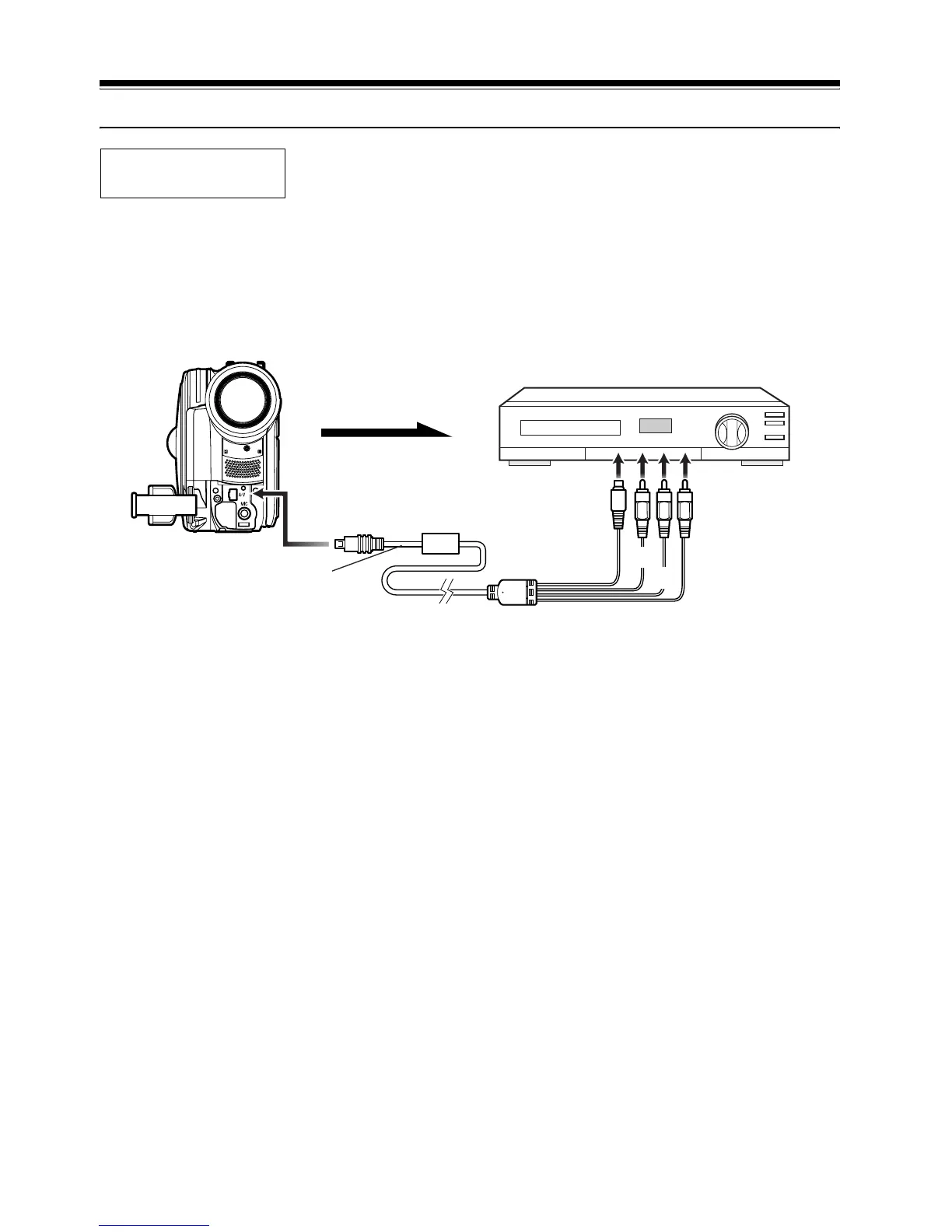
Use the AV/S output cable (provided) to connect the DVD video camera/recorder to another video
device as shown in the following figure:
1 Press the DISC NAVIGATION button.
2 Select a scene to be played back.
3 Set the channel of the connected video device
to an external input.
4 Press the playback (A) button on this DVD
video camera/recorder and the record button
on connected device: The DVD video
camera/recorder will start playback and the
recorded device will record (dub) it.
Note:
• Using an S-VIDEO jack will deliver clearer images.
• Audio is heard from the Speaker: If the volume is too
high, noise may enter the dubbed image.
• It is recommended that you use Disc Navigation to
create a play list including the scenes to be dubbed
among the scenes recorded on this DVD video
camera/recorder (p. 113).
• Be sure to use the AC adapter/charger to power the
DVD video camera/recorder from AC outlet, to prevent
battery power from shutting off during recording on
another video device.
Before You Begin
• Before connecting this DVD video camera/recorder to another device,
be sure to turn both devices off.
* If the video device to be connected has an S-VIDEO input jack, you can connect it to the DVD video camera/
recorder.
Signal flow
To AV output jack
AV/S output cable
(provided)
To video/audio
input jacks
Red
To S-VIDEO
input jack of
VCR, etc.
*
Yellow
White









 To Next Page