EasyManua.ls Logo

HITEC OPTIC 6 - Simple Transmitter Setup - Electric Airplane, 5-Channel Receiver (ACGL Menu)

HITEC OPTIC 6
60 pages
Print Icon
To Next Page IconTo Next Page
To Previous Page IconTo Previous Page
Loading...
For more information - www.modelflight.com.au
Simple
Transmitter
Setup
-
Electric
A
irplane,
5
-Channel
Receiver
(
ACGL
Menu
)
26.
Press
one
of
the
Up
Down
Edit
buttons
until
the
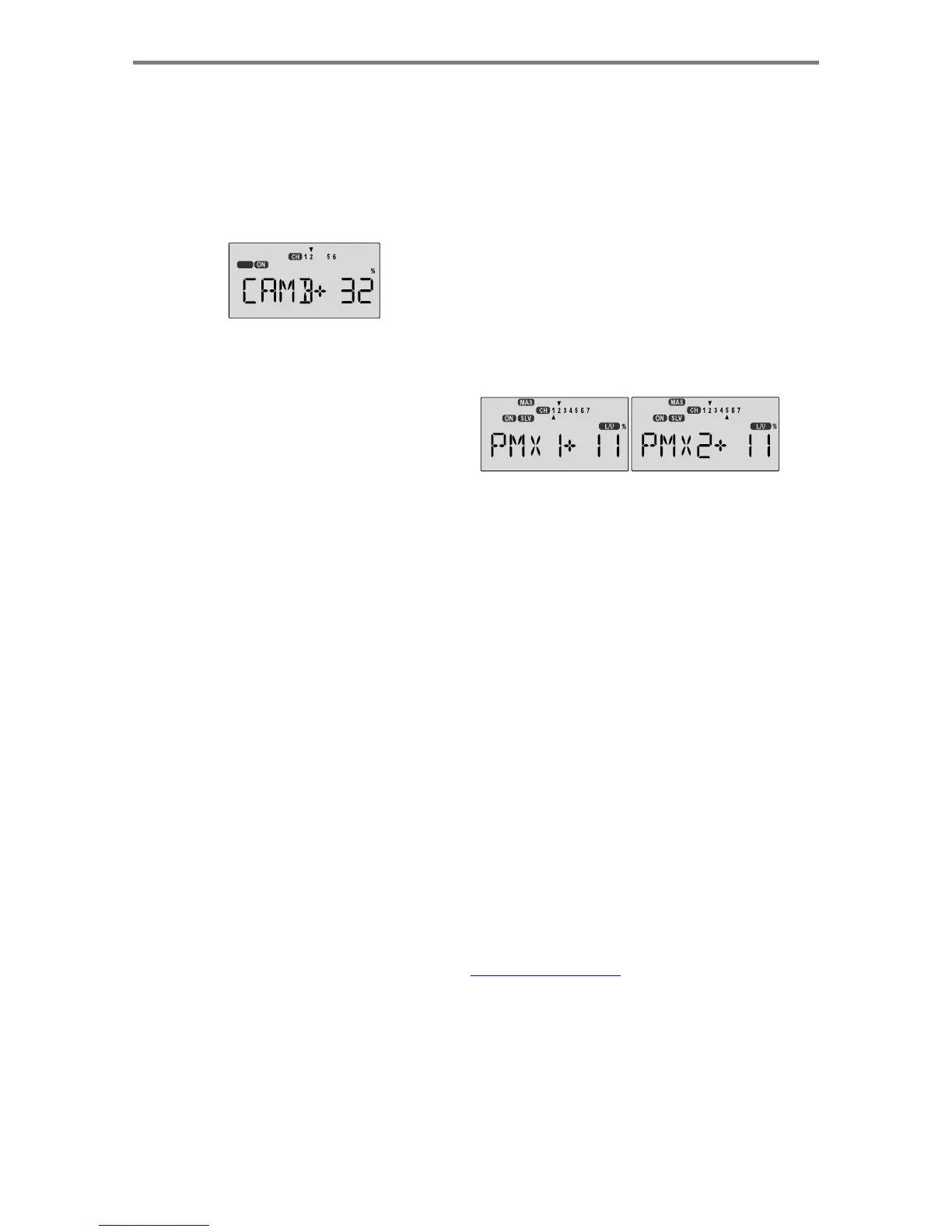
CAMB
window
appears,
as
shown.
Activate
it
using
the
CLEAR
button.
The
CAMB
mode
is
OFF
unless
the
FLT
MODE
switch
SW-4
is
forward.
(You
can
change
this
switch
in
the
SWITCH
SELECT
menu.)
27.
Hit
the
Cursor
Right
key
one
time
to
get
to
the
Ch1
preset
menu.
Press
the
Data
+Increase
key
to
input
a
preset
value
for
the
CH1
aileron.
Start
out
with
a
moderate
value
and
increase
it
after
you've
seen
how
the
model
behaves.
OFF
28.
Press
the
Cursor
Right
key
to
move
the
arrow
over
the
numeral
2
.
Now
press
the
Data
+Increase
key
to
change
the
percentage
the
elevator
moves
to.
This
should
be
set
a
very
small
number,
as
it
will
affect
the
trim
considerably.
Don't
use
too
much
or
it
could
crash
your
model.
29.
Press
the
Cursor
Right
key
one
more
time,
and
you
may
now
input
the
second
aileron's
CH5
setting.
Set
it
to
match
the
CH1
servo's
travel.
30.
If
you
want
this
airbrake
function
to
be
a
proportional
control
using
the
left
slide
lever,
use
the
CROW
menu
instead
of
the
CAMB
menu.
See
the
setup
instruction
for
more
information
on
the
CROW
menu.
31.
Elevator->Flaperon
Mixing:
you
may
want
to
set
up
your
model
so
that
when
you
pull
elevator,
the
two
ailerons
droop
for
tighter
corners.
This
may
be
done
with
Programmable
mixers
.
You
will
use
both
of
the
programmable
mixers
(
PMX1,
PMX2
)
for
this
feature.
For
a
little
down
flap
when
you
pull
elevator,
set
the
master
channel
to
be
elevator,
and
the
slave
to
be
aileron
1
(CH1).
32.
To
program
this
mixing,
first
get
to
the
PMX1
window.
Press
one
of
the
Edit
Up/Down
keys
until
you
see
PMX1
displayed.
Then
press
the
Active/Inhibit
(Clear)
key
to
activate
it
(a
flashing
ON
or
OFF
will
appear,
depending
on
the
position
of
the
selected
ON-OFF
switch,
which
turns
mixer
#1
on
and
off).
33.
Next,
press
the
Cursor
Right
key
once
to
select
the
master
channel
(
MAS
flashes
on
and
off),
then
press
the
Data
+Increase
key
until
the
little
arrow
moves
over
the
numeral
2
,
indicating
CH2
(elevator)
is
the
master
channel.
Press
the
Cursor
Right
key
once
(
SLV
flashes
on
and
off),
then
press
the
Data
+Increase
key
until
the
little
arrow
is
under
the
numeral
1
,
indicating
CH1
(aileron
1)
is
the
slave
channel.
34.
Now,
you'll
define
the
mixing
percentage.
Notice
that
the
mixer
starts
with
100%
on
both
sides,
which
is
WAY
too
much.
Move
the
elevator
stick
down
and
press
the
Clear
button,
zeroing
the
percentage.
Move
it
up
and
repeat.
Now
both
sides
are
set
to
zero
percent.
35.
You'll
probably
want
to
input
down
flap
for
up
elevator
only.
Move
the
elevator
stick
up
and
press
the
Data
+Increase
until
you
can
see
which
way
the
elevator
moves;
if
incorrect,
press
the
Data
-Decrease
key
until
the
plus
sign
changes
to
minus
sign.
You'll
end
up
with
a
number
for
up
elevator
direction,
and
zero
for
the
down
direction.
Start
with
only
5-10%
mixing
on
the
UP
side
until
you
know
how
much
you
need
from
actual
test
flying.
Too
much
droop
increases
drag
and
slows
the
model
down.
36.
Be
sure
you
understand
how
to
set
the
switch
to
turn
PMX1
on
and
off,
since
you
only
want
this
on
during
racing.
Later,
after
you
fly
the
model
you
may
fine-tune
the
amount
of
aileron
travel
for
tighter
turns.
Use
the
other
mixer
to
set
up
the
droop
of
the
second
aileron,
CH5
,
in
the
same
way.
In
this
mixer,
master
=
CH2,
slave
=
CH5.
Set
the
mixing
percentages
so
that
both
ailerons
droop
the
same
amount,
or
else
your
model
will
roll
when
you
pull
elevator!
This
introduction
just
scratches
the
surface
of
the
capabilities
of
your
Optic
system
for
a
five-channel
electric
model.
Please
read
the
manual
so
you'll
know
what
other
features
you
can
take
advantage
of.
We
hope
you
enjoy
using
your
Optic
system!
Sim
p
le
Transmitter
Setu
p
-
Electric
A
ir
p
lane,
5
-
Channel
Receiver
(
ACGL
Menu
)
-
Pa
g
e
2
5

Table of Contents

Other manuals for HITEC OPTIC 6

Related product manuals