9
User Guide
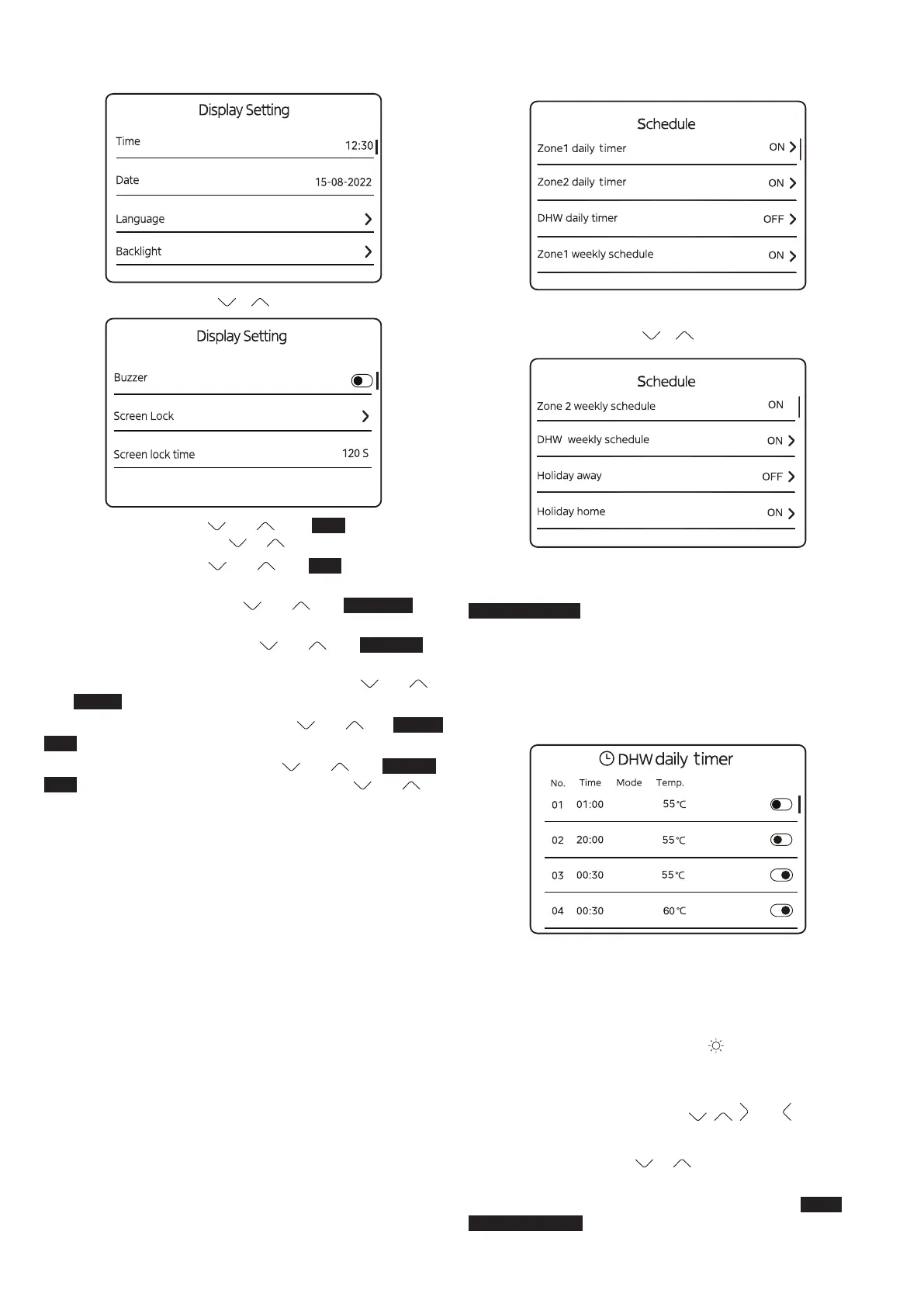
Display setting
To change the time, press and until Time is illuminated.
Then press O and then press or .
To change the date, press and until Date is illuminated.
Then press O.
To change the Language, press
and until Language is
illuminated. The press O (refer to 5.8.5.2.1).
To change Backlight setting, press
and until Backlight is
illuminated. Then press O (refer to 5.8.5.2.2).
To enable/disable the buzzer for the buttons, press
and
until Buzzer is illuminated. Then press O.
To change the screen lock setting, press
and until Screen
Lock is illuminated. Then press O (refer to 5.8.6.1).
To change the screen lock time, press
and until Screen
Lock is illuminated. Then press O and then press and .
Schedule, DHW
To set a schedule for DHW where the operating times and
temperatures are the same for each day of the week then select
DHW daily timer
Schedule, DHW daily timer
To change the setting:
To set the option to OFF, press O.
To set the option to ON, press O.
ON
OFF
ON
ON
happen.
The second column is the time at which the events will happen.
The third column shows if the heat demand is ON, or OFF, it
should only be ON for this application (
).
The fourth column is the target hot water temperature.
To scroll through the options, press
, , , and .
To select an option, press O.
To change a setting, press
or .
To set a schedule for DHW where the operating times and
temperatures are dierent across the week select
DHW
weekly schedule.



 To Next Page