Chapter 7
Diagnostic Menu
7.1 Overview
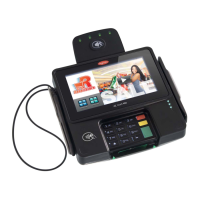
This chapter describes the diagnostic tests that the customer can perform on the Ingenico
6780. The diagnostic tests allow you to isolate failures in field-installed Ingenico 6780 units.
These tests are part of the operating system and are not changed by applications. The
diagnostics are menu-driven with features that allow a logical progression through the tests.
Once a test is selected, a test or a series of tests will be performed on the selected entity. The
result of the test will be displayed to facilitate diagnosis of the malfunctioning parts.
7.2 Testing the Display Contrast
To change the display contrast, see “Changing the Display Contrast“ on page 12. To test the
display contrast, follow this procedure. This test tests all pixels to see if they are working.
Display Action
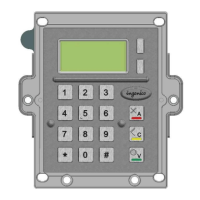
Restart the terminal by pressing [1] + [Cancel] +
[Enter] simultaneously; while the terminal is
starting up, press [1] + [3] simultaneously to
access the Extended Menu.
Extended Menu
Serialnum Inject
System Config
System Info
Supervisor Menu
Diagnostic Menu
Using the stylus, tap
Diagnostic Menu.
Diagnostic Menu
Display
Keypad
Tap
Display.
The pixels are tested to determine if any are not
working, or are stuck on. The unit goes through the
following sequence:
All pixels on – White screen displays.
Every other pixel off – Light gray screen displays.
All pixels off – Dark gray screen displays.
Every other pixel on – Light gray screen displays.
Ingenico 6780 User’s Guide 67


 To Next Page