10 Programming the control panel
Anti-intrusion control panels
3. The system will allow access to the installer menu only after entry of a valid PIN.
During installer menu navigation:
• All the system keypads, except for the one the installer is working on, will be locked.
• The “PROGRAMMING” message will be shown on all the locked keypads.
• All outputs that do not have the home-automation attribute will be forced to stand-by.
• The events recognized by the control panel will be prevented from queuing calls, activating
outputs and saving events to the events log.
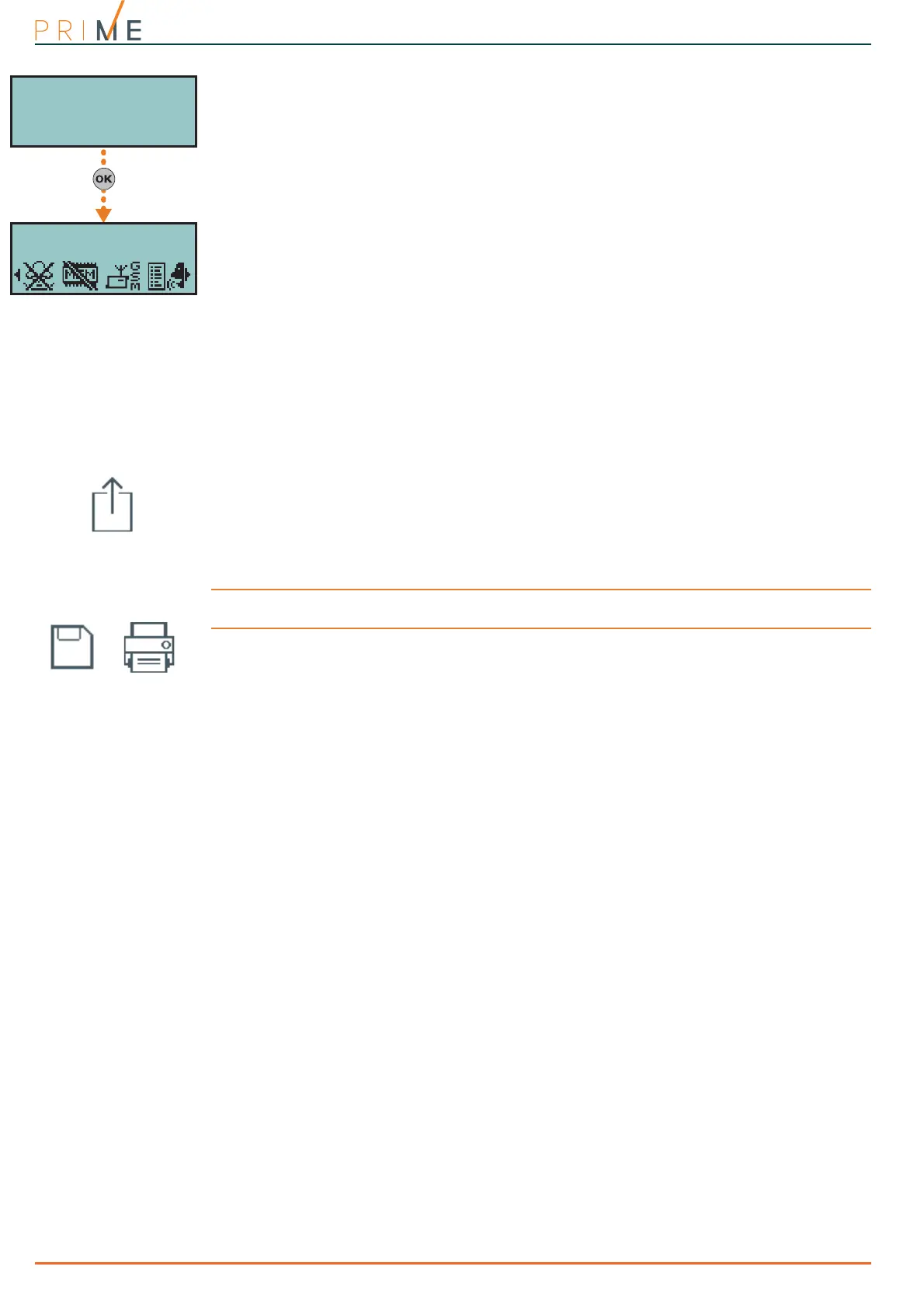
To exit the installer menu, it is necessary to press Esc or C until the system asks: “EXIT? OK
= YES”, therefore press OK.
On exiting the installer menu, the control panel will:
• Reset all functions and apply all the newly changed programming data.
• Restart the I-BUS, reprogram and make all the peripherals fully operative.
• Restart the entire control panel processing phase thus allowing the queuing of phone calls, the
activation of outputs and the saving of events.
2-2
Programming via
Prime/STUDIO software
For a description of the Prime/STUDIO software and the instructions on how to use it, refer to
the software manual.
Programming of certain parameters (concerning, for example, zones and outputs) via the
Prime/STUDIO software is possible only after the entire system project has been completed.
1. Open a solution for a system (Open button).
2. Select the first element to be programmed using the buttons on the left, then customize
the programming parameters in the section that appears on the right.
3. Connect the apparatus to the computer.
4. Click on the Write button to write the data on the control panel.
Note
If an error occurs during the writing phase, it will be necessary to repeat the operation. Any data
currently on the control panel will be overwritten.
5. Save the solution (Save button on the menu or print out the details (Print button).
EXIT? OK = YES
18:23 01/01/2021
DASIDASI--


 To Next Page