54 Programming user codes
Anti-intrusion control panels
9-2
Code PINs Database
The Prime/STUDIO software provides a section for the saving of code PINs in a database for
their eventual retrieval during control panel resetting or reprogramming phases.
This function allows you to read or rewrite on the solution in progress the PINs of all the codes
previously registered in the control panel without them being shown to the installer or
operator.
An encryption algorithm hides from the installer the sensitive data of the codes contained both
in the Prime/STUDIO solution and in the programming storage database.
Via software 1. Click the PIN/Key button on the menu on the left.
2. Enter a valid user code that is qualified as “Master” and enabled on all partitions in the
“Master Code” programming field.
3. Select the “PIN” page for the PINs of registered codes.
4. During the PIN reading phase, click on the “Read from control panel” button to load the
PINs from the control panel or click on the “Read from database” button to load them
from an existing database.
The software reads the PINs and matches them to the codes without making them visi-
ble (instead "****" will be shown).
During the PIN saving phase, click on the “Write on control panel” button to load the
PINs on the control panel or click on the “Read from database” button to load them
from an existing database.
Access to user menu
Via software By clicking-on the Codes button in the menu on the left and selecting one of the options, you
can view the “Access to User menu” subsection in the section on the right.
The selection checkbox will be shown on the system keypads immediately after user code
access has been validated.
• Icons, function key shortcuts - displays the icons of the codes corresponding to the
function keys. At this point, the user can press the function keys and activate the
respective shortcut.
• Shortcut text - displays the descriptions of the user shortcuts associated with the function
keys. The descriptions of the shortcuts will be shown in the place of the respective
shortcuts icons.
• Standard user menu - accesses the user-menu scroll list containing all the operations the
user is enabled to perform. At this point, the user can scroll the list and select the required
operation.
Via keypad
Type-in Code
(Installer),
PROGRAMMING Codes, "code", Options
This section provides the “Text Menu” and “User Menu” options.
The combination of these two options allows immediate display on the keypad screens
immediately after user code validation. Refer to the following table.
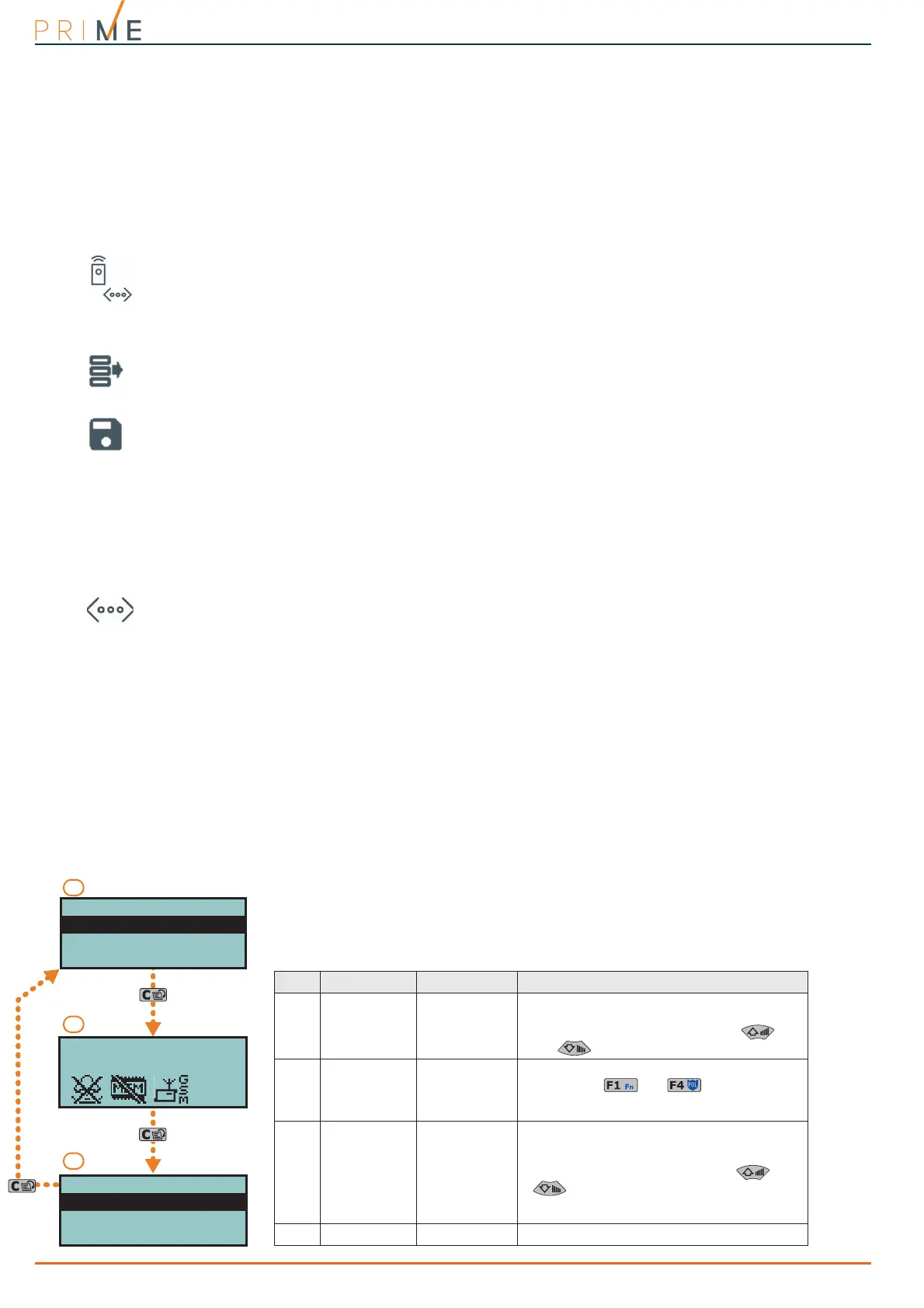
Table 9-1: Combinations “text menu” and “user menu”
Case Text menu User menu Description
A
Disabled Enabled
Access to the user-menu (shown as a list of oper-
ations the user is enabled to perform); at this
point the user can scroll the list using and
and select the required option.
B
Disabled Disabled
Visualization of the user-icons associated with
function keys , ..., ; at this point the
user can press the required function key and acti-
vate the associated shortcut.
C
Enabled Disabled
Shows the descriptions of the personalized user-
icons associated with function keys. The shortcut
descriptions will be shown instead of the shortcut
icons, at this point the user can use and
to scroll the list of shortcut descriptions
and select the shortcut, which can be activated by
means of the
OK
key.
D
Enabled Enabled The same as “
C
”
User Code
User Code
Alarm management
Arm/Disarm op.
Voice functions
User Code
Stop alarms
Delete memory
Nexus status


 To Next Page