EN UG-020 Link 6 user guide r1.0 144
Tip: An operator can elevate their permissions only if they know the admin password.
Procedure
1.
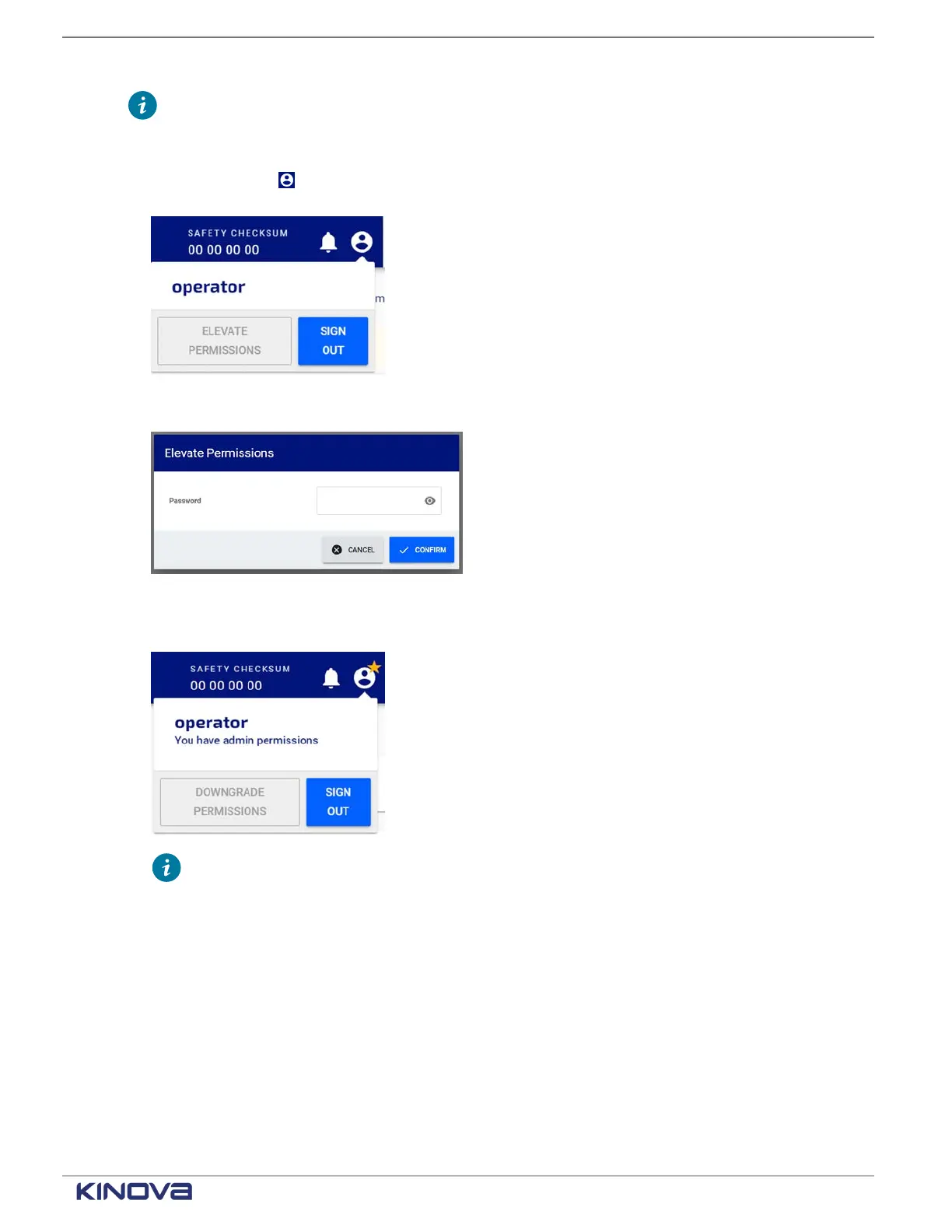
Tap User Profile .
A User profile launches.
2. Tap ELEVATE PERMISSIONS.
The Elevate Permissions dialog launches.
3. Enter the admin user password.
4. Tap CONFIRM to elevate permissions.
The current user can now do the same tasks as an admin user.
Tip: A quick way to make sure the current user is an admin user or an operator is to
look at the User Profile icon.
• An adminstrator user has steady star on the User Profile icon. An administrator user
cannot downgrade their permissions.
• An operator with elevated permissions has a flashing star on the User Profile icon.
An operator with elevated permissions can downgrade their permission level.
• An operator with operator level permissions has no star on the User Profile. An
operator can elevate their permissions if they know the admin password.
Remote access
You do not have to use the teach pendant to communicate with Link6. You can access it
remotely.
+1 514-277-3777 kinovarobotics.com
© 2022 Kinova inc. All rights reserved.


 To Next Page