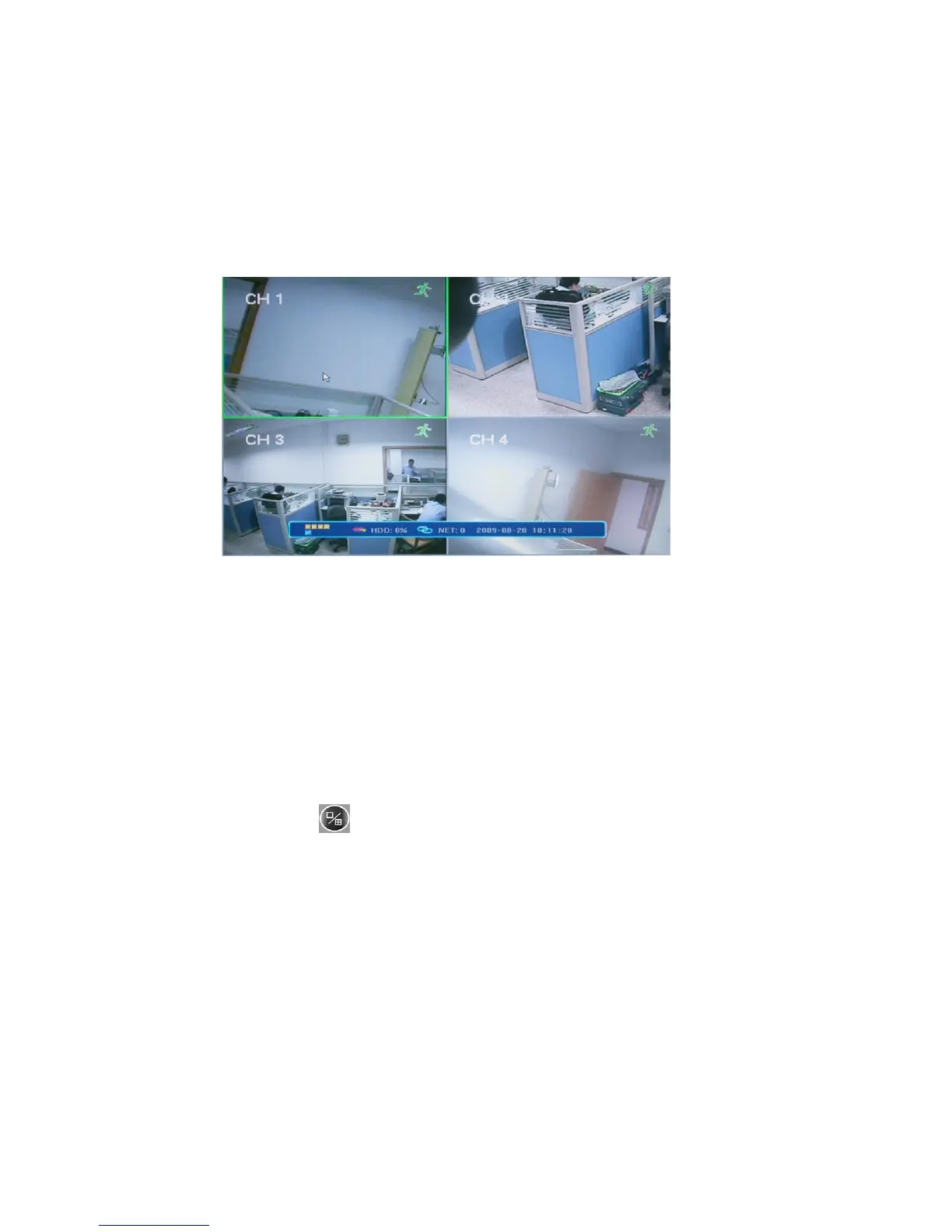
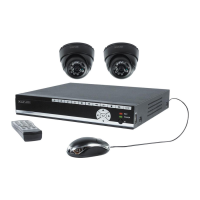
4.1 The Main Screen
The standard layout is four (or nine, depending on the device) windows evenly
distributed over the screen. From the main screen you can access menu options and
switch among channel views, displaying either all channel feeds simultaneously or
bringing forth a full-screen view of a selected channel.
4.1.1 Displaying a Single Channel
In the multiple screen view, you can make a particular window active by
left-clicking on it once with a mouse, or navigating to it using directional buttons. If
an audio output device is connected to this channel, you can monitor both audio and
video feeds.
To enter a single channel view you can press the corresponding numerical buttons
on the remote (channel number is displayed in the top left corner of each window);
alternatively you can do so by left double-clicking on the desired window, or by
choosing the button in the on-screen Tool Bar.
In order to return to the multi-screen view you could either double-click on the
screen again or press the single/multiple view button either on the remote control or
the front panel.
You can c h o o s e to display the Status Bar, Tool Bar or neither of them by single
right-clicking on the screen. These three options alternate in sequence.



 To Next Page