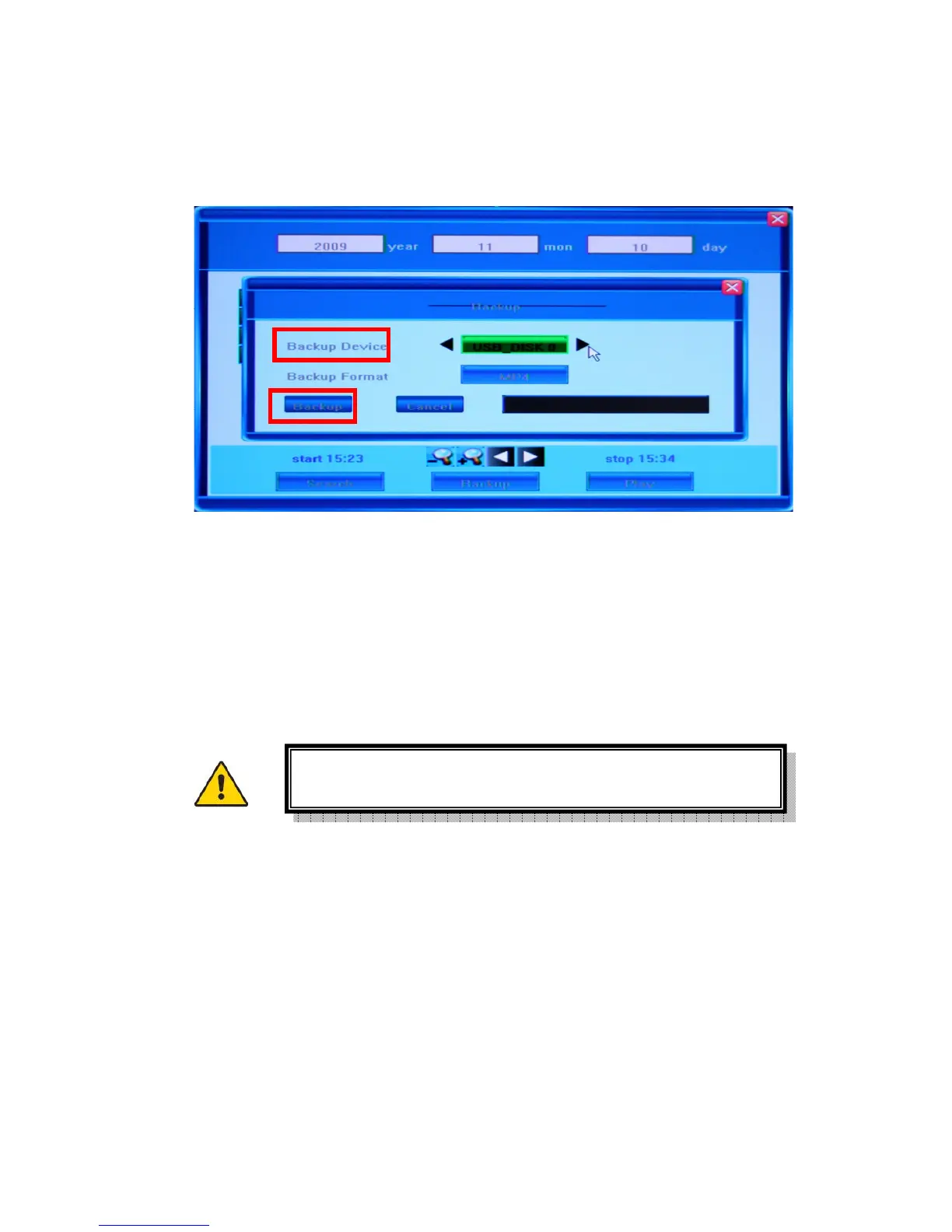
After that click the Backup button, which will bring up the “Backup” dialog window. If the
system cannot recognize the connected devices or none are connected, you will see a
warning message “No Available Device!”
The system will automatically detect all available backup devices and display them in the
Backup Device field (positioning the mouse over this field or entering it with the help of the
arrow buttons will allow you to view the available choices. By pressing arrows on each side
of the field, you can toggle between the options).
Currently you can connect such external media as USB flash drives, portable USB HDDs
and USB DVD recorders. For the list of DVD burners tested for compatibility, see
Appendix 3.
You ma y also c h o os e b etween the t ypes of r e cord ed v i d e o f o r m ats t o b e backed up, sele c t i ng
between the H.264 Raw and MP4 formats.
If you are saving your backup data in the MP4 format, the system will automatically record
special decoder components onto the USB flash drives or DVD Discs along with the video
file. After installing this component on your computer you can play saved video files with
the Windows Media Player.
Playing backed up video on your PC
To install the decoder components on your computer, locate the compressed file
WMP_MP4Player.rar inside the USB flash disk or CD/DVD where you saved the video
file. Decompress WMP_MP4Player.rar and execute InstallFilter.bat to install the decoder
The system only supports the FAT32 file system for USB flash
drives and HDDs



 To Next Page