No.
Name Description
1
Toggle
functional
panel
Use this button to toggle the panel view for the
options available in your PTZ camera. These buttons
are described below
2
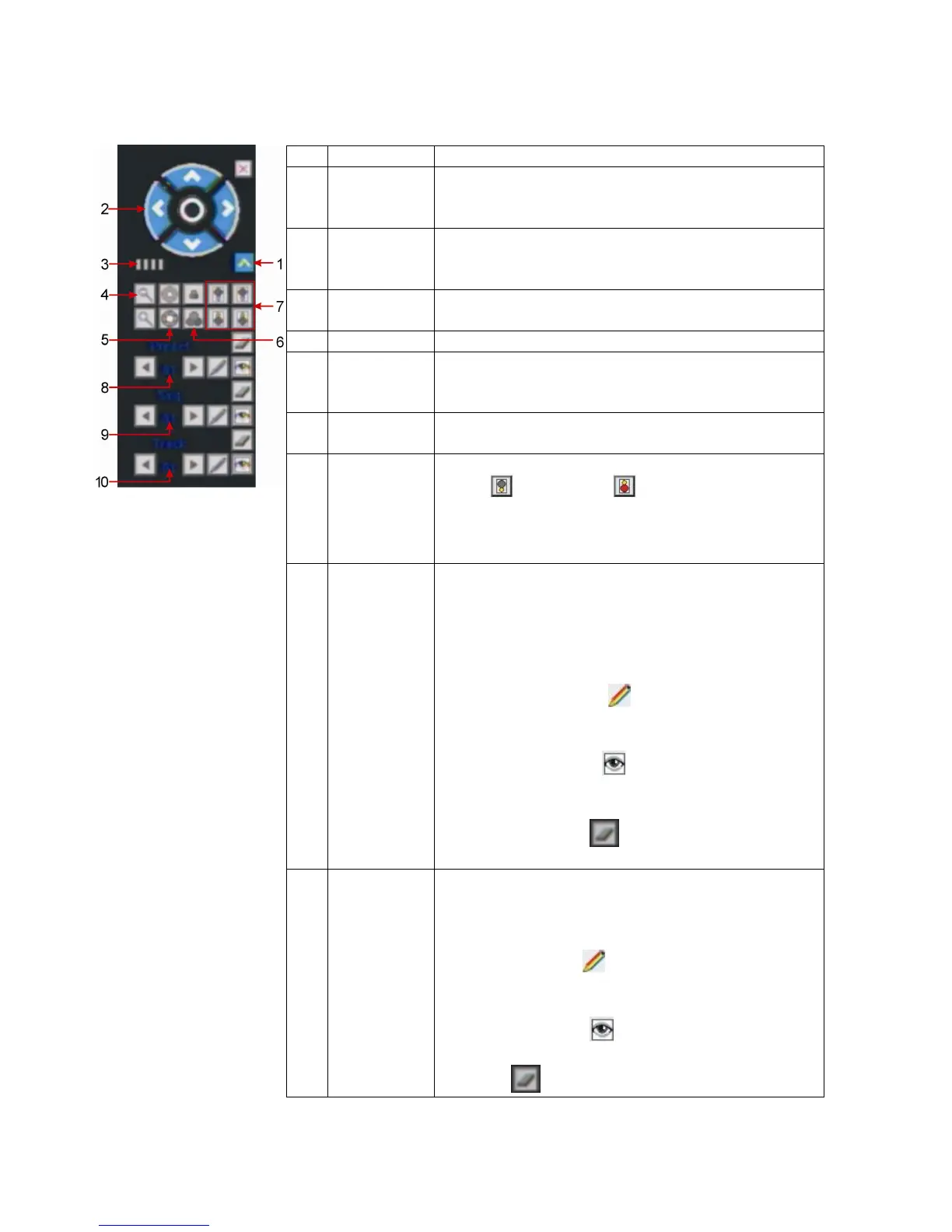
Directional
buttons
Control the direction of the PTZ cruise. Please refer
to your PTZ manual for details of PTZ scanning
mode.
3
Speed
Sets the turning speed of PTZ camera. Use the
mouse to click on the scale for adjusting this setting.
4
Zoom
Click to zoom in / zoom out
5
Iris
Click to make the image brighter or darker (this
function is disabled for cameras with automatic iris
adjustment).
6
Focus
Click to focus-in and focus-out (this function is
disabled for cameras with automatic focus).
7
Auxiliary
Open/close auxiliaries.
Click to open and to close. Different
functions respond to different protocols. The
auxiliaries include light, wiper, power, etc. Please
refer to your PTZ manual for details.
8
Preset
Preset Point: Preset camera position, focus, zoom,
and iris settings for easy access.
Setting the pre-adjusted settings:
1. Select the preset number.
2. Adjust the camera as desired, including direction,
focus, iris and zoom values.
3. Click the Set button .
Calling the pre-adjusted settings:
1. Select the preset number you want to call.
2. Click Start button .
Clear/reset preset:
Select the preset number you want to clear/reset.
Click Clear button .
9
Seq
Sequence is a running route of the camera that
passes through multiple presets.
Set sequence:
1. Select preset number.
2. Click Set button .
3. Repeat steps 1 and 2 to add other presets till all
desired presets are complete.
4. Click Run button .
Clear sequence:
Click on button to clear sequence.



 To Next Page