7.COMMAND CENTER ADMINISTRATOR MODE
Registering From COMMAND CENTER 239
7 COMMAND CENTER ADMINISTRATOR MODE
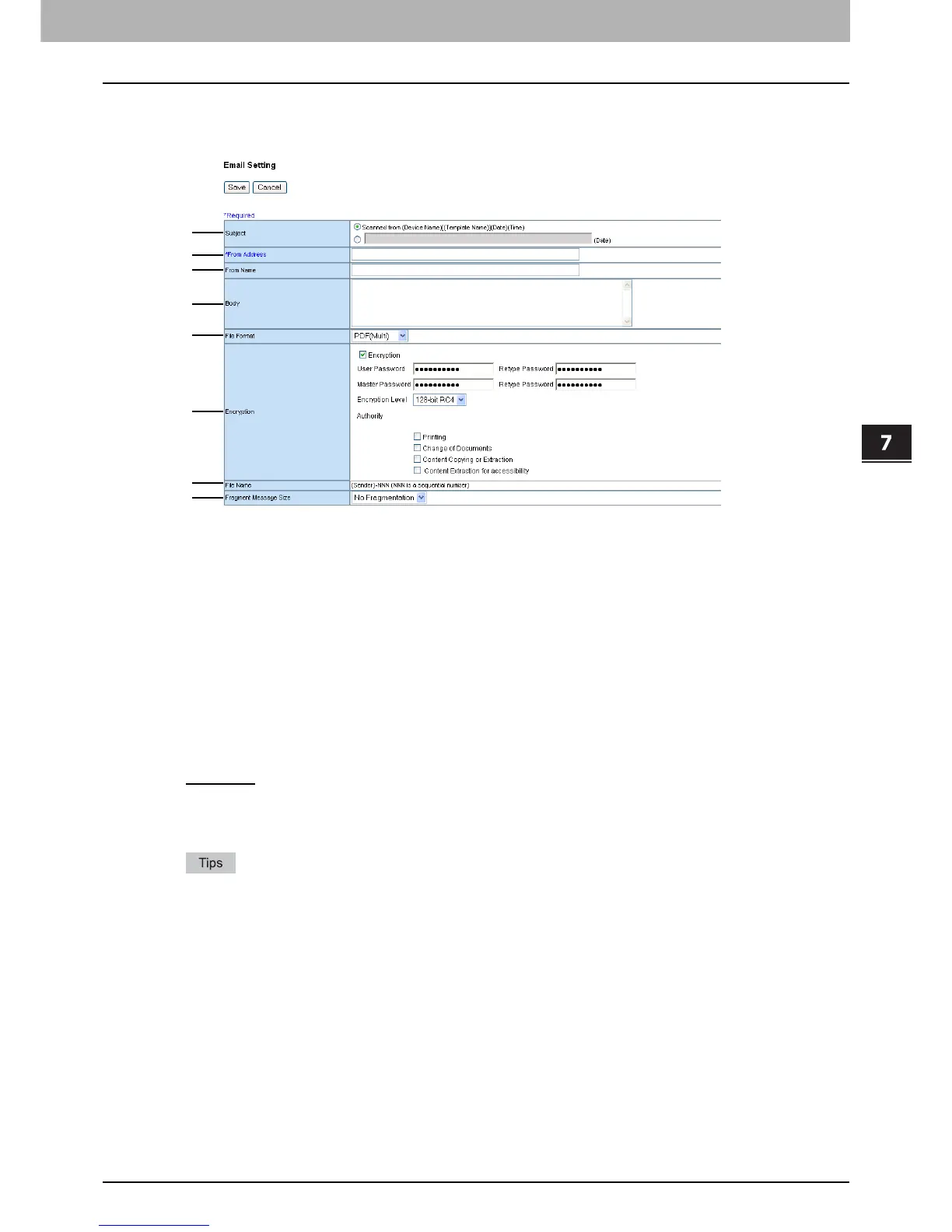
Email Setting (Fax/Internet Fax received forward)
In the Email Setting page, you can specify the content of the Email document to be sent.
1) Subject
This sets the subject of the Email documents. Select [Scanned from (Device Name) [(Template Name)] (Date) (Time)]
to automatically apply the subject, or enter the desired subject in the box.
2) From Address
Enter the Email address of the sender. When the recipient replies, the message will be sent to this Email address.
3) From Name
Enter the sender name of the Email document.
4) Body
Enter the body message of the Email document. You can enter up to 1000 characters (including spaces).
5) File Format
Select the file format to which the received document will be converted.
- TIFF (Multi) — Select this to save scanned images as a Multi-page TIFF file.
- TIFF (Single) — Select this to save scanned images separately as Single-page TIFF files.
- PDF (Multi)
— Select this to save scanned images as a Multi-page PDF file.
- PDF (Single) — Select this to save scanned images separately as Single-page PDF files.
- XPS (Multi) — Select this to save scanned images as a Multi-page XPS file.
- XPS (Single) — Select this to save scanned images separately as Single-page XPS files.
If the Forced Encryption setting is enabled, only the PDF (Multi) and the PDF (Single) are selectable for a file
format. For the Forced Encryption function, refer to the MFP Management Guide.
Files saved in an XPS format can be used in Windows Vista, or Windows XP SP2, Windows Server 2003 SP1
or later versions with Net Framework 3.0 installed.
6) Encryption
Set this to encrypt PDF files if you have selected [PDF (Multi)] or [PDF (Single)] in the File Format setting.
Encryption
Select this if you want to encrypt PDF files.
User Password
Enter a password for opening encrypted PDF files.
Master Password
Enter a password for changing the Encrypt PDF setting.








 To Next Page