55
SCHEDULE SETTING
54
SCHEDULE SETTING
ENGLISH
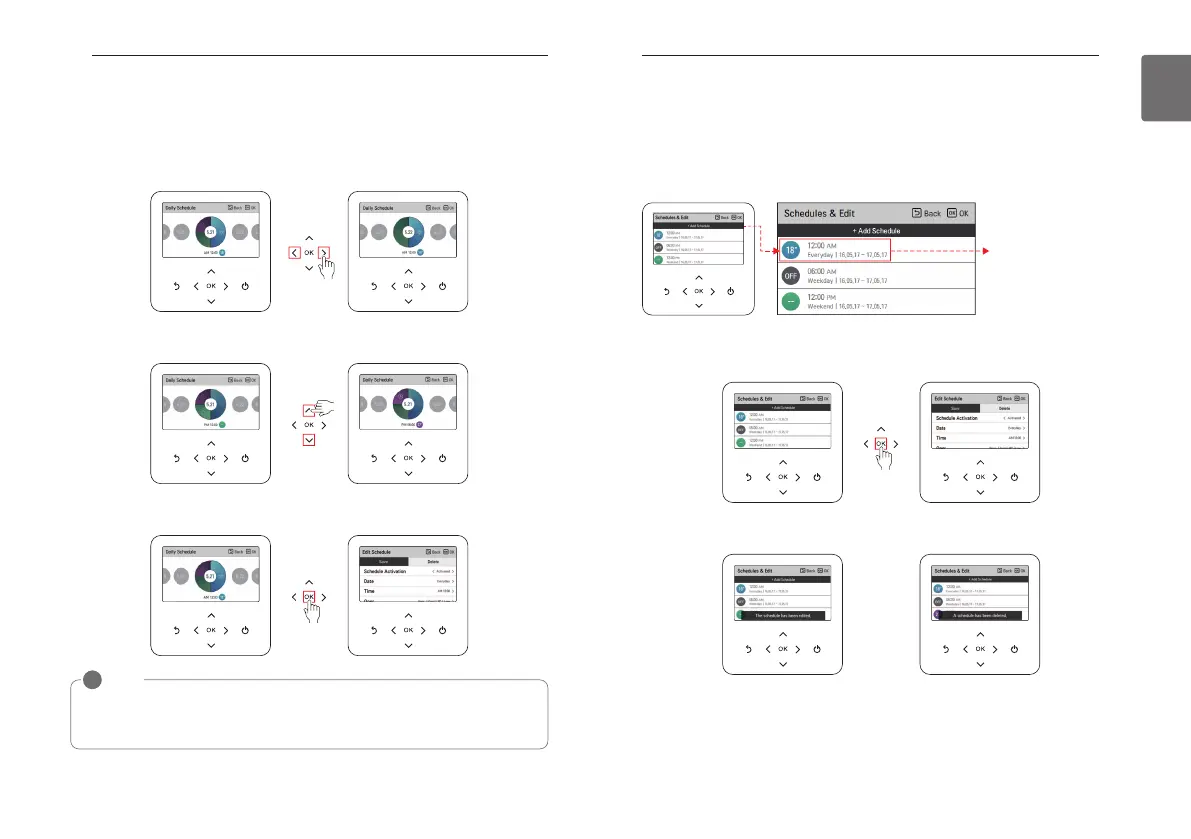
Daily Schedule
It is the function that can check the status of the timer (schedule) saved in the remote controller.
• In the schedule list, select the daily schedule status category, and press [OK] button to move to
the detail daily schedule status screen.
• You can use the remote controller’s [<,>(left/right)] button to check the timer information of
other dates.
• You can use the remote controller’s [∧,∨(up/down)] button to check the corresponding date’s
other timer information.
• Select the timer information, and press [OK] button to move to the corresponding timer’s edit
screen.
NOTE
!
In the daily schedule status screen, even if the timer (schedule) is set, if the corresponding
date is designated as an exception date, the schedule will not be performed.
Less than 5 schedules per day is recommended.
Schedules & Edit
It is the function that can check the status of the timer (schedule) saved in the remote controller.
• In the schedule list, select the daily schedule status category, and press [OK] button to move to
the daily schedule status detail screen.
• You can use the remote controller’s [<,>(left/right)] button to check other date’s timer
information.
• You can edit the saved schedule’s timer information.
- Select the schedule to edit using [∧,∨(up/down)] button, and press [OK] button to move to
the edit screen.
• Select the timer information, and press [OK] button to move to the corresponding timer’s edit
screen.
You can check the set
timer’s operation
information (operation
On/Off, operation
mode, desired
temperature), timer
time, period, and day of
week.
< If schedule is changed > < If schedule is deleted >



 To Next Page