71
ENERGY
ENGLISH
70
ENERGY
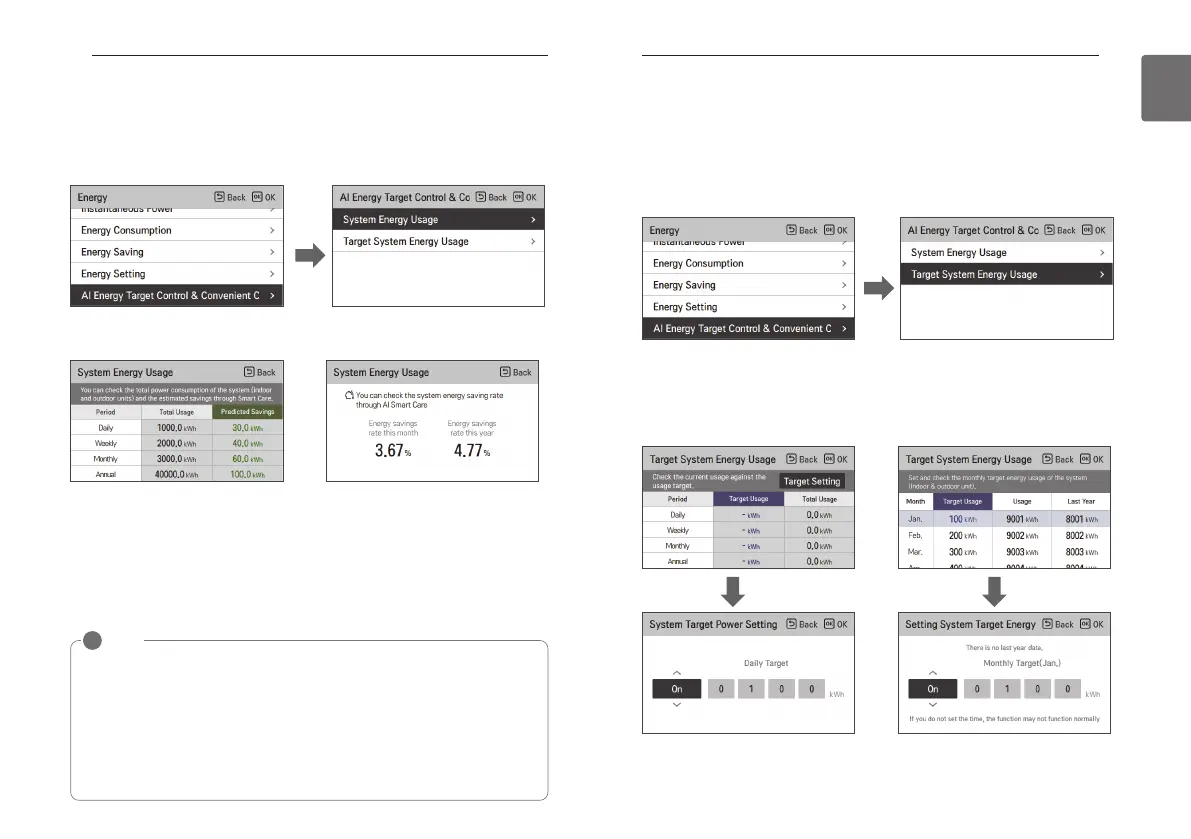
AI Energy Target Control & Convenient Check - System Energy
Usage
This is a function that allows you to check the predicted savings from using AI Smart Care and
the system's overall energy consumption.
• Press the [OK] button in the AI Energy Target Control & Convenient check item in the energy
setting list to move to the Settings screen.
• Press the [OK] button in the System Energy Usage item to move to the System Energy Usage
screen.
• When using "AI Smart Care", you can check this month/year's savings rate as calculated by the
AI controller.
e.g. Daily basis
- Total usage: 1,000 kWh, Predicted savings: 30 kWh
- Total usage when reduced by using AI Smart Care: 1,000 kWh
- Expected usage when not using AI Smart Care: 1,030 kWh
System Energy Usage VER.1 screen System Energy Usage VER.2 screen
OK
NOTE
!
• The displayed value is the power consumption for the entire system.
• The Predicted savings are calculated by analyzing the energy usage patterns while using
the AI Smart Care. For more information, refer to the LG AI engine manual or the outdoor
unit installation manual.
• There may be some difference between the actual usage, so use it only as a reference
• If you need the exact usage, install an additional PDI (POWER DISTRIBUTION
INDICATOR/power divider) and use it.
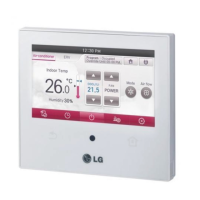
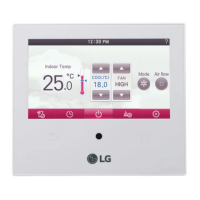
• The configuration of the screen displayed may vary depending on the version of the
remote control and the connected product.
AI Energy Target Control & Convenient Check - Target System
Energy Usage
The Target System Energy Usage is a function that allows the user to set the amount of power
they want to consume.
• Press the [OK] button in the AI Energy Target Control & Convenient Check item in the energy
setting list to move to the Settings screen.
• Press the [OK] button in the Target System Energy Usage item to move to the Target System
Energy Usage screen.
• In "Target system energy usage" VER.1, if you press the [OK] button in “Target Setting” of the
“Target system energy usage” item, it moves you to the “System Target Power Setting”
screen.
• In Target System Energy Usage VER.2, select the month you want to set in Target System
Energy Usage and press the [OK] button to move to the Setting System Target Energy Usage
screen.
OK OK
Target System Energy Usage Screen VER.1 Target System Energy Usage Screen VER.2
OK



 To Next Page