LiveU Live Video Uplink System User Guide
60
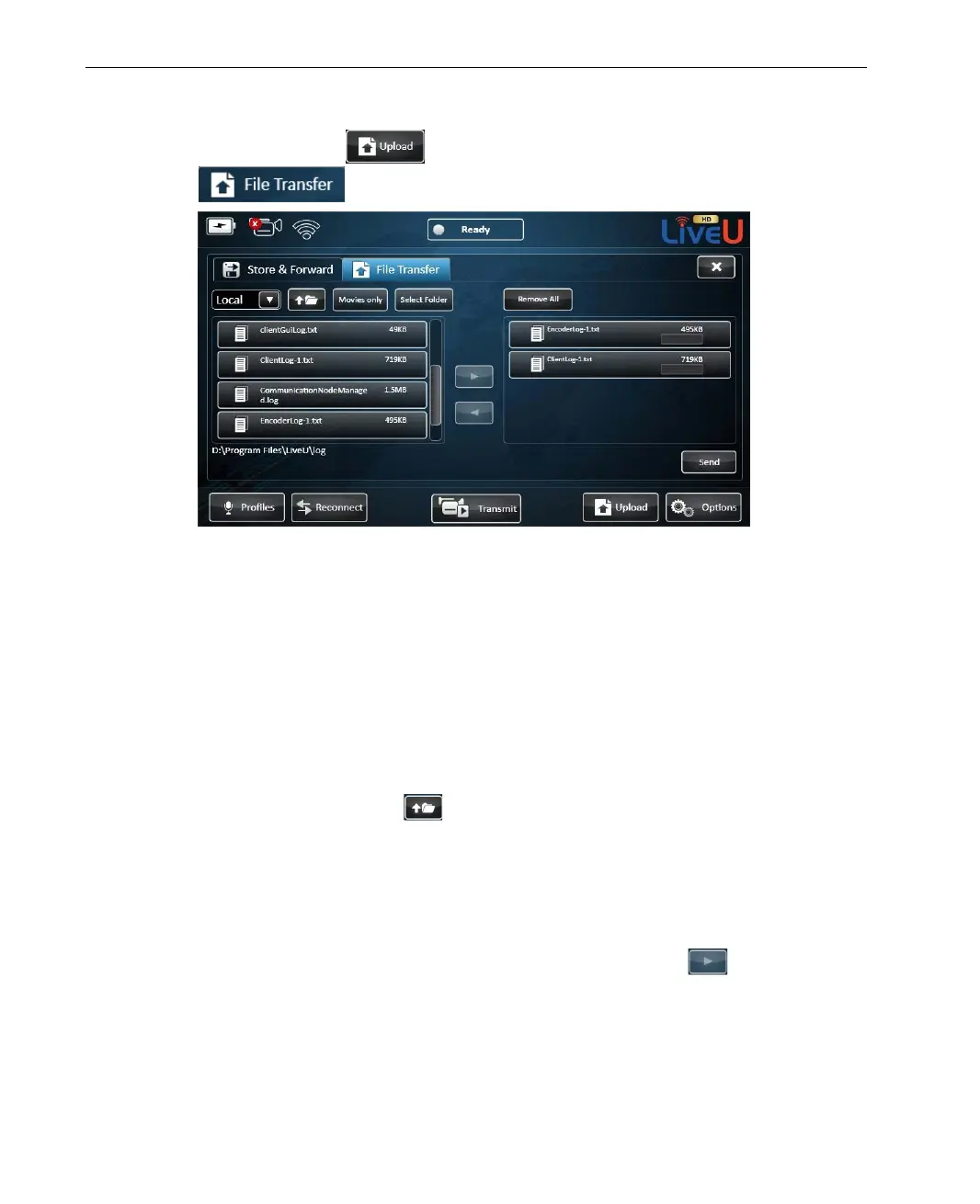
3 Tap the Upload button and then tap the File Transfer
tab to display the following window:
Figure 36: LU File Transfer
The Status icon changes to transferring in order to indicate that the
system is in File Transfer mode.
The left side of this window displays the files that can be selected to be
transferred. These files are located on the LU or on the disk on key
inserted into the LU.
The right side of the window displays the list of files that have been
selected to be transferred.
4 Use the browse button
to go up one directory to locate the files to be
sent to the LU-1000 server, for example, to browse files on the disk on
key.
5 You can tap the Movies only button to filter the display of files so that
only movie files are shown.
6 Select one or more files and tap the right arrow button
to move the
file(s) to the list on the right. These are the files that can be transferred to
the LU-1000 server.


 To Next Page