6 CHAPITRE 6: ANNEXES
MOVE S2
Adding parts to the library requires a few simple steps. Once the process is complete, a copy of the
current parameters will be stored out to the memory module under a given name (numeric). This part can
then be recalled (Loaded) when needed, after which all associated parameters will be restored as the
current parameters.
Step 1: Adapt all the necessary parameters for a given setup. This includes any parameters
related to:
- Part Setup;
- Application Setup;
- Positions / Torques
- Etc…
Note: Since the Parts Library is located in the Part Setup menu, it is recommended to
modify all parameters in the Application Setup and Positions / Torques menu first.
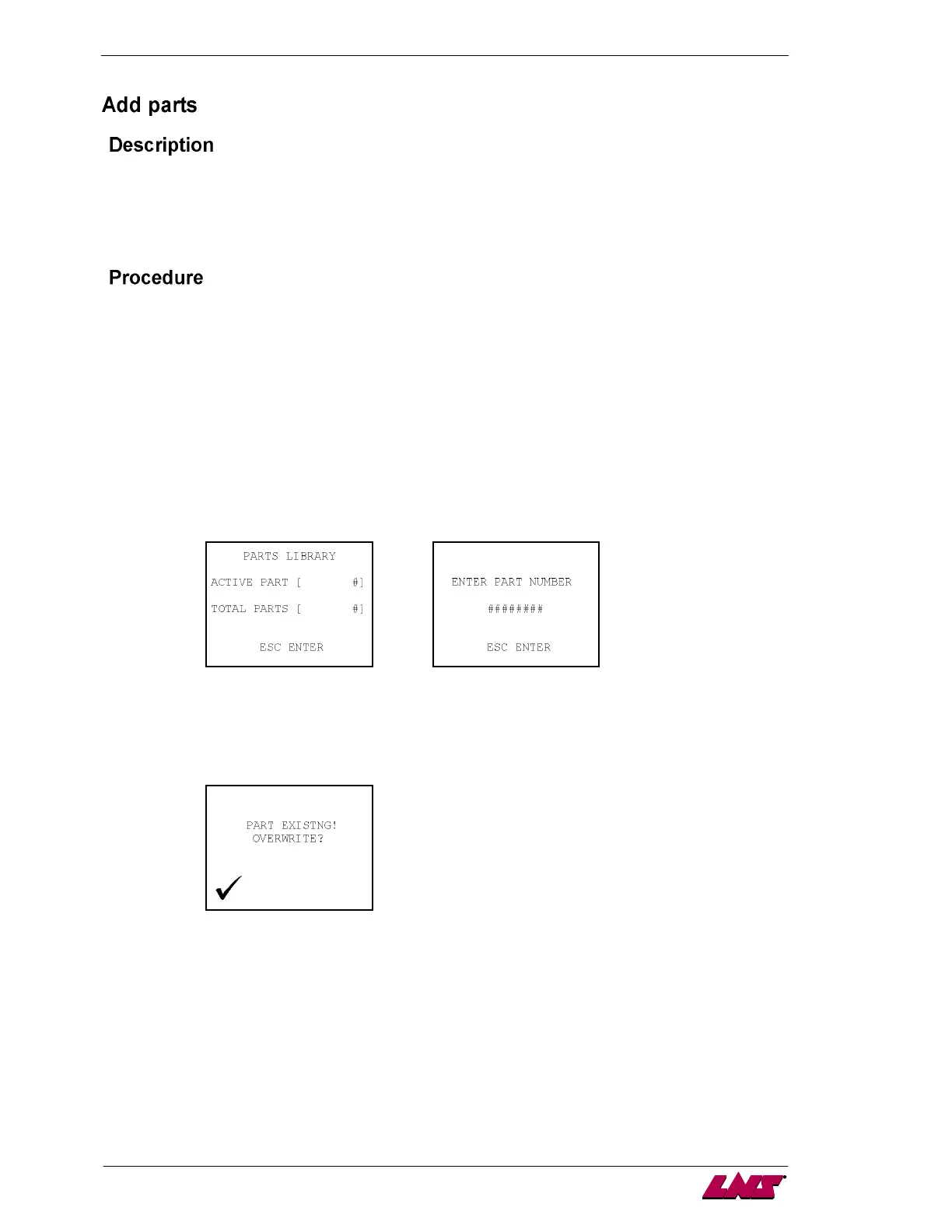
Step 2: In the Part Setup menu, the last page gives reference to the Parts Library; use the up /
down / left / right arrow keys to enter a Part Number. Once the part number has been
established, press the ENTER icon to save the file. The Total Parts value will increase by
one when the PLC has finished saving the file on the memory module.
Note: When attempting to save a part which already exists, a prompt will be displayed to confirm that the
intent is to overwrite the existing parameter settings of that part.
Example:



 To Next Page