CHAPTER 6: APPENDICES 7
MOVE S2
Loading and deleting parts from the library requires a few simple steps. When loading a part file, the PLC
retrieves all the parameters associated to the part file and sets them as the current values. When
deleting parts from the library, the part file located on the memory module is permanently erased.
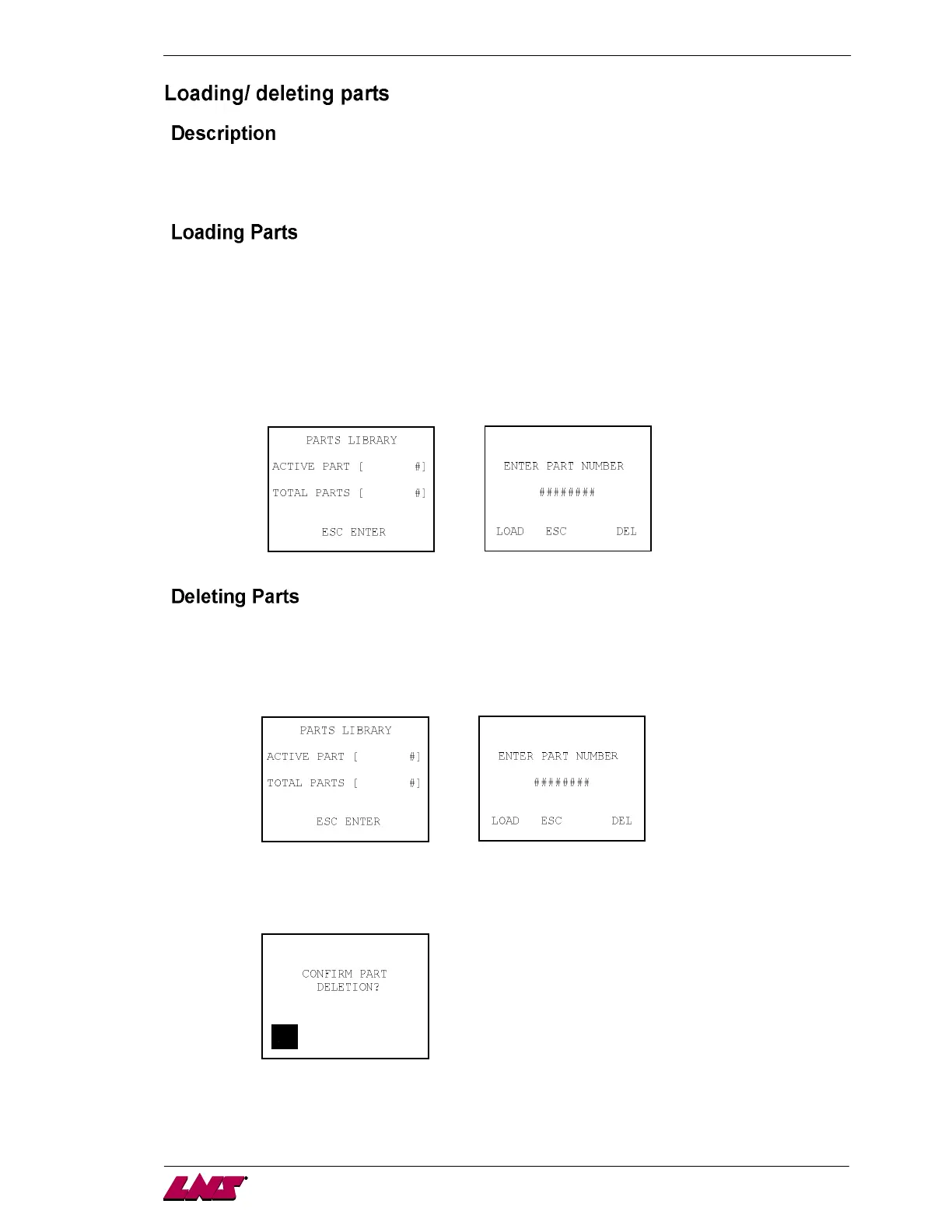
Step 1: In the Part Setup menu, the last page gives reference to the Parts Library; use the up /
down / left / right arrow keys to enter the Part Number required. Once the number has
been established, press the LOAD icon to restore the file. The Active Part value will
change to the loaded part number when the PLC has finished updating all the parameter
values.
Note: The current bar stock diameter and shape must match the part that is being loaded; otherwise the
part will not load.
Step 1: In the Part Setup menu, the last page gives reference to the Parts Library; use the up /
down / left / right arrow keys to enter the Part Number required. Once the number has
been established, press the DEL icon to delete the file. The Total Parts value will
decrease by one when the PLC has finished erasing the file from the memory module.
Note: When attempting to delete a part which already exists, a prompt will be displayed to confirm that
the intent is to delete that part.
Example:



 To Next Page