Version 1.10 Page 60 of 203
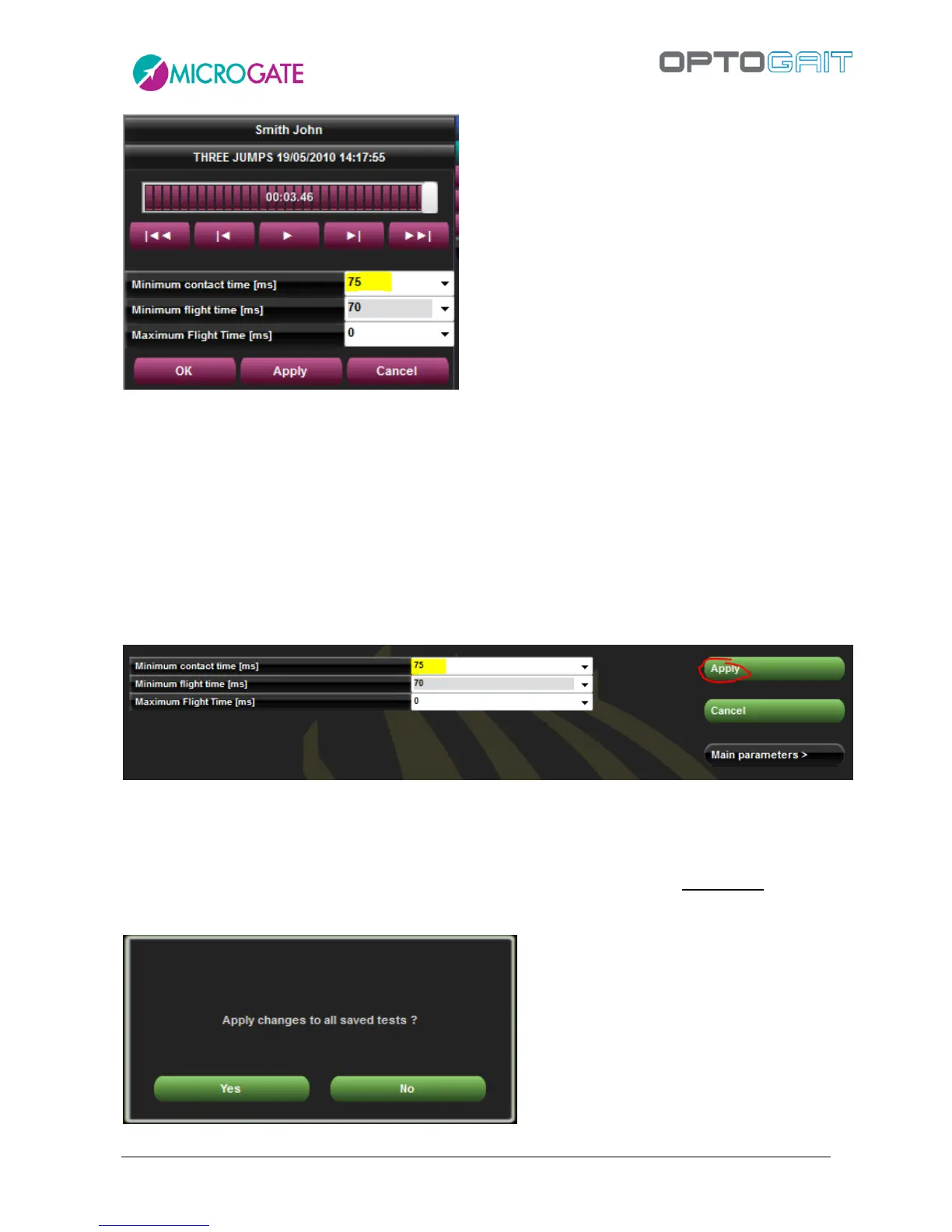
Figure 40 – Single Test Definition Settings
However it might be necessary to change the parameter ONLY for this single test. Insert for example
75 ms and press <OK> or <Apply>. After all values have been recalculated, the data in the table with
the numeric results and charts will change. If the results are okay, confirm by pressing <OK> and
answer <YES> when asked to save the data. (The difference between OK and Apply is that <OK> asks
to confirm saving the new parameters and closes the function, whereas <Apply> does not close and
allows to further adjust the parameters.)
If now the correct value proves to be 75 ms and all future tests should have this value, the parameter
has to be changed in the test definition.
Figure 41 – Parameter editing in a Test Definition, when tests have already been performed with this definition.
TIP: With respect to Fig. 37 the button is called <Apply> and not <Save>.
Now it is possible to decide whether this change should be applied to future tests (press <NO>) or
if the change should be applied also to all tests performed with this type (overwriting possible
custom values set in the single tests); in the latter case, press <YES>.
Figure 42 – Confirming the parameter application to tests that have already been performed


 To Next Page