Version 1.10 Page 78 of 203
Test Analysis
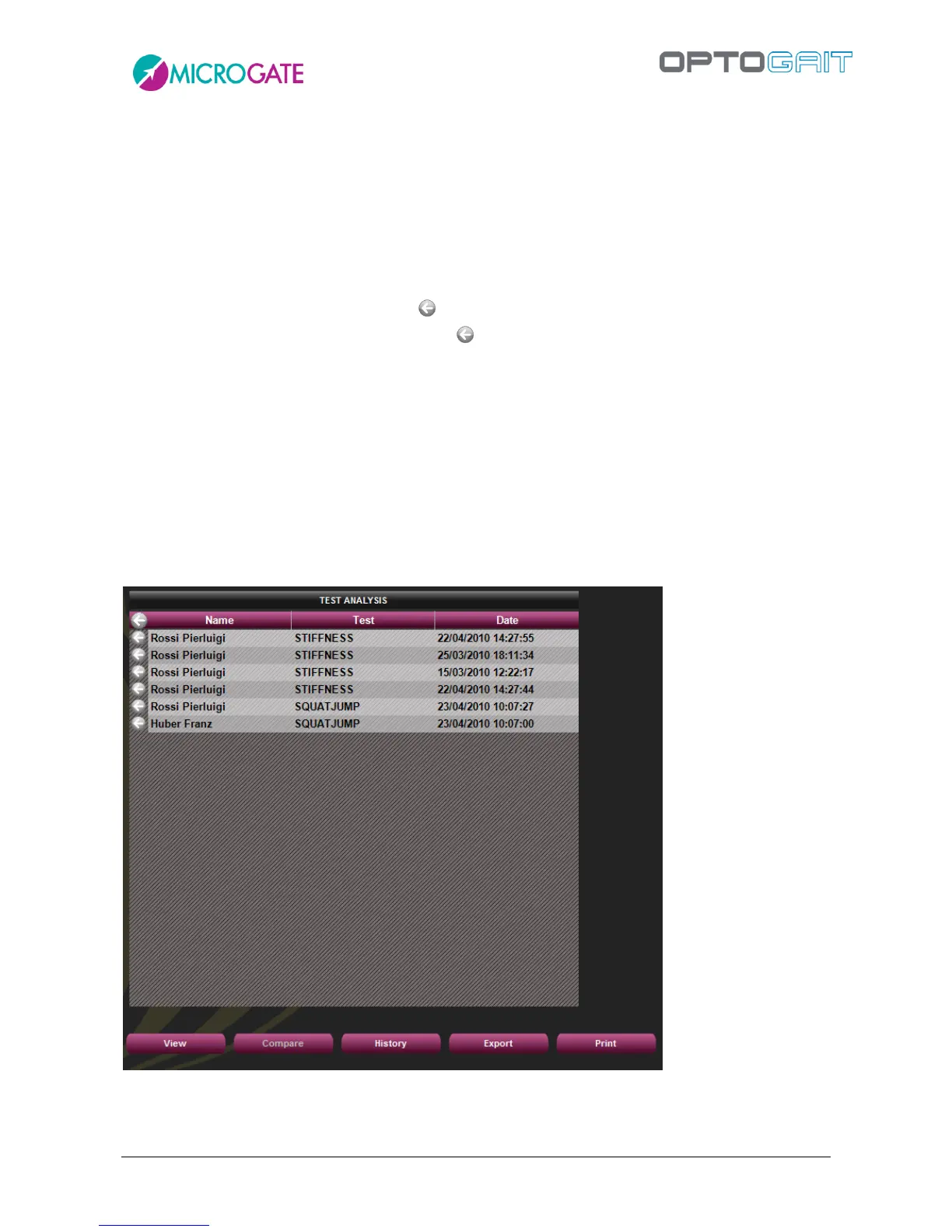
To view a single test, select the corresponding line in the ‘TEST ANALYSIS’ table and press the button
<View> (or double-click with the mouse). See chap. 4.3.1 View
To compare two tests, insert the relevant tests in the ‘TEST ANALYSIS’ table and press the button
<Compare>. See chap.0. The button is disabled if the number of tests in the window is less than
two.
To remove a test from the analysis, press on the corresponding line in the ‘TEST ANALYSIS’ table,
whereas to delete all the tests displayed press on the table heading.
To analyze the history insert two or more tests in the ‘TEST ANALYSIS’ table and press the button
<History>. See chap.4.3.3.
To export the data to Excel, add at least one test to the ‘TEST ANALYSIS’ table and press <Export>.
A dialog box asks if the extended version (for each data line the test heading and athlete’s data are
repeated) or the simple version (only numerical test data) should be displayed.
Pressing <Print> n-number of reports in PDF format are generated, the number corresponding to
the number of tests shown in the ‘Test analysis’ window. Before generating the output, the output
directory for the above files must be selected.
Figure 57 – Test list to analyze


 To Next Page