Version 1.10 Page 95 of 203
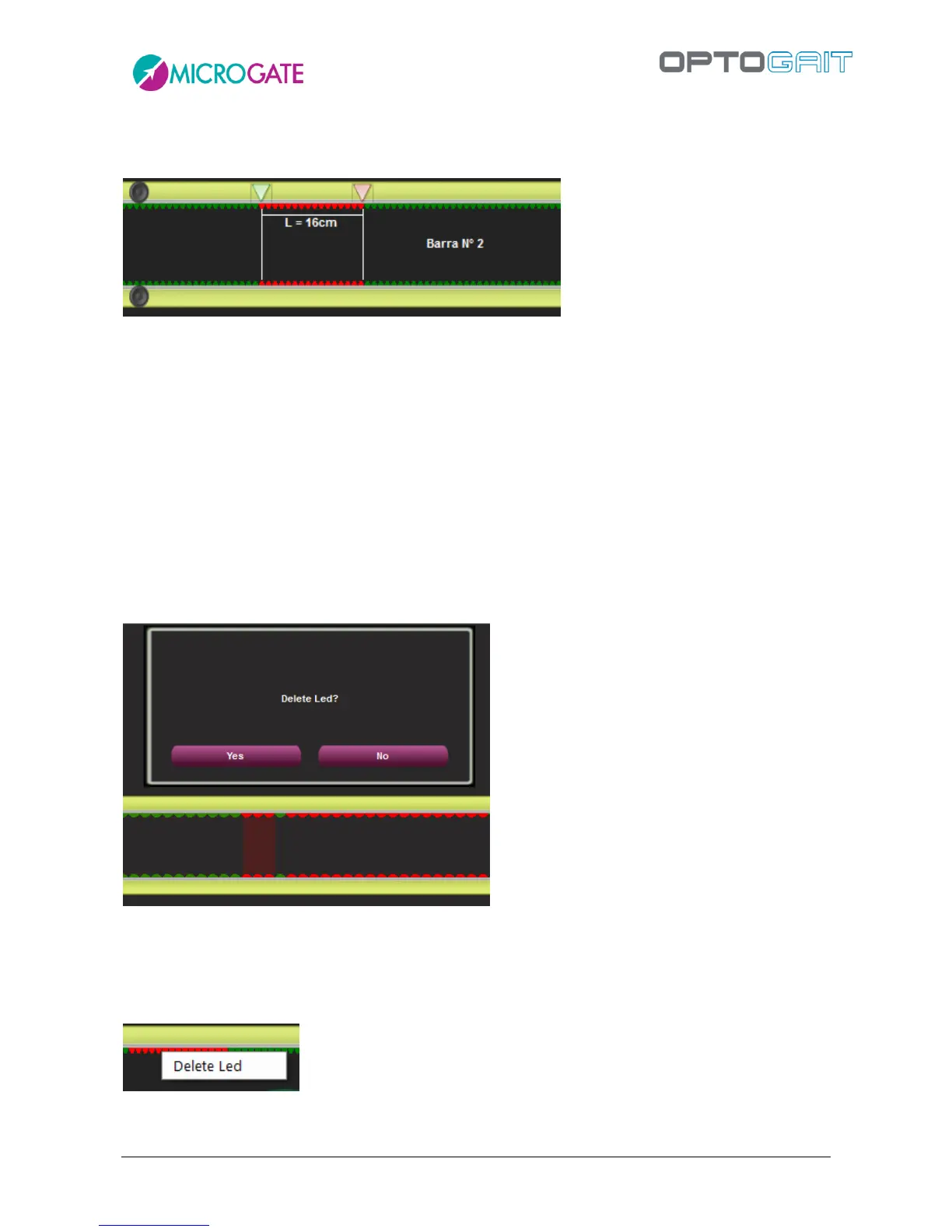
the second LED to view the measure (the markers are green and red for the first and second point).
Click anywhere on the bars and ESC to delete the measure.
Figure 75 - Measure in cm or inches of the distance between two points
In this view you can also temporarily delete a series of LEDs for a certain period of time. Unlike the
command <LED Filter> (see chap. 4.4.3), which excludes a series of LEDs for the entire test, this
allows you to work also during the test analysis and exclude a series of contiguous LEDs (or one
single LED) for a certain number of thousandths of seconds. Let's suppose that an athlete drags his
foot during a treadmill gait test. If you want to delete the series of LEDs for those 2 seconds, press
and hold down CTRL and click on the first wrong LED and (without releasing the CTRL and mouse
keys) drag it to the second LED of the segment (a red area indicates the portion to delete). Confirm
by pressing YES when prompted, if you want to delete the LEDs, and indicate the number of
thousandths of seconds for which the change is to be applied (in this example 2000), and the
numeric data table will be displayed. If you want to save the data, press <OK> in the upper left
corner. Otherwise, press <CANCEL>.
Figure 76 – Deleting LEDs for a certain amount of time
If you want to delete the whole series of LEDs (a complete footprint) for the entire test, press
CTRL+right mouse click on any red LED of the footprint and then confirm the deletion pressing YES.
Figure 77 - CTRL-Right Click: delete whole footprint


 To Next Page