Creating a DPOF Print Order: Print Set
The Print set
option
in
the
playback menu
is
used
to
create digital "print orders"
for printing on DPOF-compatible devices
(~
152).
When the camera
is
connected
to
a PictBridge-compatible printer, pictures can be
printed from the printer according
to
the
DPOF
print order you have created for
pictures on the memory card. If the memory card
is
removed from the camera, you
can create the
DPOF
print order for pictures
in
the internal memory and print
pictures according
to
the
DPOF
print order.
1
Press
MENU
in
playback mode.
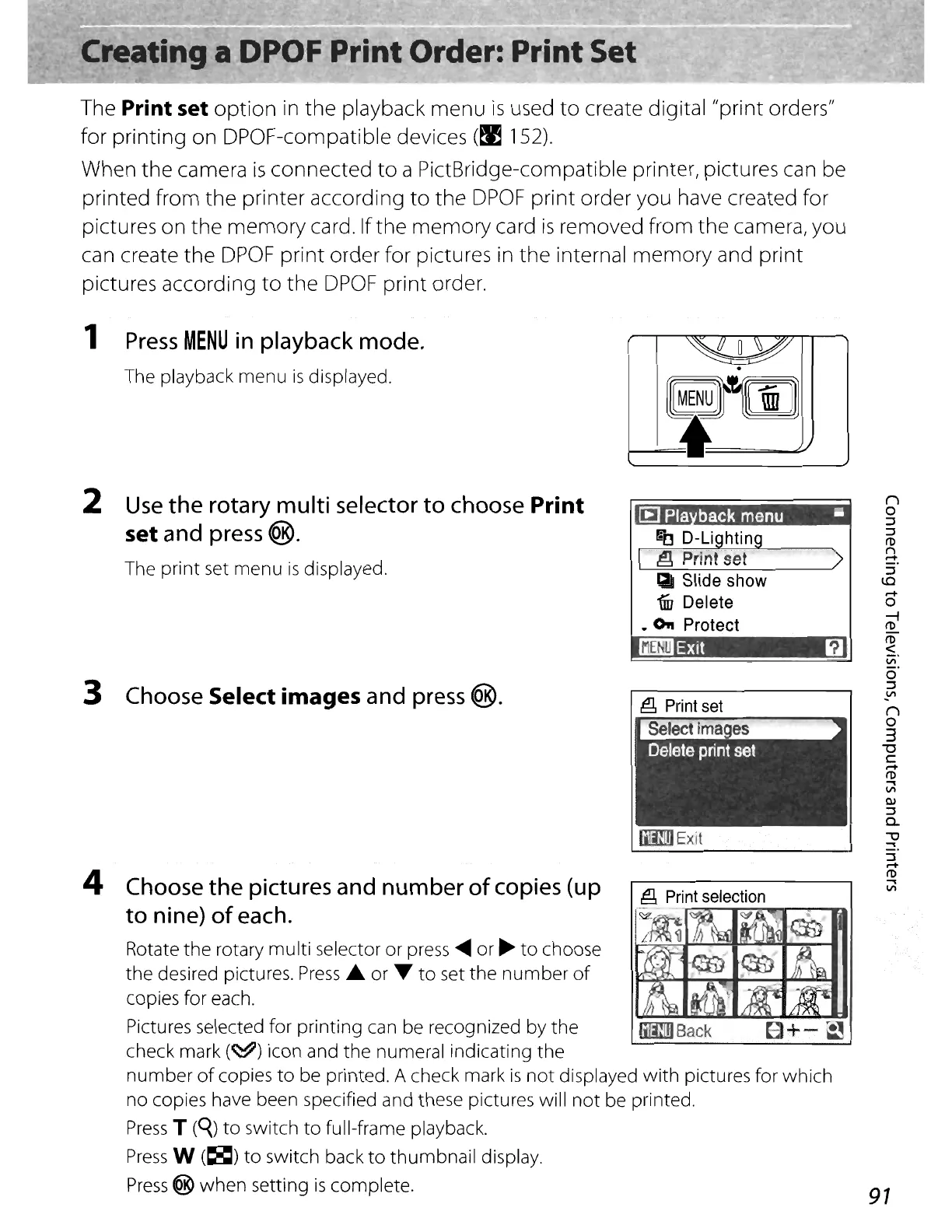
The playback menu
is
displayed.
2
Use
the rotary multi selector to
choose
Print
set
and
press
<@.
The print
set
menu
is
displayed.
3
Choose
Select
images
and
press
<@.
~O~
.
[[j[@t~[]]]
i
[:EJ
Pia
back
menu
-
~f)
D-Lighting
_Exit
a
_Exit
4
Choose
the
pictures
and
number of
copies
(up
to nine) of
each.
Rotate the rotary multi selector or
press
.....
or
~
to
choose
the desired pictures.
Press.
or T
to
set the
number
of
copies for each.
Pictures selected for printing can be recognized by the
mSack
check mark
(~)
icon and the numeral indicating the
'-----~-------'
number
of
copies
to
be printed. A check mark
is
not
displayed
with
pictures for which
no copies have been specified and these pictures will
not
be printed.
Press
T
(<{)
to
switch
to
full-frame playback.
Press
W
(~)
to
switch back
to
thumbnail display.
Press
@ when setting
is
complete.
::J
......
([)
...
VI
91






 To Next Page