Connecting
to
a Computer
Transferring Pictures from a Camera
to
a Computer
1 Start the computer to which Nikon Transfer was installed.
2 Turn off the camera.
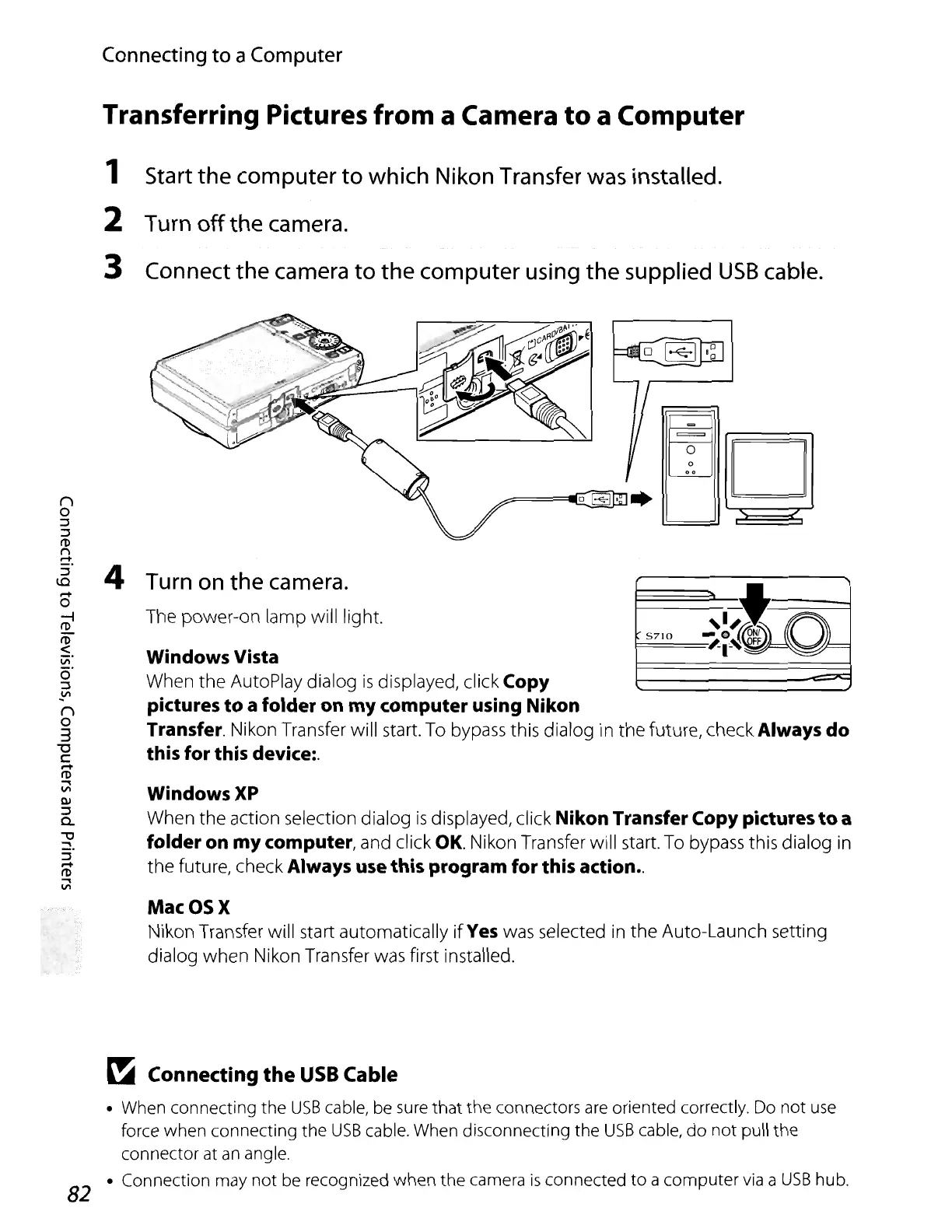
3 Connect the camera to the computer using the supplied
USB
cable.
WindowsXP
When
the
action selection dialog
is
displayed, click Nikon Transfer Copy pictures
to
a
folder on
my
computer, and click
OK.
Nikon Transfer will start. To bypass this dialog
in
the
future, check Always use this program for this action
..
5710
Windows Vista
When
the
AutoPlay dialog
is
displayed, click Copy
pictures
to
a folder on
my
computer using Nikon
Transfer.
Nikon Transfer will start. To bypass this dialog in the future, check Always
do
this for this device:.
4 Turn on the camera.
The power-on lamp will light.
()
o
:l
:l
rtl
n
~.
MacOSX
Nikon Transfer will start automatically
if
Yes was selected
in
the
Auto-Launch setting
dialog
when
Nikon Transfer was first installed.
~
Connecting the
USB
Cable
• When connecting
the
USB
cable, be sure that the connectors
are
oriented correctly. Do
not
use
force
when
connecting the
USB
cable. When disconnecting the
USB
cable,
do
not
pull
the
connector at
an
angle.
82 • Connection may
not
be recognized
when
the
camera
is
connected
to
a
computer
via
a
USB
hub.






 To Next Page