•
If it is set to Default Static IP, the fixed IP revert to the factory default and cannot be
changed. This is triggered by setting the DIP switch 3 to On and doing a power reset.
After all parameters are set, click on the Save button to store the new values permanently.
Wait 1 minute and reconnect to the device using the new settings.
Compute Box / Eye Box settings:
In case, more than one Eye Box is used within the same network, for identification purpose
any user specific name can be entered to the Display name.
If the Clock delay
field shows a dierence, click Synchronize clock to synchronize the
Compute Box's time with your computer.
EtherNet/IP scanner settings:
This is a special option of the EtherNet/IP connection for some robots. For these robots as
part of the installation the required values will be given and instructed to set.
6.1.5. Web Client: Weblogic Menu
For information how to operate Eyes via WebLogic, see User Manual for Using WebLogic™.
6.1.6. Web Client: Path Menu
NOTE:
The Path feature may not be available to your robot type.
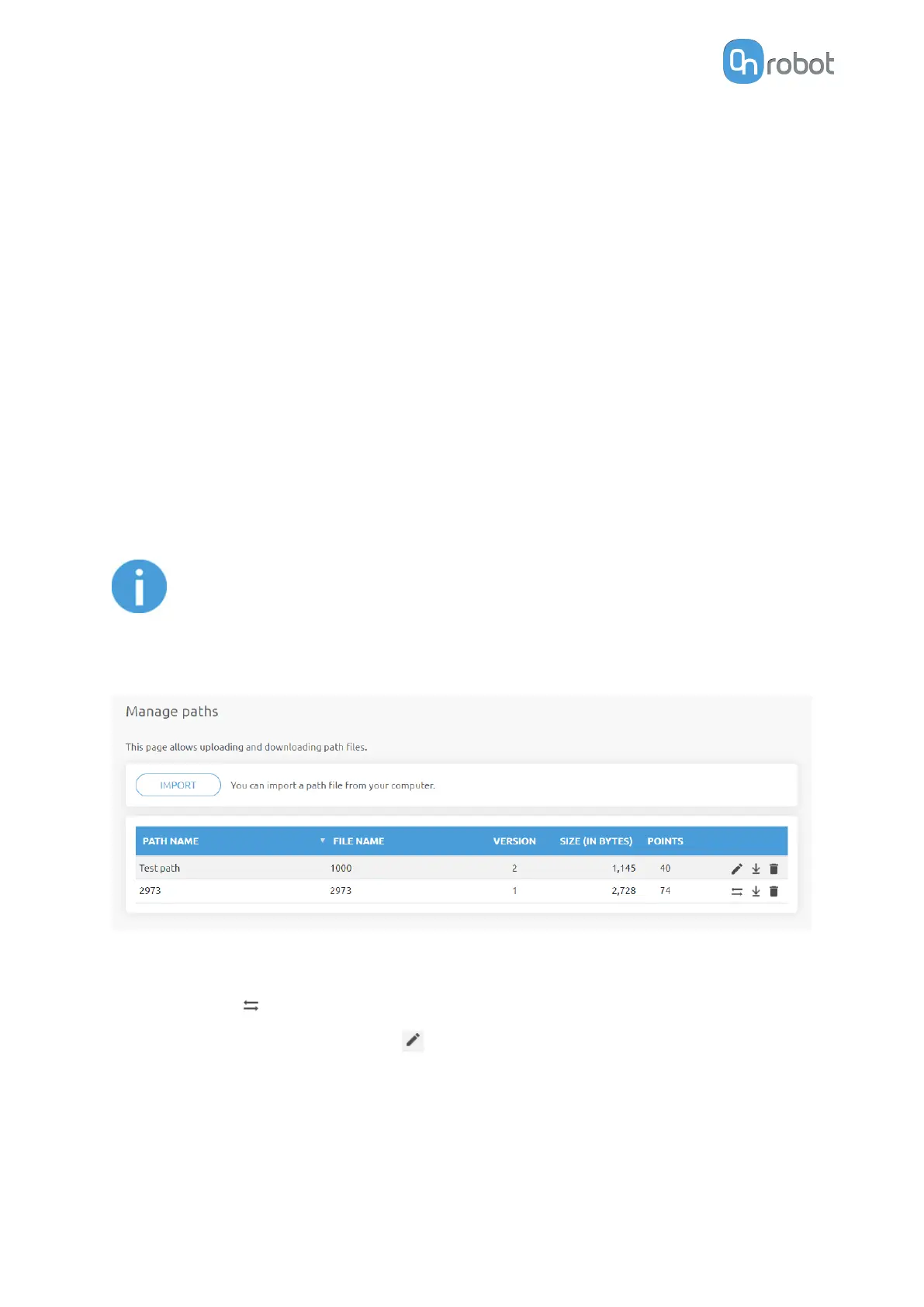
This page can be used to import, export, and delete the previously recorded paths. In this way
a Path can be copied to a dierent Compute Box.
The paths are recorded as .orp files.
Previously recorded paths with .ofp extension must be converted to .orp files. Use the path
converter button
to convert the files.
To change the name of a path, use the icon.
To import a previously exported path, click on Import and browse for the file.
The available paths are listed at the end of the page. Any paths can be exported and
downloaded as an .orp file or permanently deleted to free up the list if a path is not needed
anymore.
ADDITIONAL SOFTWARE OPTIONS
157


 To Next Page