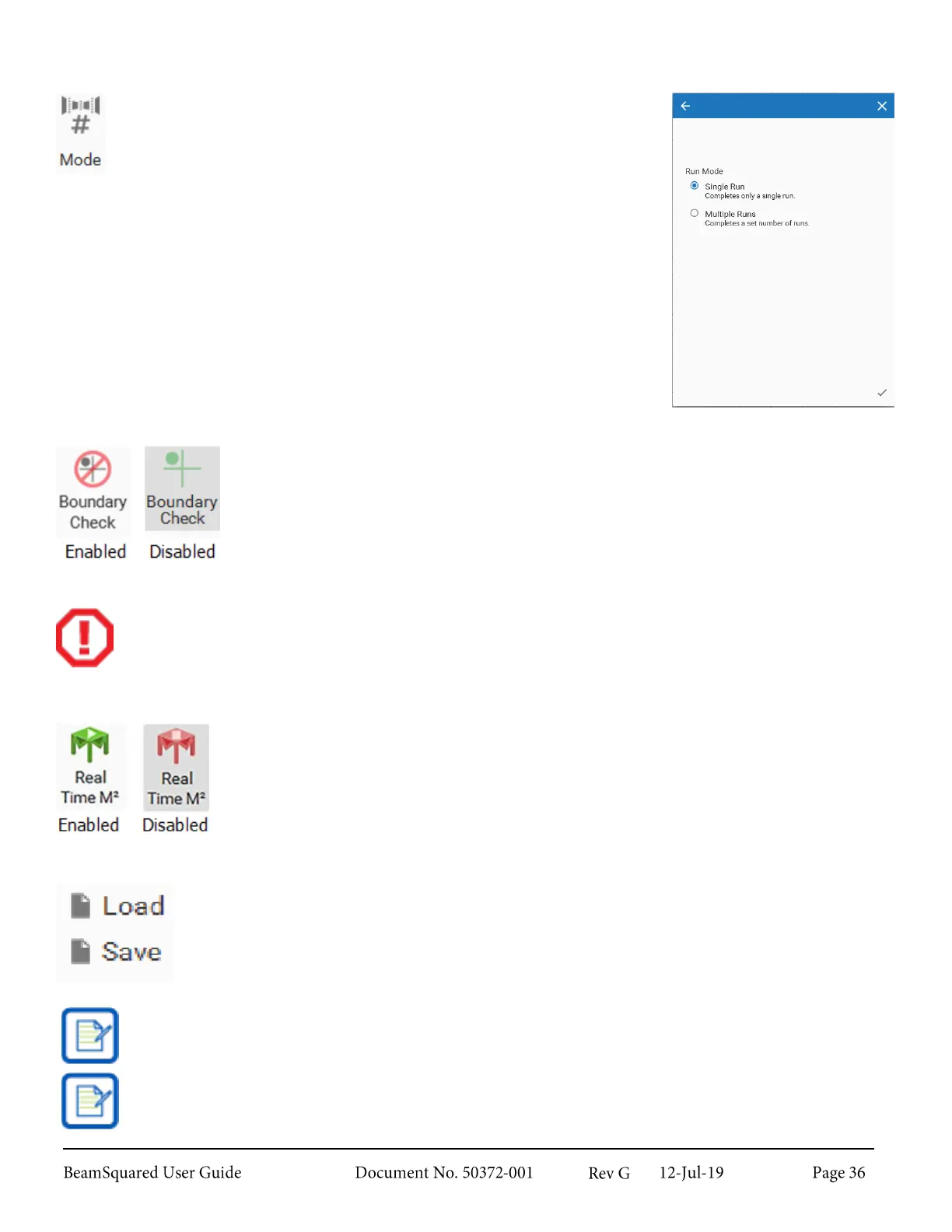
Mode 3.3.5
Use Mode to open only the Run Mode window of the Configuration
wizard. Choose to run in Single Run mode or Multiple Runs mode.
Changes in this window and the Configuration wizard are shared.
Boundary Check 3.3.6
Click Boundary Check to toggle the detection and abandonment of runs for beams
that cross the CCD array boundaries. This disables the warning of beams that are too
big or misaligned.
Damage can result if Boundary Check is disabled and the beam is excessively misaligned.
Real Time M
2
3.3.7
Real Time M
2
is only available after a completed M
2
run. You can select Real Time M
2
to start real-time monitoring. Click again to disable and return to normal operation. See
section 4.1.5 for information on running in Real Time M
2
mode.
Load and Save 3.3.8
Select Load to open a saved run setup file (*.bsqSetup). Loaded files display the run and
configuration setup from the saved file.
Select Save to preserve the current run setup in a file. Saved files contain the configuration
of the application during the run.
Setup files cannot be saved if the camera is removed
.
BeamSquared saves the application configuration upon close, so it opens in the same configuration
as it was when it closed.
The configuration file does not preserve (and thus does not restore) data sets. Data files must be
saved and loaded separately from the File Access window, see section 3.2.1.



 To Next Page