Chapter 5 Operations — Using the web control function
ENGLISH - 227
3) Click [Perform].
f Previously generated CRT key is reected as the current CRT key.
Note
f When returned to the previously generated CRT key, a certicate linked to that CRT key is required.
Generating the signing request
When using the server certicate issued by the certication organization as a security certicate, generate a
signing request necessary for application of issuing to the certication organization. Generate the signing request
after generating the CRT key.
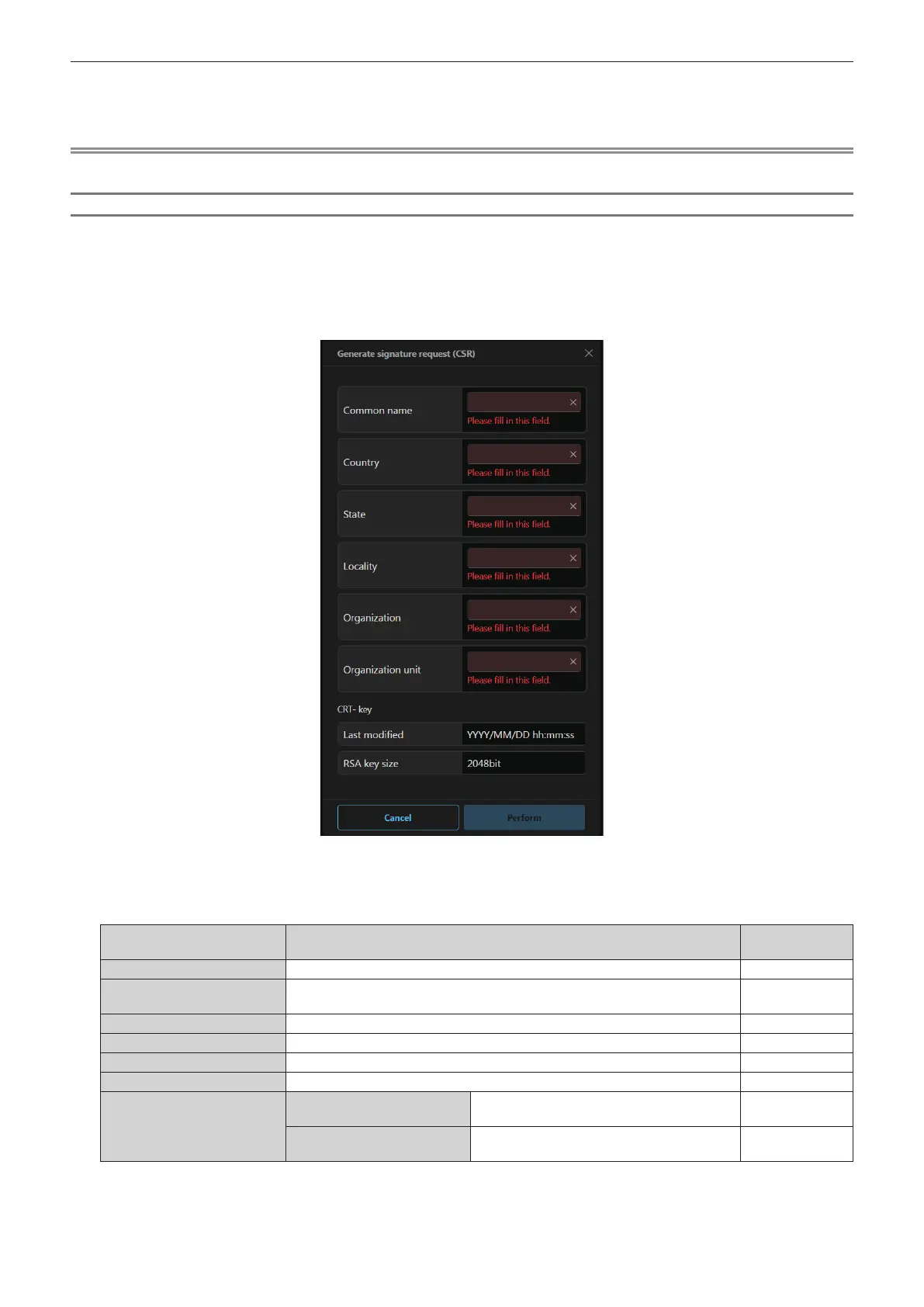
1) Click [Certificate] → [Server certificate] → [Generate certificate signing request] → [Generate].
f The screen to generate the signing request is displayed.
2) Enter the information required for application.
f The details of each item are as follows. Enter the information following the requirement of the certication
organization to apply.
Item Details
Character length
limit
[Common name]
Enter the projector name or the IP address set in the projector. 64 characters
[Country]
Enter the country code dened in ISO 3166-1 alpha-2 (two upper case
alphabets).
―
[State]
Enter the State, etc. 128 characters
[Locality]
Enter the locality. 128 characters
[Organization]
Enter the organization name. 64 characters
[Organization unit]
Enter the organization unit name. 64 characters
[CRT- key]
[Last modied]
The generation date and time of the current
CRT key is displayed.
―
[RSA key size]
The key size of the current CRT key is
displayed.
―
3) Click [Perform].
f The signing request le is generated. Enter a le name and save the le in the desired folder.














 To Next Page