Pharma Test Apparatebau AG
Operating Manual
B-24-00100_PT-NODE_v1.0e.docx Page 32 of 64
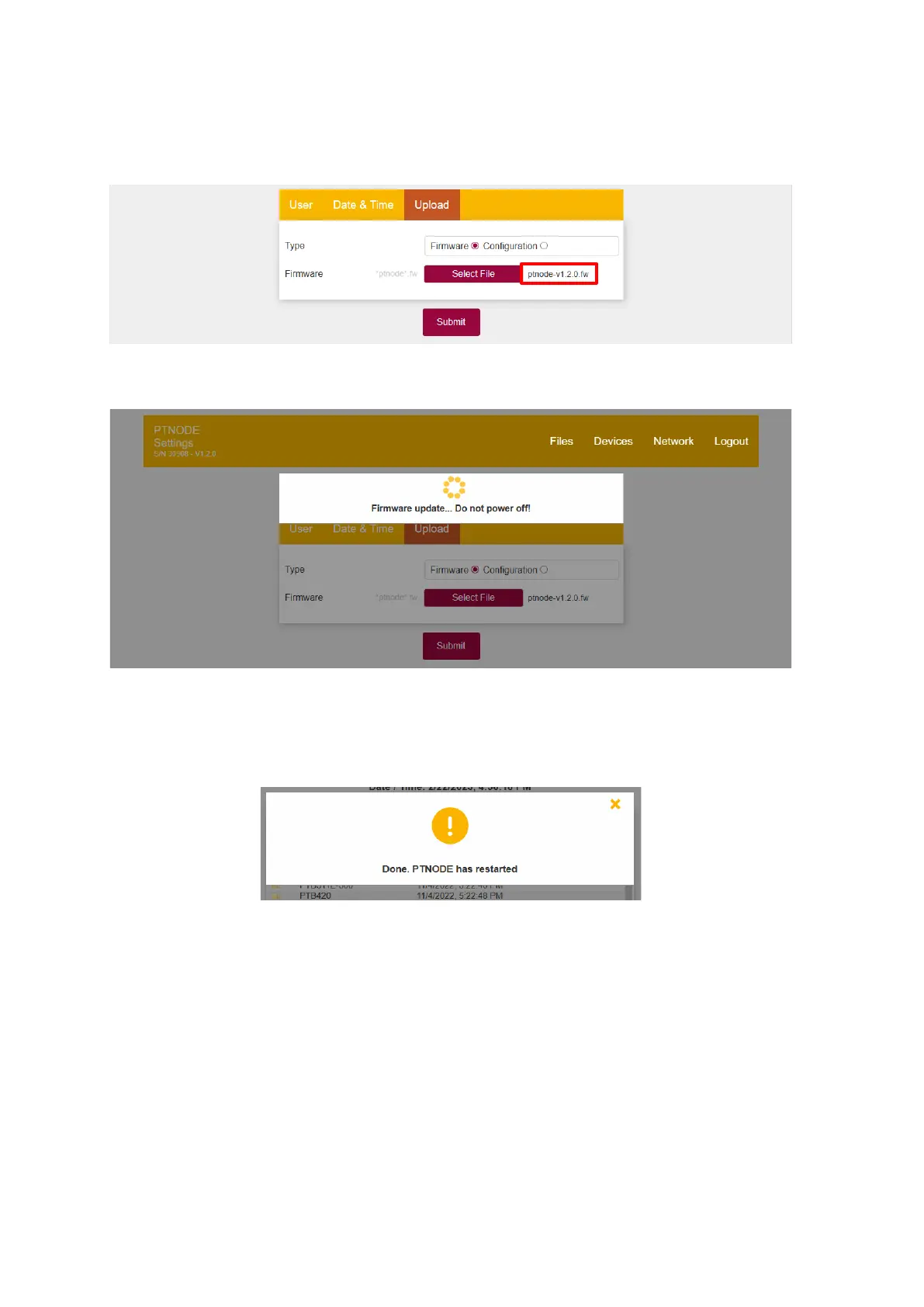
Then click on “Select File”. Using the file picker dialog navigate to the .fw-file you previously
saved to your computer and click “Open”. Make sure the file displayed now is the correct
firmware update file and click on “Submit”:
Figure 34: Firmware filename
PT-Node will now apply the update and reboot:
Figure 35: Firmware update in process
This process can take several minutes. Do not disconnect PT-Node from the power supply
before this process is finished!
Once the update is finished a confirmation message will be displayed:
Figure 36: Firmware update completed
Note that updating the PT-Node firmware also re-writes the configuration file on your PT-
Node device with the version included with this firmware. If you are using a version of the
configuration file newer than the firmware version you have just installed, you need to re-
upload the configuration file as well. Refer to the next section for more details about this.
You can now continue to use PT-Node with the new firmware version. Depending on your
browser you might need to reload the page once before you can continue.



 To Next Page