Getting Started
04
25
En
Setting the unit to match
your TV system
When you switch on the system for the first
time, you should see a welcome screen
displayed on your TV. From here you can set
up the player to work with the kind of TV you
have. After this, you can go to the next page
to set the clock, or jump right in and start
playing some discs.
SYSTEM SETUP
DVD SETUP
TOP MENU
DVD MENU
VOLUME
.
RETURN
FOLDER +FOLDER –
SOUND
MODE
ENTER
4
/e
E/
1
¡
¢
8
7
3
3
3
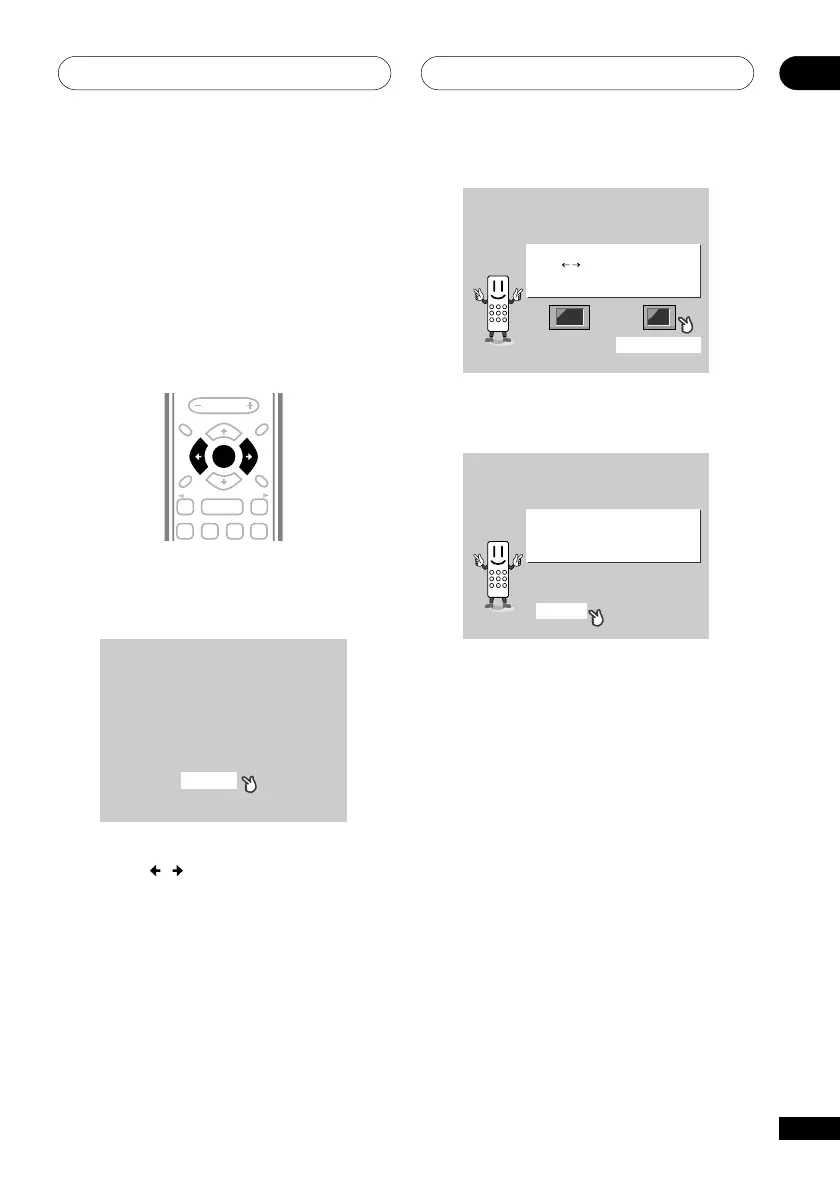
1 Press ENTER to move on to the next
screen.
Welcome to Pioneer DVD!
Thank you for purchasing this Pioneer DVD player.
Before using, please take a little time
to setup your DVD player
Put the batteries into the remote control
Next, press the [ENTER] button on the remote control
and start the Let's Get Started Menu
Next
2 Use the
/
(cursor left/right)
buttons to select either ‘Wide screen’ or
‘Standard size screen’ according to the
kind of TV you have, then press ENTER.
See also Screen sizes and disc formats on
page 89 if you’re not sure which one to
choose.
Let's Get Started Menu
What kind of TV do you have?
Use the / cursor buttons
to choose, then press [ENTER]
Wide screen (16:9) Standard size screen (4:3)
3 Press ENTER again to finish setting up.
Let's Get Started Menu
Setup complete
If you're finished setting up,
choose [Complete],
to start again choose [Back]
Complete Back
• Select BACK then press ENTER if you
want to go back and change the setting
you just made.



 To Next Page