Getting Started04
26
En
Switching on and setting the
clock
After setting the unit to match your TV
system, the first thing to do is to set the
clock. This only needs to be done once
(unless all power to the unit is cut) and will
enable you to use the timer features.
SYSTEM SETUP
DVD SETUP
TOP MENU
DVD MENU
SUBTITLE
VOLUME
ANGLE ZOOM
ADVANCED
MONO
SYSTEM DISP
DVD DISP
ECHO
DSP
AUDIO
DVD/CD TAPE FM/AM LINE
SURROUND
KARAOKE
I
—
KEYCON
—
i
TIMER
CLOCK ADJ.
MUTE
RETURN
SOUND
MODE
ENTER
STANDBY/ON
/e
E/
1
¡
3
3
3
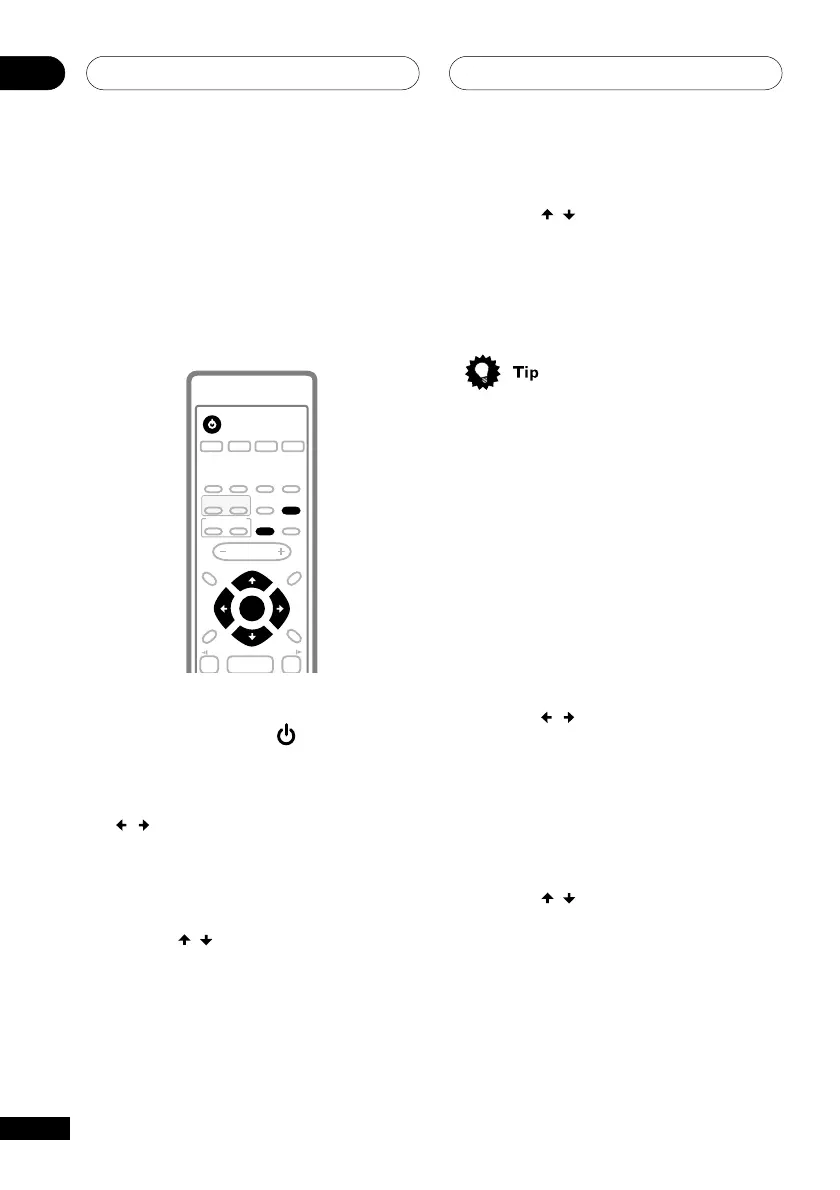
1 Press STANDBY/ON ( ).
2 Press TIMER/CLOCK ADJ.
3 If CLK ADJ isn’t already selected, use
the
/
buttons to select it.
On the front panel use 4/1 and
∞ fl¢ .
4 Press ENTER.
5 Use the
/
buttons to set the hour.
On the front panel use 4/1 and
¡/¢.
6 Press ENTER.
7 Use the
/
buttons to set the
minute.
On the front panel use 4/1 and
¡/¢.
8 Press ENTER to confirm.
• Press DISPLAY (SYSTEM DISP on the
remote) anytime to cycle through
display options to show the current
time. See Displaying disc information on
page 49–50 for more on this.
Changing the clock format
• Default setting: 12 HR
You can choose to display the clock in either
12 or 24 hour formats.
1 Switch the system into standby.
2 Press ENTER.
3 Use the
/
buttons to select 12/24
HR.
On the front panel use 4/1 and
¡/¢.
4 Press ENTER.
The current clock format is shown in the
display.
5 Use the
/
buttons to select either
12 or 24 hour clock format.
On the front panel use 4/1 and
¡/¢.
6 Press ENTER to confirm.



 To Next Page