The Initial Setup Menu14
74
En
Video settings
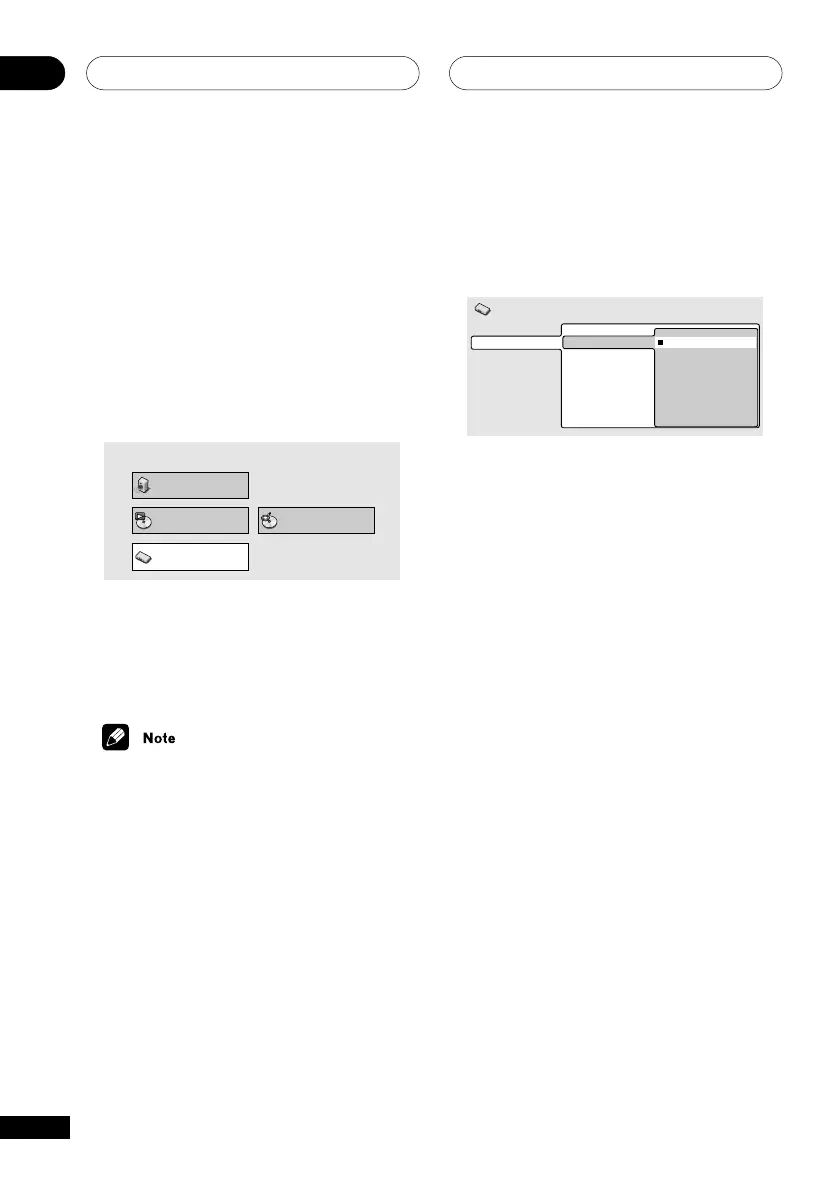
TV Screen
• Default: 4:3 (Letterbox)
Video Output
Language
Display
Options
TV Screen
S-Video Out
4:3 (Letter Box)
4:3 (Pan&Scan)
16:9 (Wide)
Initial Settings
If you have a widescreen TV, select the 16:9
(Wide) setting—widescreen DVD software is
then shown using the full screen area. When
playing software recorded in standard (4:3)
format, the settings on your TV will deter-
mine how the material is presented—see the
manual that came with your TV for details on
what options are available.
If you have a standard TV, select either 4:3
(Letter Box) or 4:3 (Pan & Scan). In Letter
Box mode, widescreen software is shown
with black bars at the top and bottom of the
screen. Pan & Scan chops the sides off
widescreen material to make it fit the 4:3
screen (so even though the image looks
larger on the screen, you’re actually seeing
less of the picture). See also page 89.
Using the Initial Setup menu
The Initial Setup menu gives you complete
control in setting up your DVD player,
including video output settings and parental
lock settings, among others.
If an option is grayed out it means that it
cannot be changed at the current time. This
is usually because a disc is playing. Stop the
disc, then change the setting.
1 Press DVD SETUP and select ‘Initial
Settings’ from the on-screen display.
Play Mode Disc Navigator
Initial Settings
Audio Settings
2 Select the setup category from the list
on the left, then select an item from the
menu list to the right.
3 Make the setting you want.
• The language options shown in the on-
screen display illustrations on the
following pages may not correspond to
those available in your country or
region.



 To Next Page