Playing discs06
44
En
• With DVDs and Video CDs, you can
press PROGRAM (SHIFT+1) instead of
following steps 1 to 3 to skip directly to
step 4.
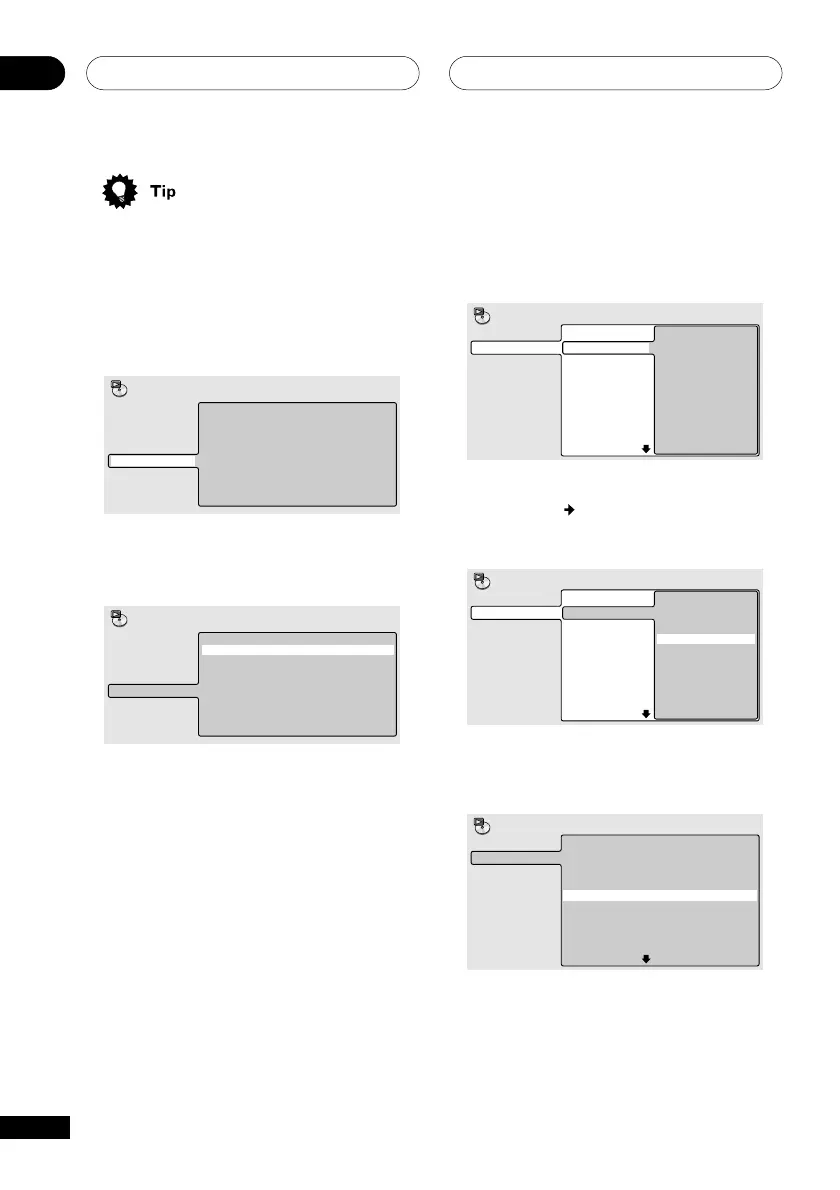
2 Select ‘Program’ from the list of
functions on the left.
Create/Edit
Playback Start
Playback Stop
Program Delete
Program Memory ‰ Off
A-B Repeat
Repeat
Random
Program
Search Mode
Play Mode
3 Select ‘Create/Edit’ from the list of
program options.
Create/Edit
Playback Start
Playback Stop
Program Delete
Program Memory ‰ Off
A-B Repeat
Repeat
Random
Program
Search Mode
Play Mode
The playlist edit screen that appears depends
on the kind of disc loaded.
On the left side is the program list, then to
the right is a list of titles (if a DVD disc is
loaded), tracks (for CDs and Video CDs), or
folder names (for MP3 discs). On the far
right is a list of chapters (for DVD) or track
names (for MP3).
4 Select a title, chapter or track for the
current step in the program list.
For a DVD disc, you can add a whole title, or
a chapter within a title to the program list.
• To add a title, select the title.
Program Step
01. 01
02.
03.
04.
05.
06.
07.
08.
Title 1-38
Title 01
Title 02
Title 03
Title 04
Title 05
Title 06
Title 07
Title 08
Chapter 1-4
Chapter 001
Chapter 002
Chapter 003
Chapter 004
Program
• To add a chapter, first highlight the title,
then press
(cursor right) and select a
chapter from the list.
Program Step
01. 01-003
02.
03.
04.
05.
06.
07.
08.
Title 1-38
Title 01
Title 02
Title 03
Title 04
Title 05
Title 06
Title 07
Title 08
Chapter 1-4
Chapter 001
Chapter 002
Chapter 003
Chapter 004
Program
For a CD or Video CD, select a track to add to
the program list.
Program Step
01. 04
02.
03.
04.
05.
06.
07.
08.
Track 1~12
Track 01
Track 02
Track 03
Track 04
Track 05
Track 06
Track 07
Track 08
Program



 To Next Page