MANAGING RESULTS
PROCLEIX
®
TIGRIS System Operator’s Manual 4-3
Volume I: Operating the Instrument
Part # 902649EN Rev. A
Status Codes
The system automatically assigns status codes to a sample result to signify why it has marked
a test as invalid or to relay other information related to that test. Table 4.2 displays some of the
more common Status codes that might occur. See “Appendix A. Status Codes” for a
comprehensive list of Instrument and Results processing codes.
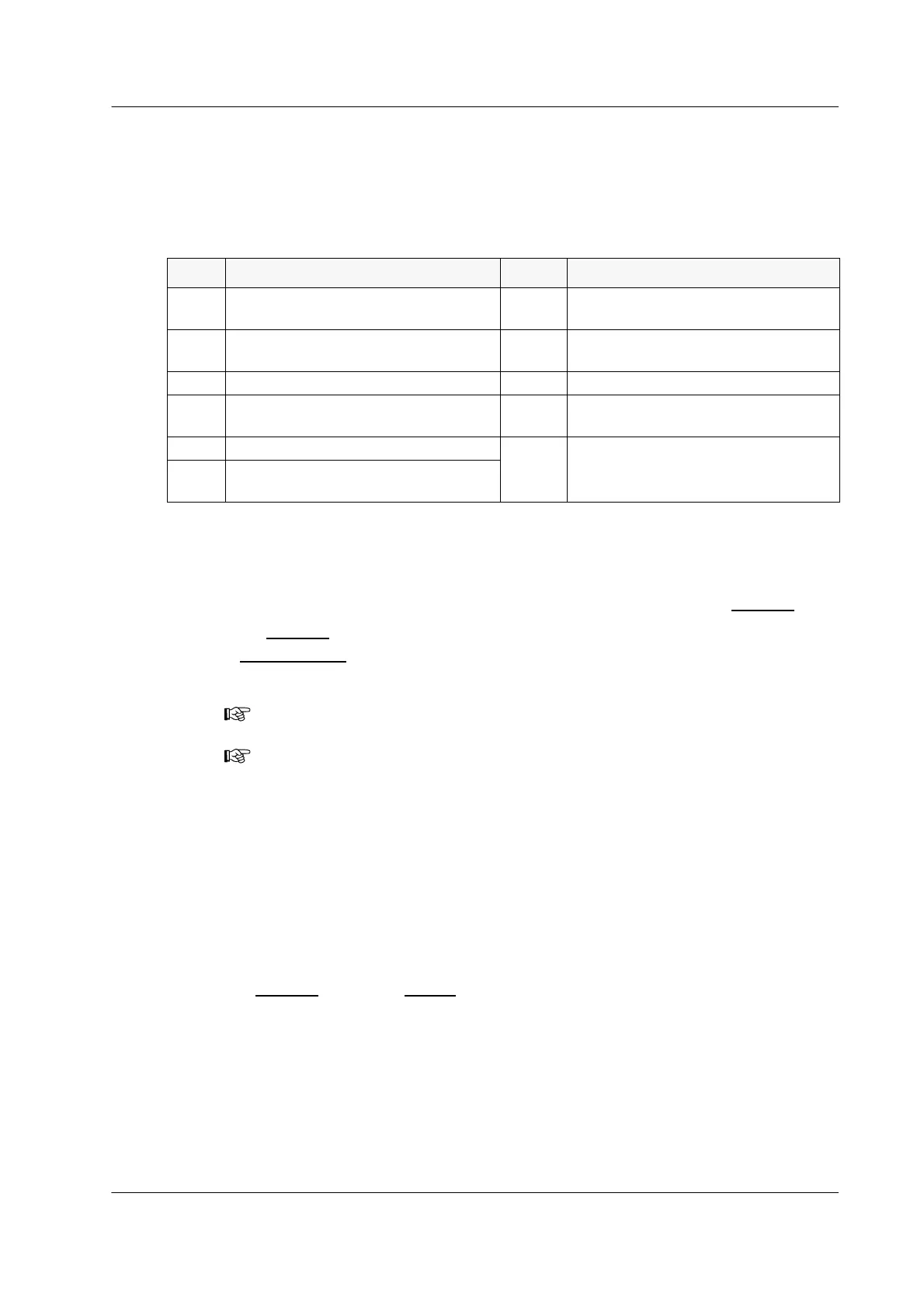
Table 4.2 Common Status Codes
Searching for Worklists
To find a worklist or worklists that fit specific criteria, search the worklists in the Worklists grid.
1. In the Worklists
grid, click Search….
A Results Search
window opens.
2. Choose search criteria as follows:
♦ Run Date – the date range during which the worklists completed processing
♦ Assay – the assay performed on the worklist
♦ Sample ID – the barcode ID of a sample in the worklist
♦ Verification Status – whether the worklist was verified
♦ Transmission Status – whether the worklist results have been saved to a Laboratory
Information System (LIS)
3. Click OK.
The Worklists
grid on the Results screen displays all worklists that fit the search criteria.
4. To return to the full list of completed worklists, click Show All.
Code Description Code Description
M Manually entered barcode ID S
Sample ID barcode manually
scanned
ML
Magnetic wash station level-sense
failure
SPA
Sample processing aborted: sample
pipetting failure
MT Magnetic wash tip not picked up VVFS Volume verification failure—Sample
NTI
Testing incomplete because the
processing run was stopped
VVFT Volume verification failure—TCR
P Assay processing error
x
Invalid result due to PROCLEIX
TIGRIS Control failure
QNS
Sample quantity not sufficient for
processing
Note: All of the search fields are optional.
Note: To clear the secondary sort field, highlight the field and press Delete on the
keyboard.



 To Next Page