WORKABOUT PRO G2 Hand-Held With Windows Embedded CE 5.0 User Manual 43
Chapter 3: Getting To Know Your WORKABOUT PRO G2
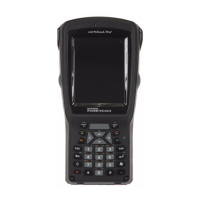
25-Key Keyboard – Accessing Alphanumeric Keys
selected character. To access an alpha character, first press the [ORANGE] key and
then press the numeric key above which the alpha character you want to type is
printed.
Choosing A Single Alpha Character
The examples below illustrate how to access, A, B and C, all of which are printed in
orange characters above the numeric key [2].
Important: The letters you choose appear in the taskbar, providing a visual
indicator of which letter will be displayed on the screen.
To choose the letter a:
• Press the [FN/ORANGE] key, and press the numeric key [2].
Note: To choose the second, third or fourth alpha character assigned to a
numeric key, you may want to lock the [FN/ORANGE] key ‘on’. By
default, the [FN/ORANGE] key is locked ‘on’ when pressed once. How-
ever, depending on how your unit is set up in the ‘One Shots’ tab, you may
find that you need to press the [ALPHA/ORANGE] key twice to lock it
‘on’. Refer to “Keyboard One Shot Modes” on page 92for details.
To choose the second letter in the sequence—in this example, the letter b:
• Lock the [FN/ORANGE] key ‘on’. ‘ORG KEY is displayed in upper-case
characters in the taskbar to indicate that this key is locked ‘on’.
• Press numeric key [2] twice to display the letter b.
To choose the third letter in the sequence—in this example, the letter c:
• Lock the [ALPHA/ORANGE] key ‘on’.
• Press numeric key [2] three times to display the letter c.
Note: Keep in mind that there is a timeout if you pause for one second between
key presses when selecting the second, third or fourth letters on a key. For
example, suppose you want to type the letter ‘c’–you’d need to press the
[2] key three times. With the [FN/ORANGE] key locked ‘on’, if you press
[2] twice and then pause between key presses for 1 second, the letter ‘b’
will be selected automatically.
Creating Uppercase Letters
To display a capital letter:


 To Next Page