9
P/N 016-0171-493 Rev. I 175
Using AccuBoom™
The Select Reference Point will display.
The Reference Point is the point on the vehicle where the field computer will record the selected feature
boundary.
• Left and Right End of Section options set the Reference Point at the left or right end of the
guidance width.
• Center of Section sets the Reference Point at the center of the configured guidance width.
• Antenna Position uses the left/right and fore/aft offset values to determine the DGPS antenna
location.
3. To set the Reference Point, select the option that corresponds to the orientation of the vehicle with respect
to the feature being recorded and then touch the Accept icon.
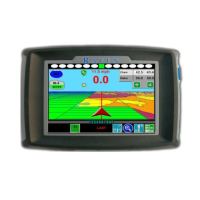
4. The Guidance screen will re-appear and the field computer will begin recording the feature at the selected
Reference Point. On the Guidance screen, a Pause and End icon appear for the feature currently being
recorded.
5. Begin driving along the boundary while keeping the Reference Point aligned with the field boundary. A
yellow path will be created on screen to display the path recorded.
6. Touch the Stop button to finish recording the current feature on the AccuBoom map.
Note: The field computer will close the feature by drawing a straight line from the current vehicle location
to the point were recording of the feature was started. Areas inside and outside of the feature will
be treated accordingly.



 To Next Page
 Loading...