Chapter 9
176 Envizio Pro™ and Envizio Pro II® Installation and Operation Manual
7. Repeat step 2 through step 6 for any additional features.
8. When finished recording features for the AccuBoom map, select the Menu icon and then touch the Accept
button to save the currently displayed AccuBoom map and close the AccuBoom tools menu.
Note: Zone features created while recording a field boundary will not appear until the Save and Close
icon is selected from the AccuBoom Tools Menu.
AccuBoom™ Zone Map Examples
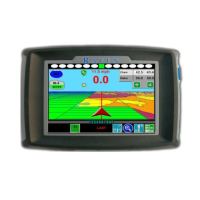
The following screens are examples of AccuBoom maps displayed on the field computer.
FIGURE 1. Field Review Mode While Recording a Boundary
FIGURE 2. Field Review Mode with Completed AccuBoom™ Field Boundary and No-Spray Zone



 To Next Page
 Loading...