Chapter 2
8 Envizio Pro™ and Envizio Pro II® Installation and Operation Manual
Front Panel
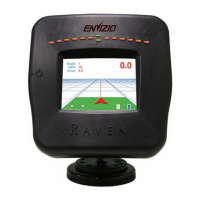
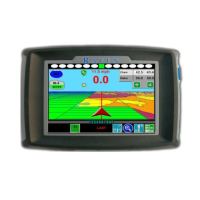
The front panel of the Envizio Pro features a touch screen for operator input, the power button and also
provides convenient access to a USB port for file transfer and software updates.
FIGURE 2. Envizio Pro User Interface
Resistive Touch Screen Technology
Resistive touch screen technology offers clear visibility across a range of lighting conditions and even in direct
sunlight while the touch screen functionality places menus and options literally at the operator’s finger tips.
Icon Based Operation
Operation of the field computer can be done at a glance due to the icon based interface. Easily recognizable
icons allow the operator to quickly select features or use functions without diverting attention from other
important operations.
NOTICE
Failure to close a job before turning the
console’s power off may result in a loss of
information for that job. Make sure to properly
close any open jobs before powering down the
field computer.
CAUTION
Do not use sharp objects, such as ball point
pens, pocket knives, screwdrivers, etc. on the
Envizio Pro display.
Power
USB Port
Touch Screen



 To Next Page
 Loading...