NOTES:
• At the time of installation, the installer designates the codes to be either 4 or 6 digits in
length. If defined as 6 digits the length apply for everybody – all users and
installer/sub-installer, however if defined as 4 digits then the Grand Master, installer,
and sub-installer must have 4-digit codes, while the other system users can codes of
various lengths, from 1—4 digits.
• Other than the Grand Master, some users (according to their authority levels) can
change their own codes – see Table of User Authority Levels, page 15.
• After the Grand Master enters a code, for reasons of confidentiality, the digits will not
be visible, but will display with asterisks (****). The number of asterisks that display
represent the code length.
• You can also define user codes with the Web User Interface.
Creating or Editing User Codes
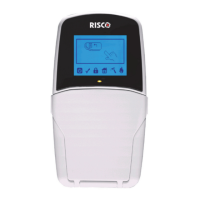
➢ To create or edit a user code from a wired keypad:
1. If not known, find out from the installer what the code length requirement is for system
users.
2. Enter your Grand Master or user code, and then press OK.
3. Scroll to the Codes/Tags menu, and then press OK.
4. At Define press OK.
5. Scroll to one of the available user index numbers (User 001—499), or scroll to Grand
Master, and then press OK.
6. At Edit Code (for Grand Master) or at Edit My Code (for other users), press OK.
7. Enter a unique code, and then press OK; a single beep with ACCEPTED displaying
indicates a successful code designation, while 3 beeps with REJECT CONFLICT
displaying, which indicates an unsuccessful code designation.
8. If not defining a label, press Exit.
9. [Grand Master only]: To define a label (name/description), scroll to Edit Label and press
OK.
10. For instructions on editing a label, see Creating or Editing Labels, page 19. When finished,
press OK, and then repeat the procedure for defining additional user codes.


 To Next Page