➢ To define and enroll Proximity tags:
1. Enter your Grand Master code, and then press OK.
2. Scroll to the Codes/Tags menu, and then press OK.
3. At Define press OK.
4. Scroll to the user index number (001—499) for which you will define a Proximity tag – or
scroll to Grand Master to define your Proximity tag, and then press OK.
5. To give a label (name/description), scroll to Edit Label and press OK. Now define the
label (see Creating or Editing Labels, page 19).
6. Scroll to (Re)Write Tag, and then press OK.
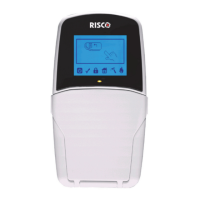
7. Within 10 seconds, hold the tag about 2 cm (1 inch) directly above the keypad's built-in
Proximity sensor; DEFINED FOR RF ID displays and the keypad sounds a beep,
indicating the successful registration of the tag.
NOTE: If a Proximity tag is already registered to another user, USER TAG ALREADY
IN MEMORY displays.
Enrolling My Own Proximity Tag
➢ To enroll your own (non-Grand Master) Proximity tag:
1. Enter your user code, and then press OK.
2. Scroll to Codes/Tags, and then press OK.
3. To enroll your Proximity tag, scroll to Write My Tag, and then press OK.
4. Within 10 seconds, hold your tag about 2 cm (1 inch) directly above the keypad's built-in
Proximity sensor; DEFINED FOR RF ID displays and the keypad sounds a beep,
indicating the successful registration of the tag.
NOTE: If the Proximity tag is already registered to another user, USER TAG ALREADY
IN MEMORY displays.


 To Next Page