• Check that all zones are ready to be armed (no open zones) –view the
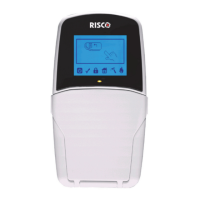
READY indicator on the keypad (see Keypad Indicators, page 87)
• Check for system troubles. It is good practice to scroll through and view all
troubles, whether or not your system is configured to require viewing them
before arming.
CAUTION: Depending on the system configuration, you may be able to arm the system
while bypassing all (or specific) open zones, and/or arm while overriding system troubles,
however, depending on the circumstances these arrangements may compromise the level of
protection that the system offers.
Arming Procedures
• For arming/disarming via SMS, see Operating Remotely by SMS, page 33
• For arming/disarming via iRISCO and Web User Interface, see the respective
applications.
Full ("Away") Arming
Full arming requires that all of the premises be vacated.
➢ To fully arm the system:
1. Verify that the premises are vacated, and that the system is ready to be armed (view the
READY indicator).
2. If not ready to arm, secure (or bypass) any open zones see Bypassing Zones (Arming with
Manually-Bypassed Zones), page 56 and also Forced Arming (Arming with Automatically-
Bypassed Zones), page 55.
3. If unable to arm, scroll to view system trouble messages, and resolve accordingly. If
installer-defined, you can arm while overriding all current troubles (see Arming with
System Troubles, page 55).
4. Perform the following arming procedure in the table below.
NOTES:
• If you enter your code incorrectly, three short beeps will sound. Re-enter the code.
• Keyfob and remote control buttons can have different functions and are
installer-defined.
• Proximity arming is installer-defined, and can vary per system user.


 To Next Page