Web-based Configuration Guide System Settings
162
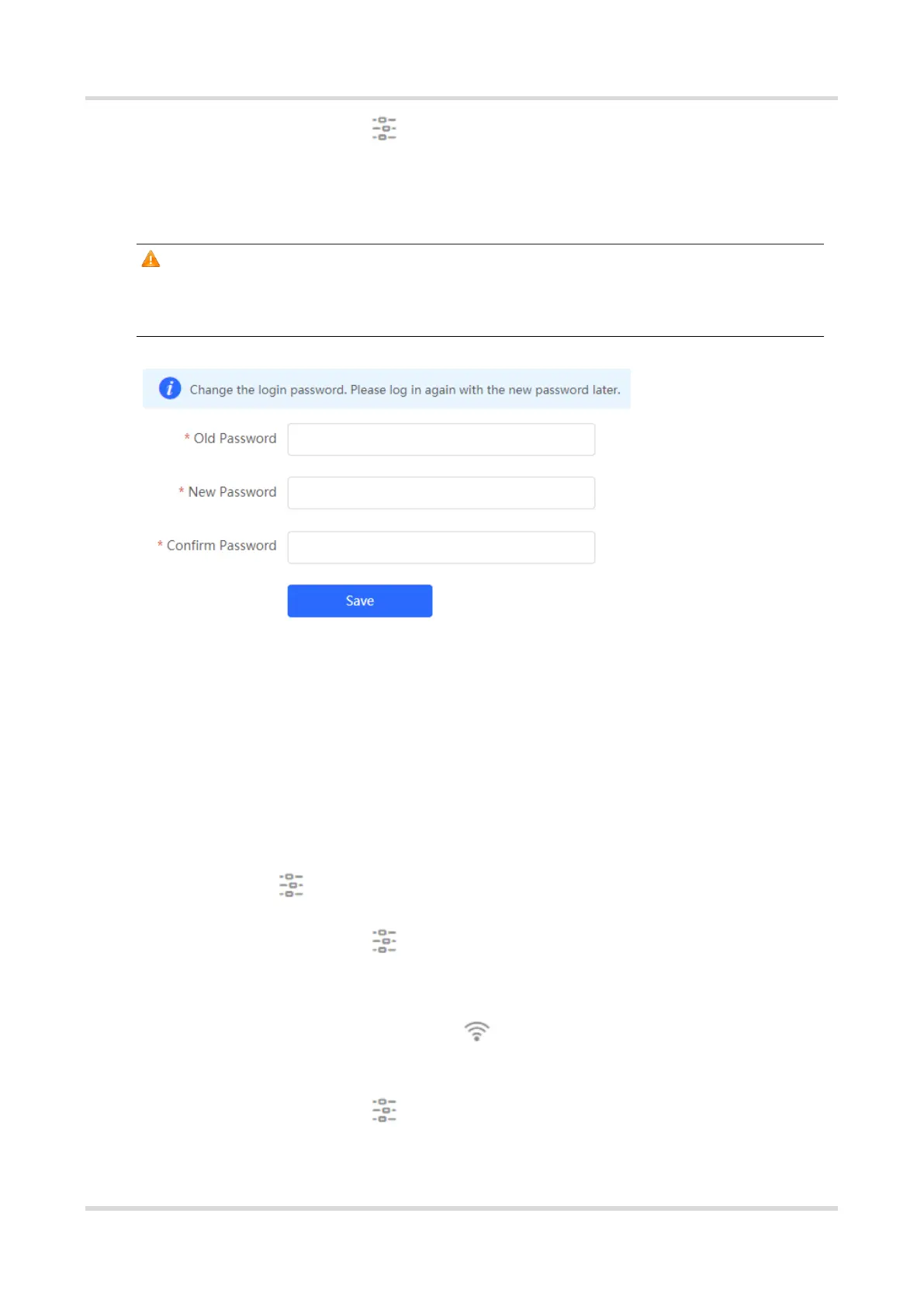
In standalone mode: Choose System > Login > Login Password
Enter the old password and new password. After saving the configuration, use the new
password to log in.
Caution
In self-organizing network mode, the login password of all devices in the network will be
changed synchronously.
5.4 Setting the Session Timeout Duration
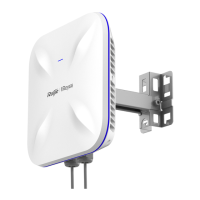
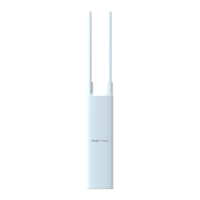
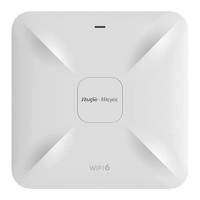
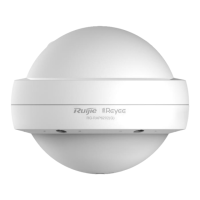
For RG-RAP2260(G), RG-RAP2260(E), RG-RAP6260(G), RG-RAP6262(G), RG-RAP2260(H), RG-
RAP6260(H), RG-RAP6260(H)-D, RG-RAP2266, RG-RAP2260, RG-RAP1261, RG-RAP1260 and
RG-RAP6262 models:
If the device works in self-organizing network mode, and Local Device mode webpage is
displayed, choose System > Login
In standalone mode: Choose System > Login > Session Timeout
For other RAP models:
In self-organizing network mode: Choose WLAN > APs > Manage > System >
Login > Session Timeout
In standalone mode: Choose System > Login > Session Timeout



 To Next Page
 Loading...