Troubleshooting
Pleasemakesureyoualwaysusethelatestfirmwareversion.
DoNOTunplugtheopenSPOT3duringthefirmwareupgrade!
Ifyoucan'tfindananswertoyourissue,thenpleasesendanemailtous,oraskhelpinourcommunityforum!
Thewebinterfacecan'tbeopened
UseSharkRFLinktoopenthewebinterface.
SharkRFLinkdoesnotopentheopenSPOT3webinterface
Makesureyourwebbrowserdevice(phone/tablet/computer)isconnectedtothesameWi-Finetworkthe
openSPOT3isusing.
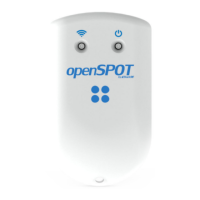
CheckiftheopenSPOT3isconnectedtotheWi-Finetworkbylookingatit'sstatusLED.PleaseseetheLED
statessectionforpossiblestatusLEDstates.IftheopenSPOT3isnotconnectedtotheWi-Finetworkaccordingto
thestatusLED,seethenexttroubleshootingquestion'sansweronhowtosetuptheopenSPOT3'sWi-Fi
connection.
ChecktheWi-FiclientisolationinyourWi-Firouter'ssettings.Itshouldbeturnedoff.
TheopenSPOT3can'tconnecttotheWi-Finetwork
PleasefirstcheckthestatusLED'scoloronthedevice.YoucanseethelistofLEDstatesonthispage.The
openSPOT3can'tconnecttotheWi-FinetworkonlyifthestatusLEDispulsatingblueforalongerperiodoftime
(atleast2-3minutes).IfyouseeotherstatusLEDcolorsthanblue,thentheissueisnotwithconnectingtothe
Wi-Finetwork.
YoucanreconfiguretheWi-FiconnectionifyouswitchbacktheopenSPOT3toaccesspointmodeby
pressingthebuttonfor3seconds.
TheopenSPOT3willstartbroadcastingit'sownWi-FinetworkcalledopenSPOT3AP,indicatedbywhite
statusLED.Youcanconnecttothisnetworkusingyourbrowserdevice(phone/tablet/computer).Placeyour
browserdeviceclosetotheopenSPOT3duringthis.Theinitializationsetupwillpopup,whereyoucanselect
thecountryofoperationandconfigureaWi-FinetworkfortheopenSPOT3toconnectto.Iftheinitialization
setupwon'topenautomatically,thenyoucanopenitbyenteringhttp://192.168.99.1/intothewebbrowser
whileyourbrowserdeviceisconnectedtotheWi-FinetworkopenSPOT3AP.
Makesureyou'veenteredtheWi-Fipasswordcasesensitive.
Afteryou'vechosentheWi-Finetworkandenteredthepassword,theopenSPOT3stopsbroadcastingit's
ownWi-Finetworkandstartsconnectingtotheselectednetwork.Atthatmoment,yourbrowserdevice
(phone/tablet/computer)willdisconnectfromtheopenSPOT3'snetwork.Whatyouhavetodonowisto
connecttotheexactsameWi-Finetworkwithyourbrowserdeviceasyou'veconfiguredfortheopenSPOT3.
IfyouhaveWEPencryptiononyourrouter,thenmakesurethepasswordisinASCII,nothex.The
openSPOT3onlysupportsASCIIWEPpasswords.ThebestistoswitchtheencryptiontoWPA2orWPA
becauseit'smuchsafer.
Makesureyouhaveenabled2.4GHzWi-Fi,notjust5GHz.
PlacetheopenSPOT3closetotheWi-Firouter.
MakesuretheWi-Fibandwithissettomax.20MhzintheWi-Firouter(seeexplanationhere).
Ifitstilldoesnotwork,tryswitchingWi-FichannelonyourWi-Firouter.Onlychannels1,6or11shouldbe
used(seeexplanationhere).


 To Next Page