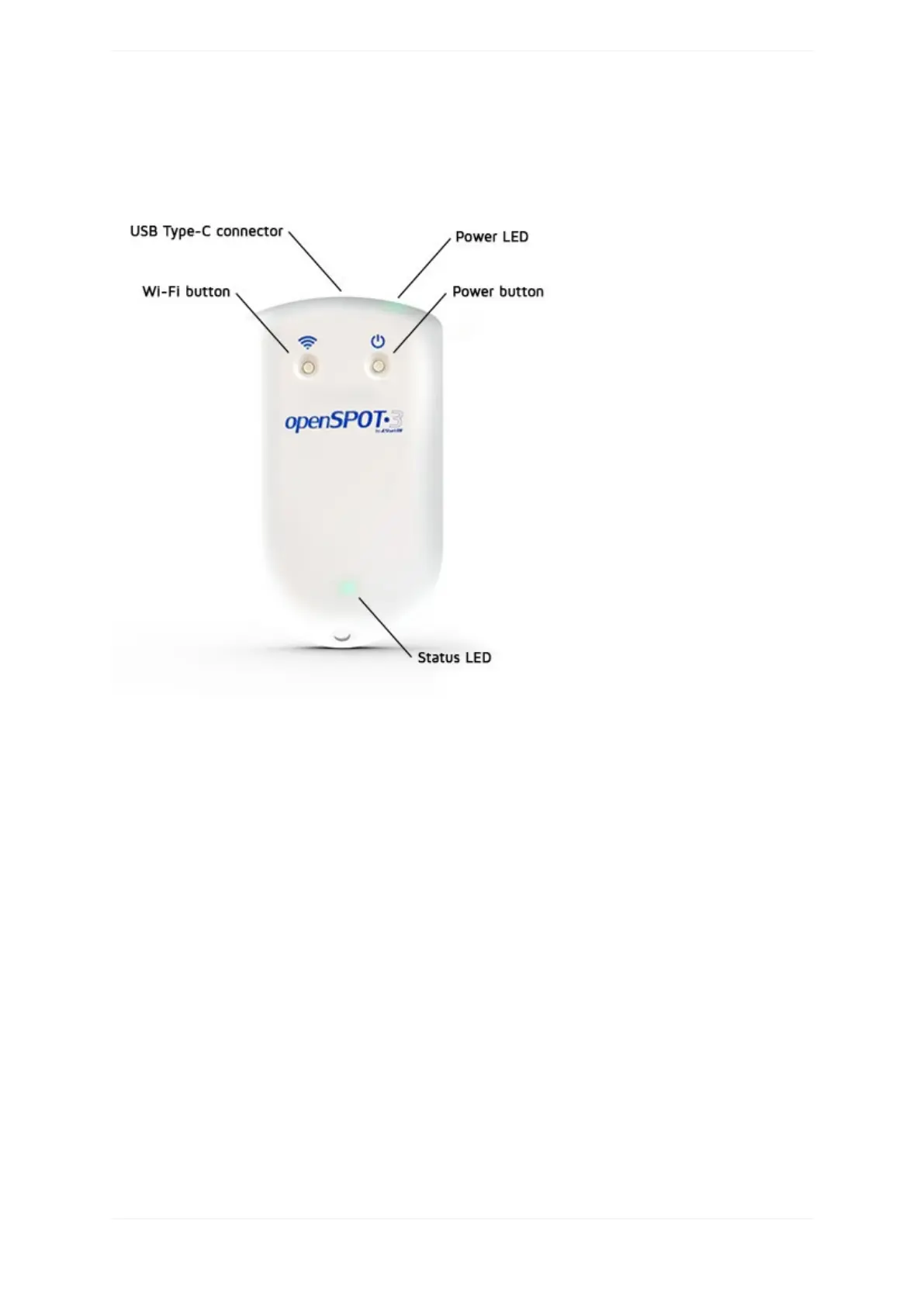
Buttonusage
Pleaseonlyuseyourfingers,oraballpointpentopressthebuttons.Don'tusesharpitemslikeaneedle!
Powerbutton
Youcanturnon/offthedevicebypressingthepowerbuttonforafewseconds.Thedevicerebootsifthepower
buttonisheldmorethanabout7seconds.
IftheopenSPOT3isturnedon,thenthepowerLEDwillblinkwhitewhilethepowerbuttonisheld.Theblink
intervalindicateshowmuchtimeisleftuntilthepowerbuttonpressisconfirmed.Confirmationisindicatedby
twoshortwhitepowerLEDblinksandanaudiblebeep(ifthebeeperisenabled).Therewillbenoconfirmationif
thepowerbuttonisheldmorethanabout7seconds(hardreset).
Ifyoupressthepowerbuttonforashorttime,thenthepowerLEDwillimmediatelysignalthecurrentcharge
level.
Notethatabout5-10secondshavetopassafterturningoffthedevicebeforeitcanbeturnedonagain.
PressthePowerbutton3timesquicklyandtheopenSPOT2willbeeptheletterPfollowedbythecurrentlyactive
profilenumberandtheprofile'snameinMorsecode.
Wi-Fibutton
HoldtheWi-Fibuttonforatleast3secondstoswitchtheopenSPOT3betweenWi-Fiaccesspoint(AP)modeand
normalmode.



 To Next Page