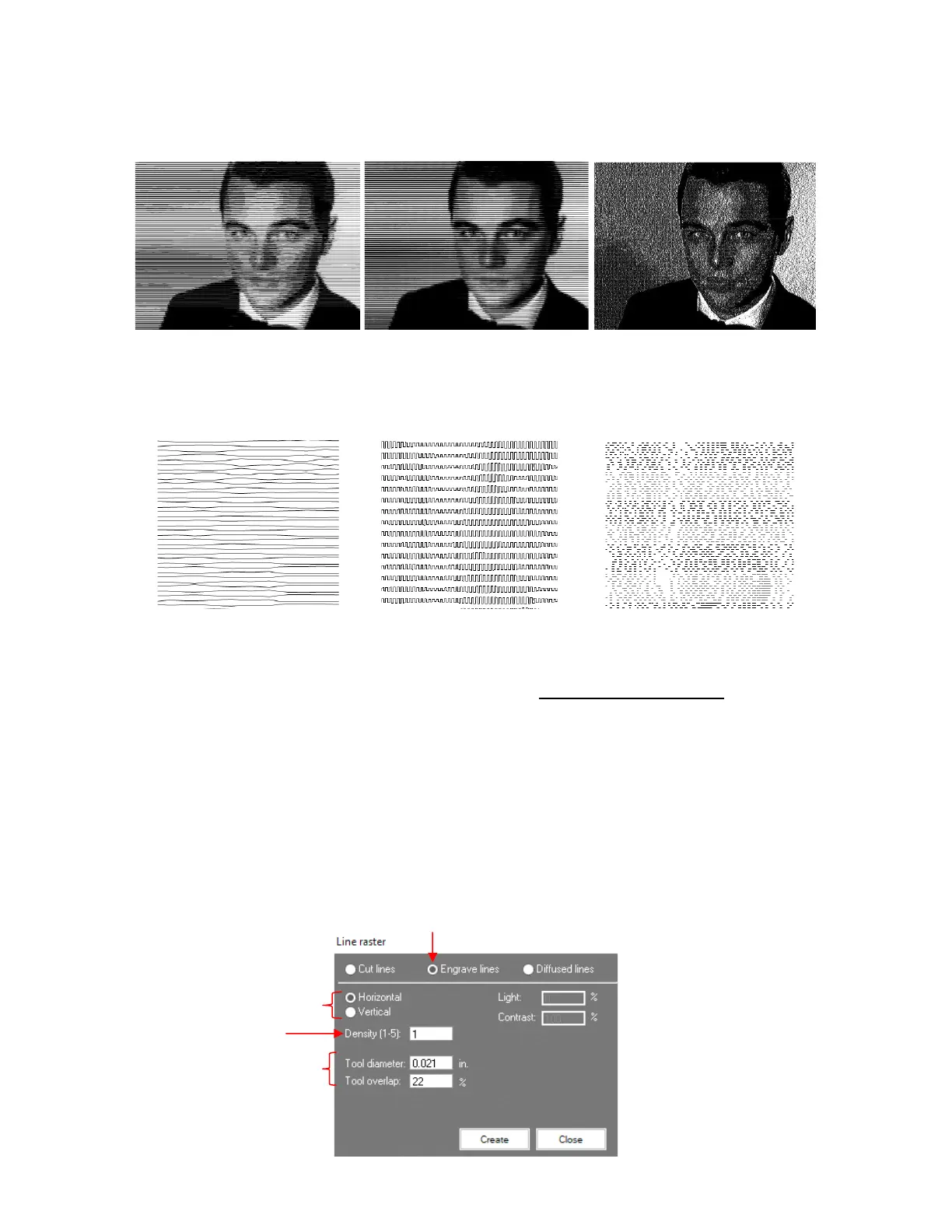
The three Application options create three different types of patterns, as shown here:
When zoomed in at ~200%, and with Show Fill turned off, you can see the differences in the type of
vector “cuts” that will be made.
After selecting the desired Application and entering appropriate settings, click on Create. Depending
on the settings chosen and the size of the bitmap image, it can take quite some time to generate the line
pattern. It’s often best to do something else while waiting: make a cup of coffee, respond to a few
emails, pet your dog.
Once the line pattern is created and the window is closed, the image on the screen will still have the
imported raster visible. Hide the raster, as needed, to view the results of the trace.
• The Engrave lines option is further described here as it is used in scratch engraving applications. It can
also be used with other tools such as pens and markers. Note: The other Line raster options are covered
in the SignCut user manual.
• With the Engrave lines option selected, the settings are as follows:



 To Next Page