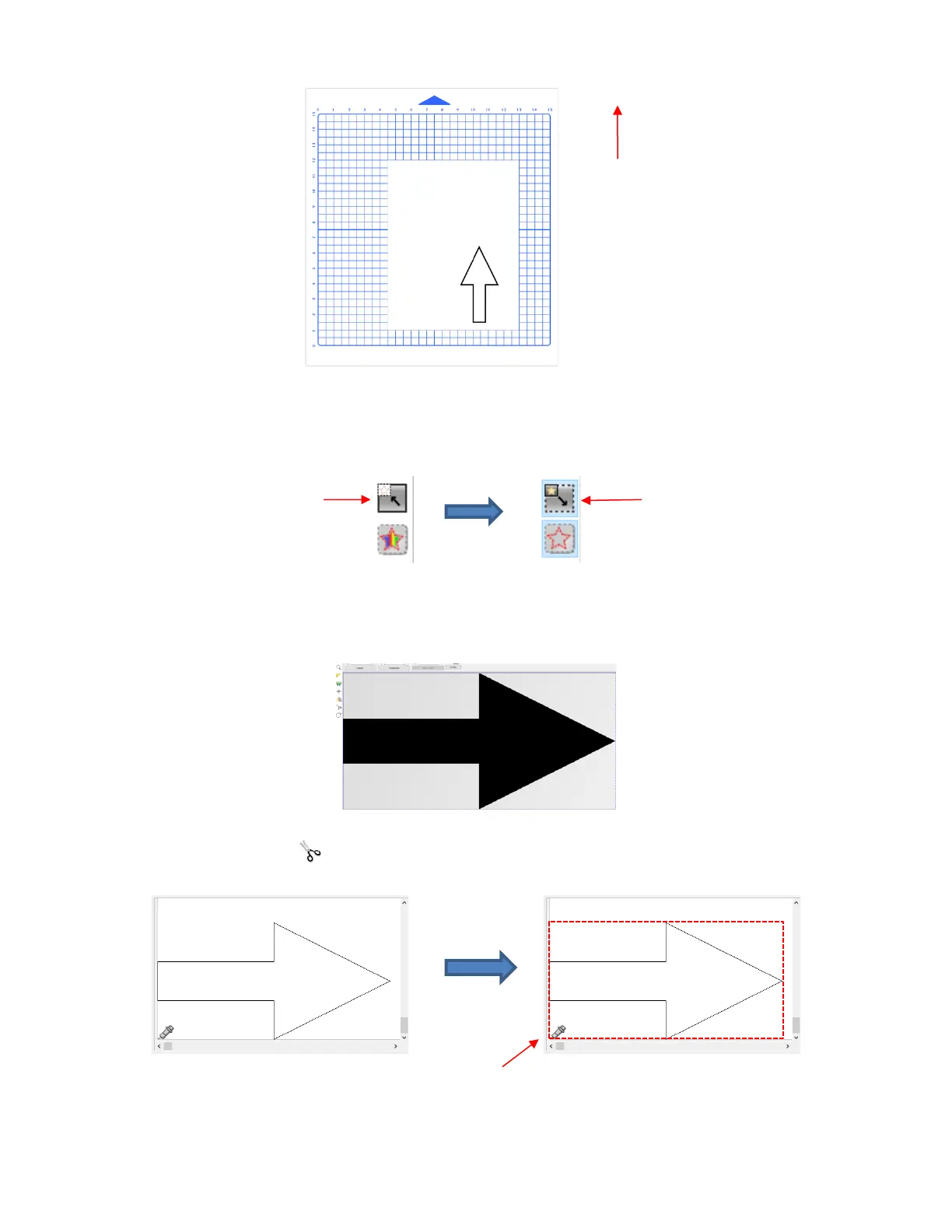
• You’ll note that the arrow is drawn in the same location as it was positioned in the Work Area. Often,
however, users will prefer to save on material and have shapes cut as close as possible to the origin set on
the material. To do this, click on the top icon on the right-side Color toolbar to switch from Whole area
mode to Optimized mode:
• You’ll note that the shape now fills the Work Area boundary. However, the arrow is still the same size. It’s
just been enlarged on the screen the new Work Area is the bounding box around that shape instead of the
Letter size originally selected in SignCut Draw:
• Click on the Cut out icon and you’ll observe that the boundary around the shape is now aligned with the
origin:
• Draw with this setting and the arrow is now moved to the origin:



 To Next Page