• The Scale Calibration results can be stored on the Skycut’s control panel instead of within SignCut Pro. To
do this, you’ll need to calculate the actual scaling value based on the results you ended up entering in
SignCut Pro.
Millimeters:
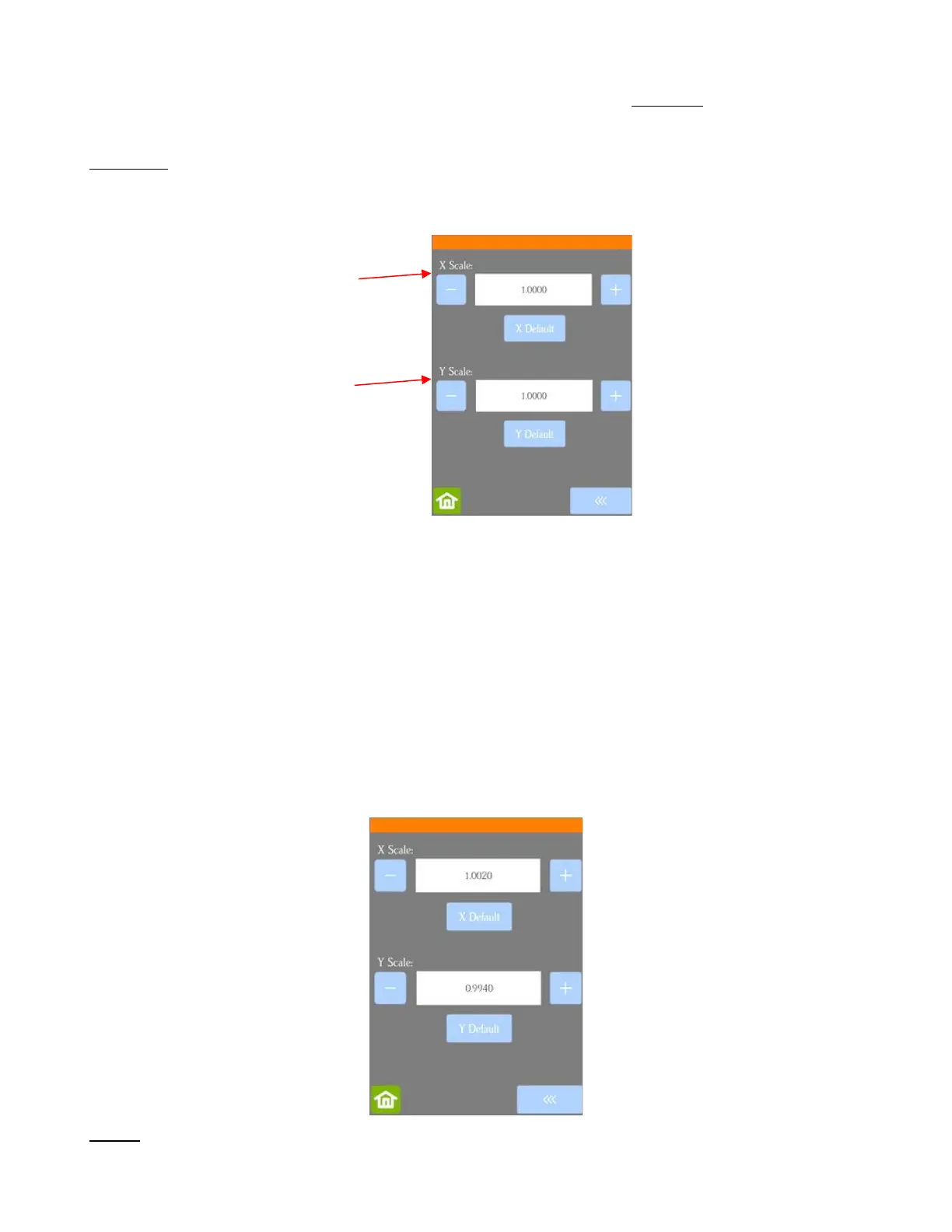
• On your Skycut control panel, go to Set>Advanced Settings> Scale. The following window opens where
you can verify that the current X Scale and Y Scale values are both set to 1.0000:
• Use a calculator to calculate the X Scale and Y Scale based on the measurements you obtained:
New X Scale = Width of the square in design divided by the measured width
= 250 / 249.5
= 1.0020
New Y Scale = Height of the square in design divided by the measured height
= 250 / 251.5
= 0.9940
• Return to the Scale screen (Set>Advanced Settings>Scale) and use the + and – buttons to enter these
calibrations:
Inches:
• On your Skycut control panel, go to Set>Advanced Settings> Scale. The following window opens where
you can verify that the current X Scale and Y Scale values are both set to 1.0000:



 To Next Page