33 34
The blue or LED turns on (depending on the type of device you
have connected), and the
Connect
so key changes to
Discon’ct
.
Note: The C520 can use only the rst two Bluetooth devices on the Device list
for calls (as shown by the Device 1 and Device 2 so keys on the Idle screen. See
"Idle screen" on page 11 for informaon about the Idle screen). For example,
if you highlight Device 3 on the Device list and then press
Connect
, the C520 will
move that device up the Device list to make it available for calls. The device that
occupied the Device 1 or Device 2 posions will move down the Device list.
Deleng a device from the Device list
1. On the Device list, press p or q to highlight the device you want to delete.
2. Press
Delete
.
The message Remove [device] from device list? appears.
Note: The device must be disconnected before the
Delete
so key appears.
3. Press
Yes
.
The message Device removed appears. If you want to use this device with the
C520 in the future, use the Add device menu to add it.
Renaming a device on the Device list
1. On the Device list, press p or q to highlight the device you want to rename.
This name will appear on the Device list and on the so key on the Idle screen
used to acvate the device. Names between 1 and 8 characters will best t the
space available on the so key.
2. Press t or u to display the
Rename
so key, and then press
Rename
.
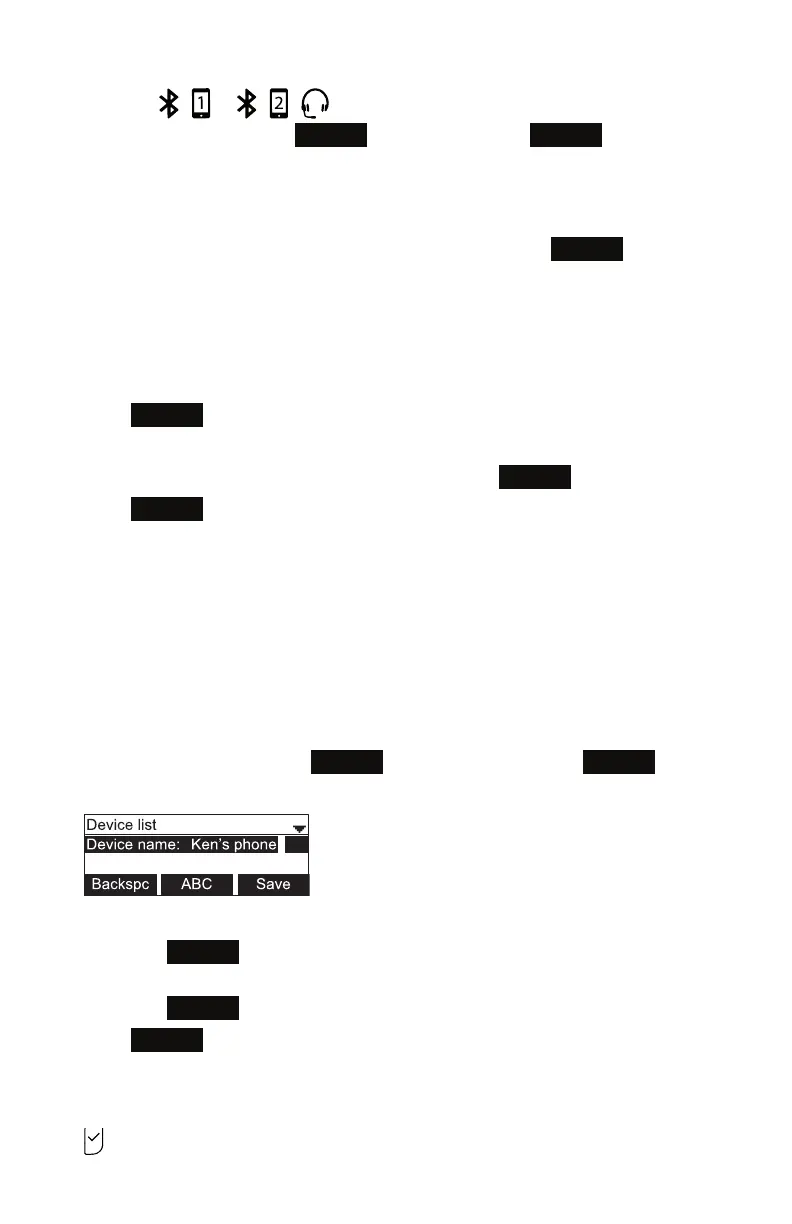
The renaming screen appears.
3. Use the dial pad keys to edit the device name.
• Press
ABC
to switch between entering upper-case leers, lower-case
leers, and numbers.
• Press
Backspc
to delete characters.
4. Press
Save
.
Adding a new cell phone:
1. From the Bluetooth menu, press p or q to highlight Add device and then press
.
Phone Features



 To Next Page