17
From the On hold screen, you can press:
• t and u to see the dierent sokeys available.
•
End
to end the call.
•
New
to dial a new call.
•
Resume
to take the call o hold.
•
Transfer
to transfer the held call to another party.
•
Conf
to start a conference with the held call.
Note that the default On hold screen so keys are shown above. Your phone’s so
keys are programmable and may dier from what is shown here.
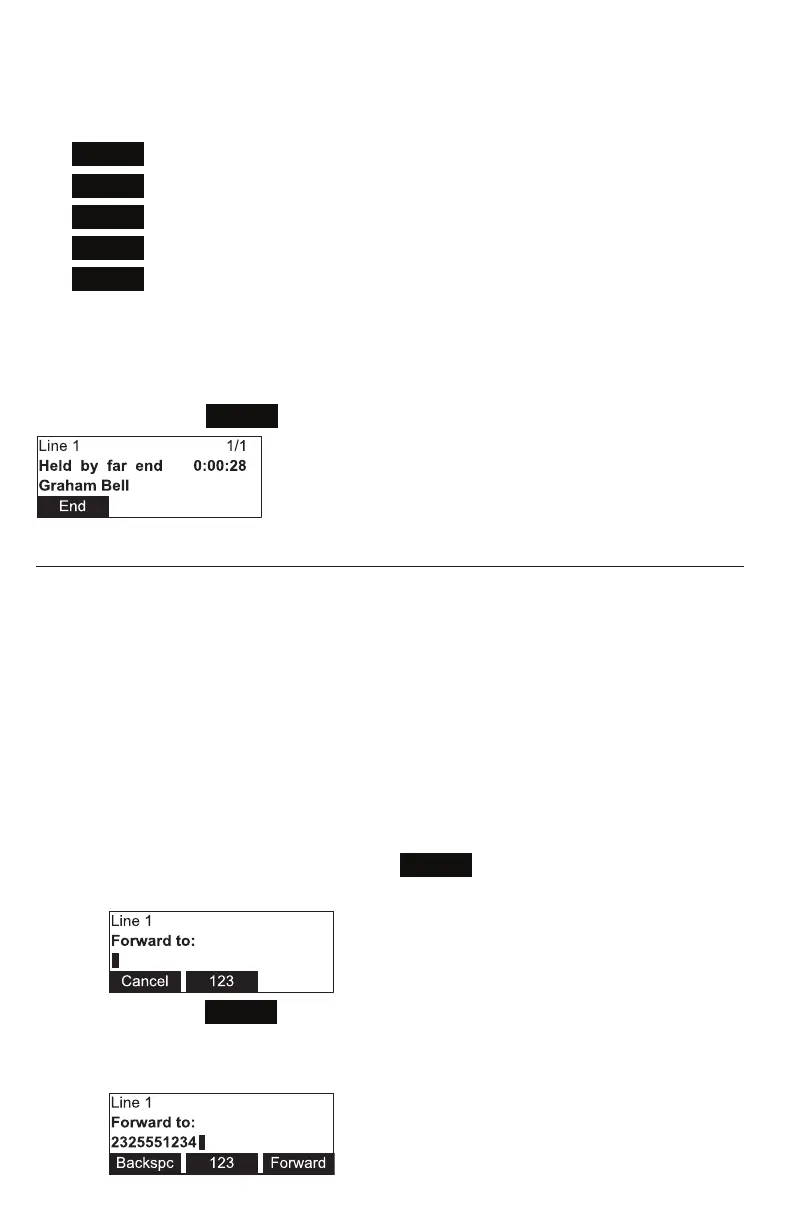
If another party puts you on hold, you may see the message Held by far end.
This message depends on compability between phones and PBX types, and may not
always appear. Press
End
to end the call.
Forwarding calls
You can forward an incoming call to another number, either by entering the number
yourself, or by selecng a number from the directory or call history (the call history
stores the numbers for missed calls, received calls and dialed calls).
Note: Your phone’s Call Forward–No Answer seng will cancel the manual forwarding
process if it takes eect rst. For example, your phone may be set to forward calls to
voicemail aer a call rings for 10 seconds, before you can reach the phone to forward
the call yourself. If you have problems forwarding calls because of the Call Forward–No
Answer seng, you can extend your Call Forward–No Answer delay. See "Using the Call
menu" on page 29.
To forward a call using manual entry:
1. With an incoming call ringing, press
Forward
.
The phone stops ringing and the Forward to screen appears.
If you press
Cancel
, the phone begins ringing again and the incoming call
screen reappears.
2. Enter the number to which you want to forward the call.
Conference phone operaon



 To Next Page