35
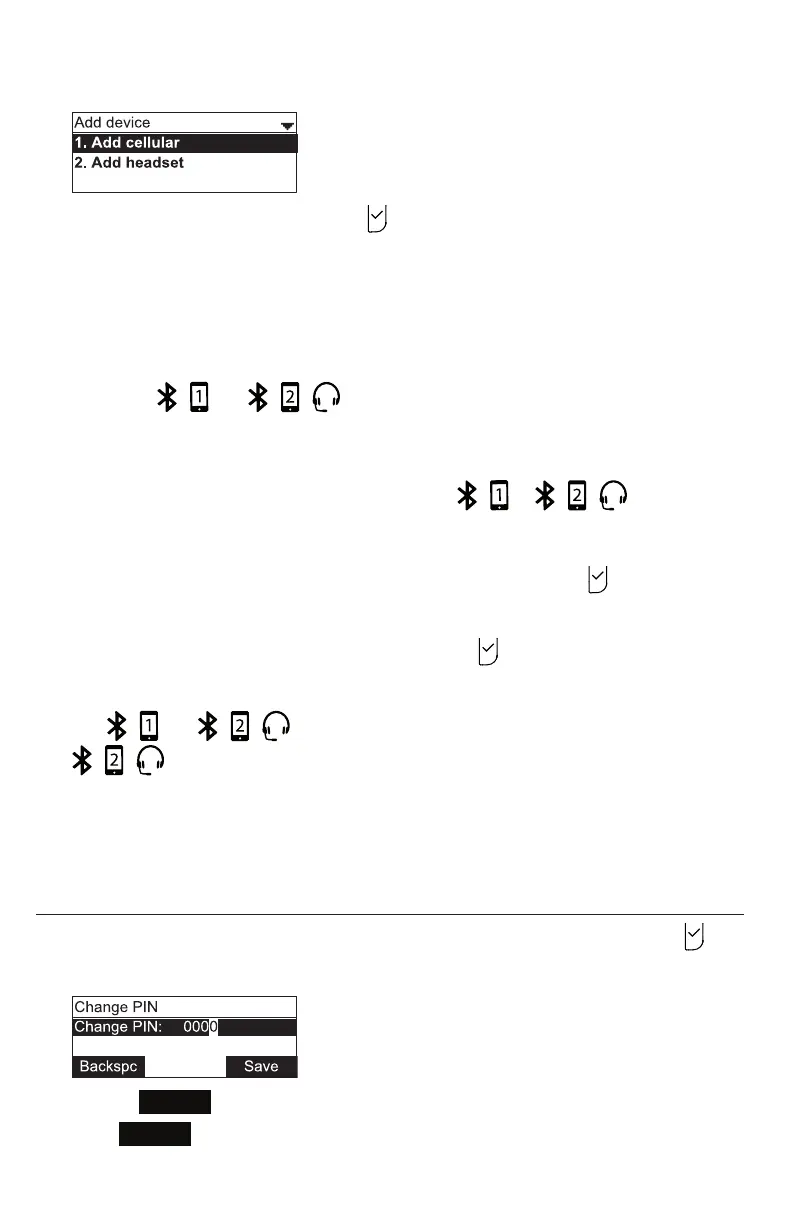
The Add device menu appears.
2. With Add cellular highlighted, press .
3. Follow the instrucons on the C520 screen.
4. Open the Sengs menu on your cellular phone and acvate Bluetooth. Ensure the
phone searches for new Bluetooth devices.
Note: Methods for acvang Bluetooth may vary depending on your phone’s
operang system.
5. When the and LEDs ash on the C520, select C520 on your
phone’s list of available Bluetooth devices.
6. If prompted by your phone, enter the C520 PIN. The default PIN is 0000.
Aer the device connects, the applicable C520 or LED turns on.
Adding a new headset
1. From the Bluetooth menu, highlight Add device and then press .
The Add device menu appears.
2. Press q to highlight Add headset, and then press .
3. Follow the instrucons on the C520 screen.
The and LEDs ash on the C520. Aer the headset connects, the
LED turns on.
Note: Once you have added a device, the device stays paired with the C520. Even
when your Bluetooth device is taken away or turned o, the C520 will reconnect to the
device when it is again within range and turned on with Bluetooth enabled.
Changing the C520 PIN
1. From the Bluetooth menu, press q to highlight Change PIN and then press .
The Change PIN menu appears.
2. Use the
Backspc
so key and the dial pad to edit the four-digit PIN.
3. Press
Save
.
You will enter this PIN on your Bluetooth device when pairing it with the C520.
Phone Features



 To Next Page